Password and two-step login
Change your password, add a second step to your login, and review who has signed in.
Change your password

- Open Change password from your profile menu (in the app, More → your picture → Change Password).
- Enter your current password, then the new password twice.
- Press Change password.
Two-step login
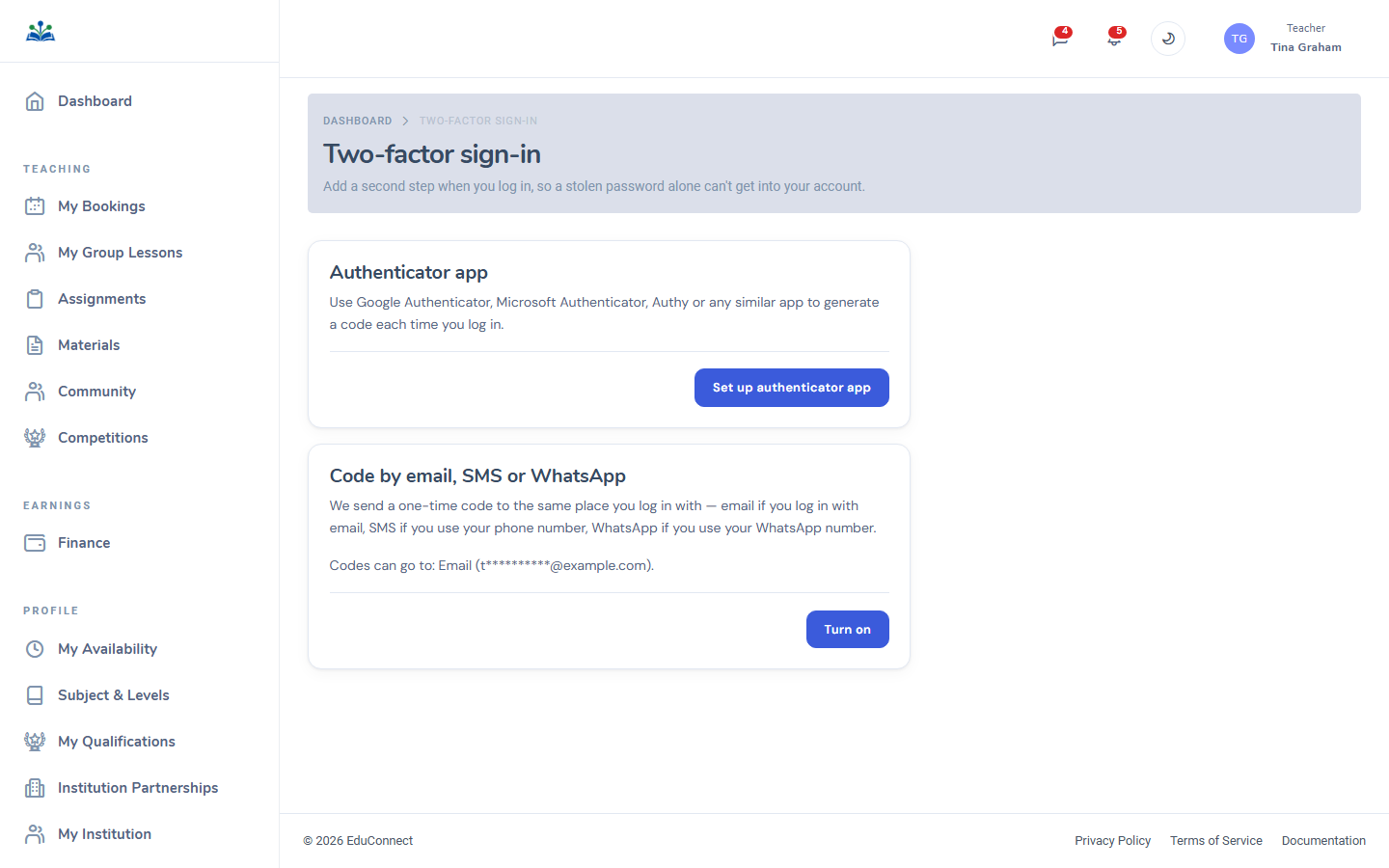
Two-step login adds a second code when you log in, so a stolen password alone cannot get into your account. This matters for you because your account holds money (your balance and your withdrawals).
| Option | How it works |
|---|---|
| Authenticator app | Use Google Authenticator, Microsoft Authenticator, Authy or a similar app. It shows a new code each time you log in. Press Set up authenticator app and follow the steps. |
| Code by email, SMS or WhatsApp | A one-time code is sent to the same place you log in with: email if you log in with email, SMS for a phone number, WhatsApp for a WhatsApp number. Press Turn on. |
Tip
Turn on two-step login before your first withdrawal.
Login activity
In the mobile app, More → your picture → Login Activity shows every sign-in to your account, so you can spot one that is not yours. If you see one, change your password at once.
Comments
Log in to read and add comments on this page.
Log in