Assignments (homework)
Post homework against a lesson, reuse an earlier assignment, and grade what students hand in.
You can set homework for a student you teach. Assignments are always linked to one of your bookings.

The Assignments page lists them with the student, the subject, the type, the due date and a status such as PENDING. Open one to view, edit or grade it.
Post an assignment
- Open a booking from My Bookings and find the Assignments box.
- Press Post assignment.
- Fill in the form and press Post assignment again.
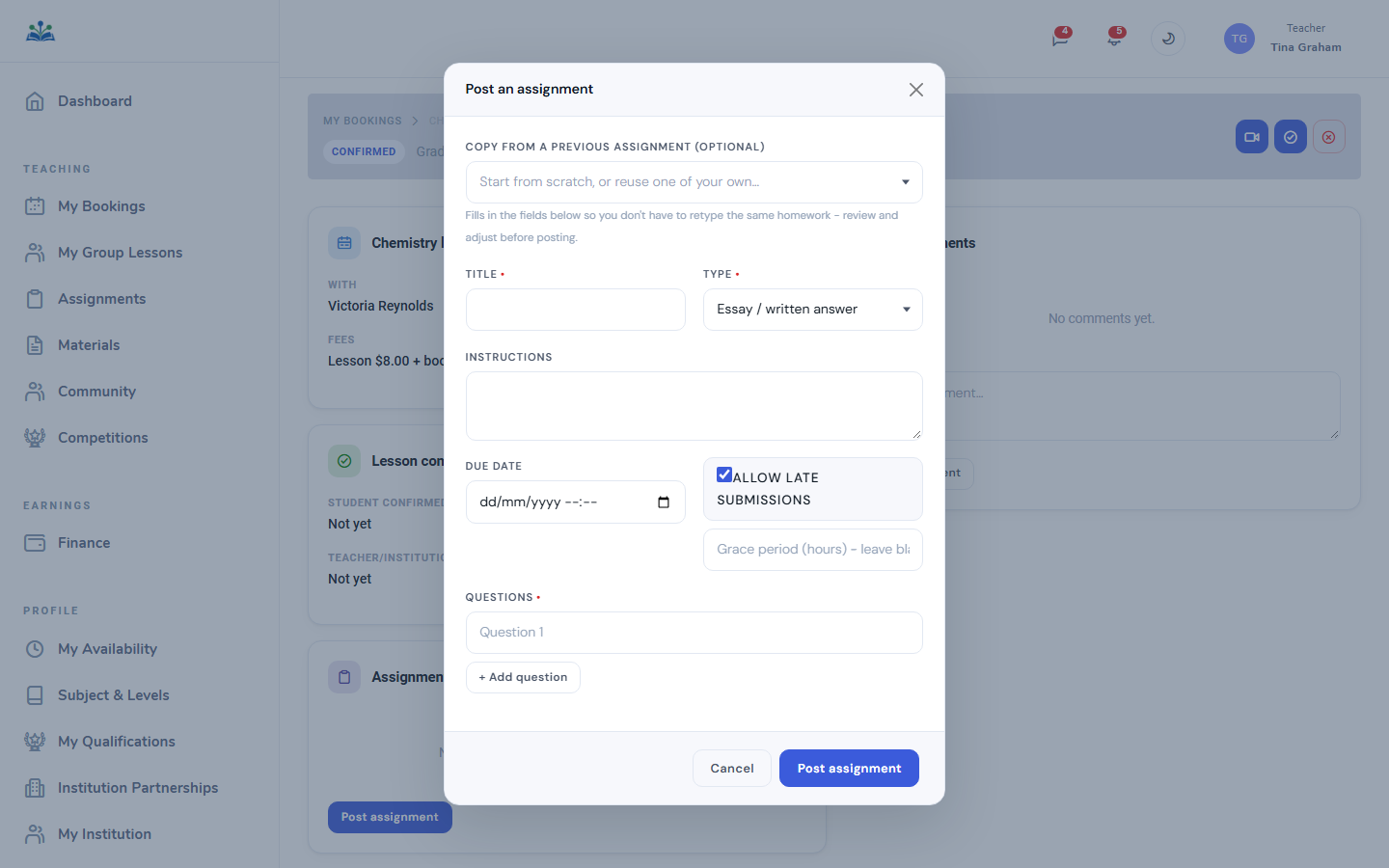
| Field | What to enter |
|---|---|
| Copy from a previous assignment | Optional. Pick one of your own earlier assignments to fill in the fields, then adjust. It saves retyping the same homework. |
| Title | A clear name, for example Chemistry homework. |
| Type | Essay / written answer, Multiple choice or File upload (the student uploads a document or photo). |
| Instructions | What the student must do. |
| Due date | When it is due. |
| Allow late submissions | Whether the student may hand it in after the due date, and for how long. With no due date, nothing is ever late. |
| Questions | Press + Add question to add questions (used for multiple-choice and written questions). |
Grade a submission
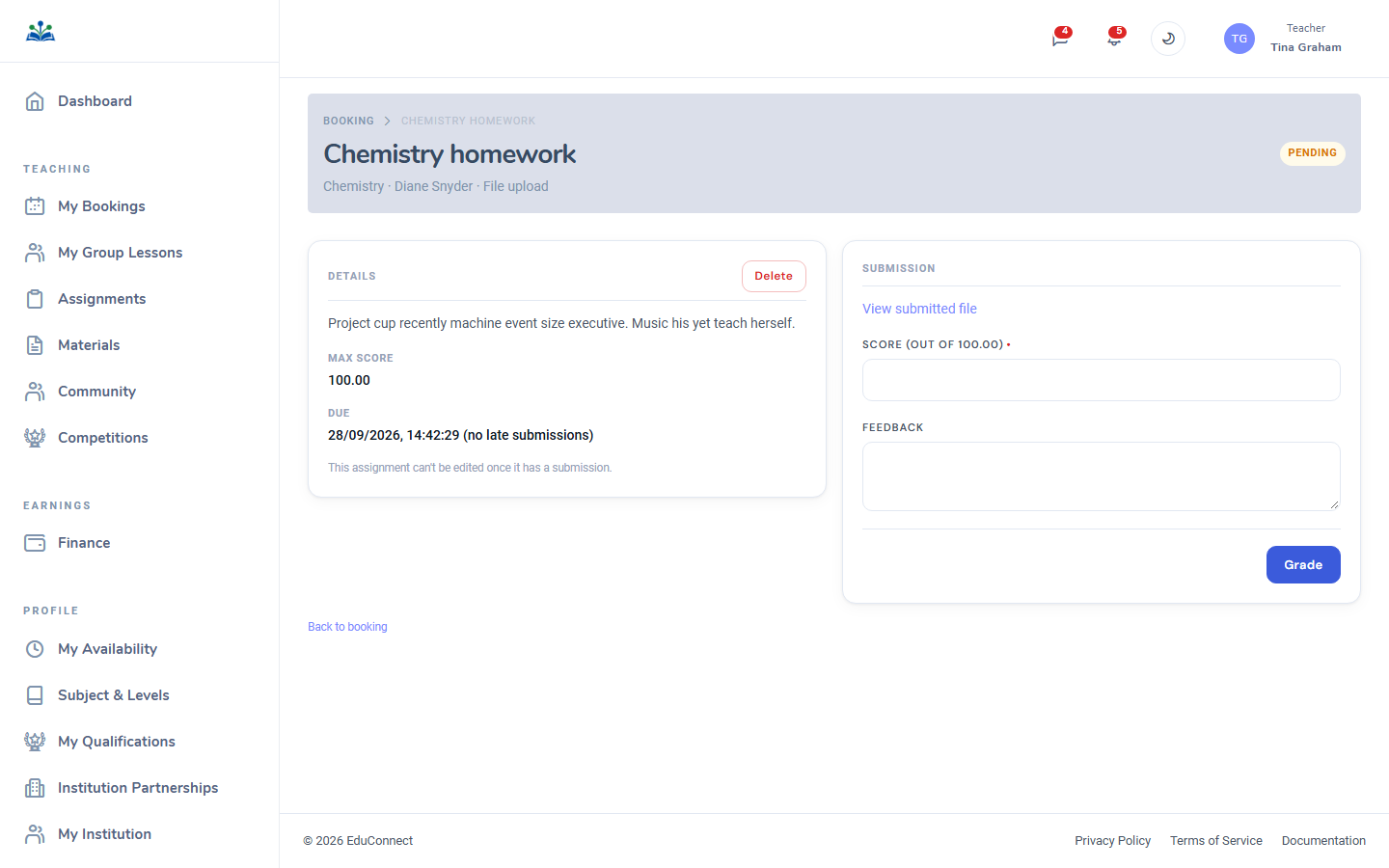
- Open Assignments and choose the assignment.
- Press View submitted file (or read the answer) to see what the student sent.
- Enter a score out of the maximum and write feedback.
- Press Grade.
- Multiple choice assignments are auto-graded: the student sees the score straight away (for example Auto-graded: 8/10), and there is nothing for you to mark.
- Written and file assignments are graded by you.
Warning
An assignment cannot be edited once it has a submission. Check the details before you post. You can still Delete an assignment that has no submission.
Comments
Log in to read and add comments on this page.
Log in