Availability: when students can book you
Create weekly slots per day, choose online, physical or both, and edit, pause or remove them.
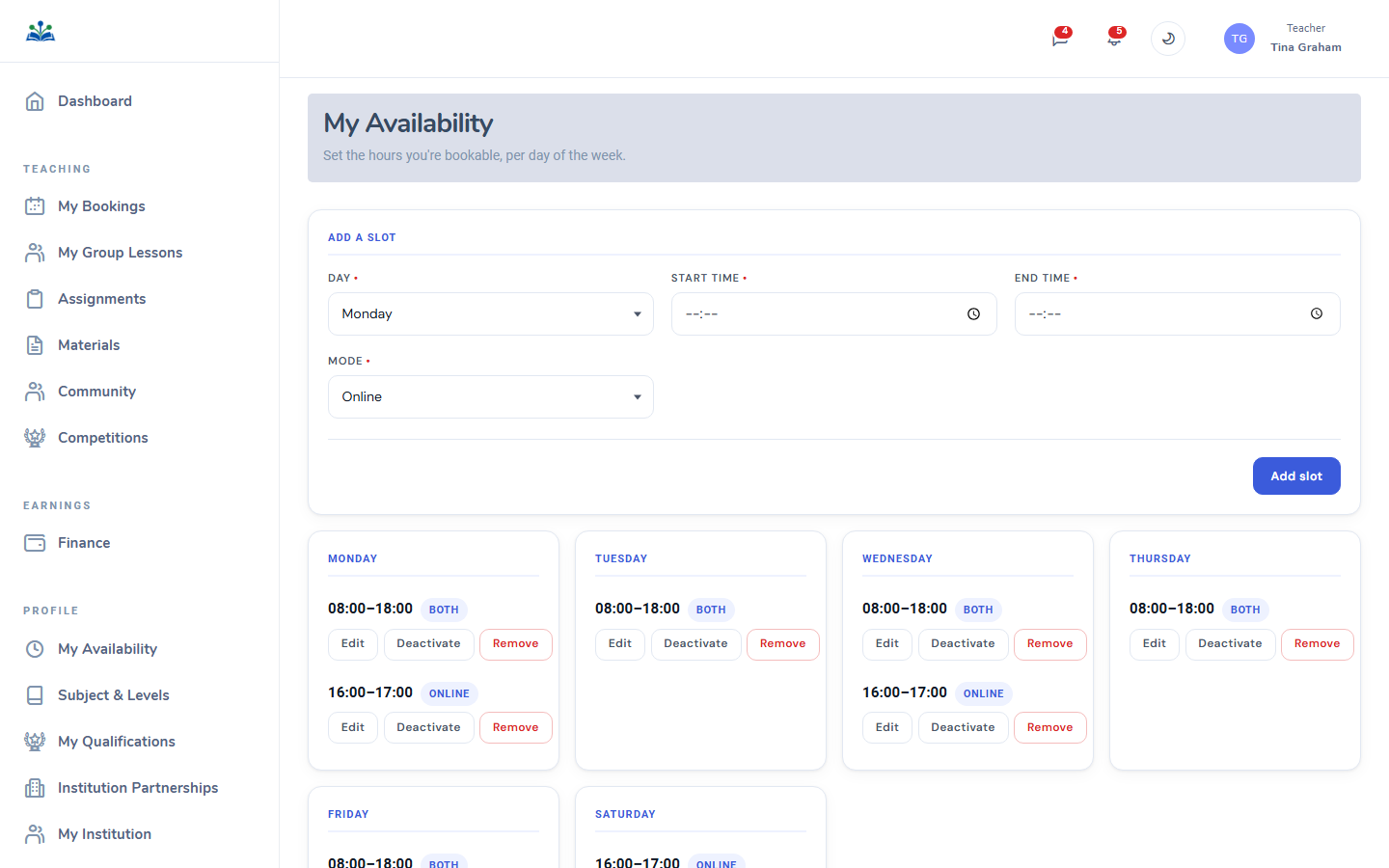
Students can only book you inside the hours you offer here. Your availability repeats every week.
Add a slot
- Open PROFILE → My Availability (in the app, the Availability tab at the bottom).
- Under Add a slot, choose the day, the start time and the end time.
- Choose the mode: Online, Physical or Both.
- Press Add slot.
Note
A mode is only offered to you if your delivery mode is both online and physical. A teacher who is online-only or physical-only does not choose: every slot automatically follows their delivery mode.
Look after your slots
Each slot appears under its day, for example Monday 08:00–18:00 BOTH, with three buttons:
| Button | What it does |
|---|---|
| Edit | Change the day, times or mode. |
| Deactivate | Hides the slot from students without deleting it, for example during exams or a holiday. A deactivated slot can be switched back on. |
| Remove | Deletes the slot. |

How slots become bookings
- A student picks a day and time inside one of your slots and the length of lesson.
- The booking only exists for the exact hour(s) chosen. The rest of your slot is still free.
- Once a lesson is pending or confirmed, that time is taken: nobody else can book it, and you cannot be booked twice at the same time (this also applies to your group lessons).
- Changing a slot does not cancel lessons that are already confirmed.
Good habits
- Keep your slots honest: a slot you cannot really teach in leads to cancellations, and cancelling a confirmed lesson costs you money and a strike. See Cancelling and no-shows.
- Use Deactivate or the Available for new bookings switch on your profile before you travel, rather than leaving requests unanswered.
- Add a longer evening slot online if you want students who study after school.
Comments
Log in to read and add comments on this page.
Log in