Materials: resources and ebooks
Share free study resources and sell ebooks, see what needs approval, and learn how you earn from them.
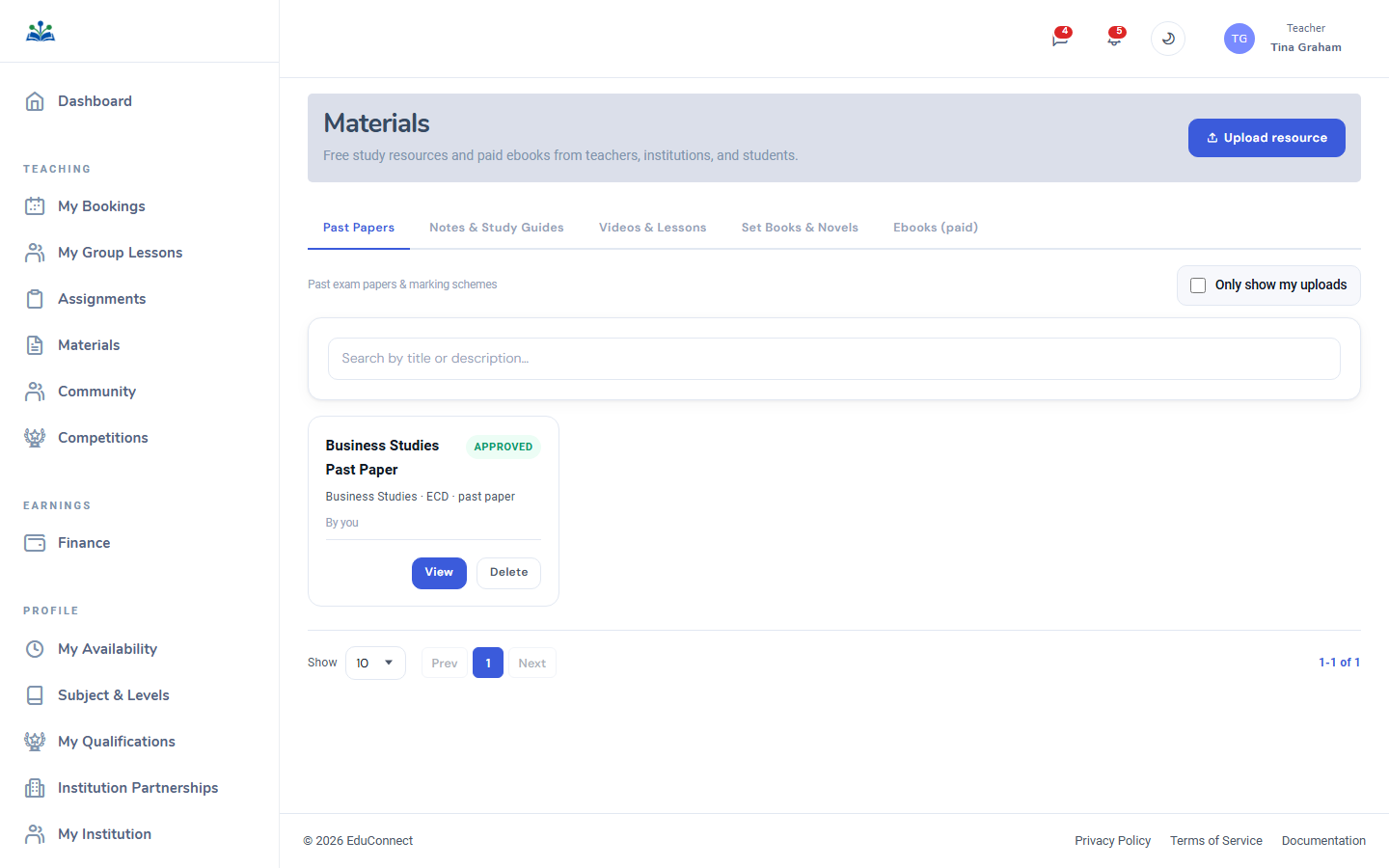
TEACHING → Materials is a library of free resources (notes, past papers, set books and so on) and paid ebooks. Use the tabs to browse by category: Past Papers, Notes & Study Guides, Videos & Lessons, Set Books & Novels and Ebooks (paid). Tick Only show my uploads to see just your own.
Upload a free resource
- Press Upload resource.
- Fill in the form and press Upload resource again.

| Field | What to enter |
|---|---|
| Title | A clear name. |
| Category | Green Book, Blue Book, Past Papers, Notes & Study Guides, Videos & Lessons or Set Books & Novels. |
| Type | Notes, Past paper, Marking scheme, Video, Recorded lesson, Quiz, Practice questions or Set book / novel. |
| Subject | The subject it belongs to. |
| Educational level category | For example O-Level or A-Level. Leave it blank if it applies to every level studying the subject. Past papers only exist per level category, not a specific grade or form. |
| Description | What is in it. |
| File | The document, image or video. A file is required for most categories; for Videos & Lessons you may give a video link instead. At least one of the two is required. |
The largest file you may upload is set by administrators (50 MB by default). The form tells you at once if a file is too large.
Approval
Depending on a platform setting, new uploads may need an administrator's approval before students can see them. By default both free and paid materials wait for approval. Your own uploads show a status:
| Status | Meaning |
|---|---|
| PENDING | Waiting for review. Only you can see it. |
| APPROVED | Live in the library. |
Use View to open a resource and Delete to remove one of yours.
Sell an ebook
- Open the Ebooks (paid) tab and press Upload ebook.
- Enter the title, the author, the price in US dollars, an optional cover image and the ebook file. Title, author, price and file are all required.
- Press Upload ebook.
Other users see it with a Buy for $… button; yours shows By you and Delete. Ebooks follow the same approval rule as resources.
How you earn from materials
| Kind | You earn | Cut taken |
|---|---|---|
| Free resource | A flat amount for each qualifying click: $0.02 by default. | None. |
| Ebook | The sale price, less the platform's commission (the same rate as lessons, 10% by default). | The commission. |
To stop someone refreshing a page to earn you money, a viewer's click on the same resource only pays once every 24 hours (by default). Every click still counts as a view; only some pay.
Example: click earnings
Assumptions: click rate $0.02, cooldown 24 hours.
| Who and when | Pays you? |
|---|---|
| Ana opens your resource Monday 09:00 | Yes, $0.02 |
| Ana opens it again Monday 15:00 | No (within 24 hours) |
| Ana opens it Tuesday 10:00 | Yes, $0.02 |
| Ben opens it Monday 09:30 | Yes, $0.02 (his own cooldown) |
That is $0.06. If 100 different students open it once each, you earn 100 × $0.02 = $2.00.
Example: an ebook sale
Assumptions: price $8.00, commission 10%. You receive $8.00 − $0.80 = $7.20 for each sale, shown in E-learning earnings on your Finance page.
Note
Earnings from materials join your available balance together with your lesson earnings, so one withdrawal covers both.
Comments
Log in to read and add comments on this page.
Log in