Subject and levels
You teach one subject, at as many levels as you like. Rates are fixed by the platform.
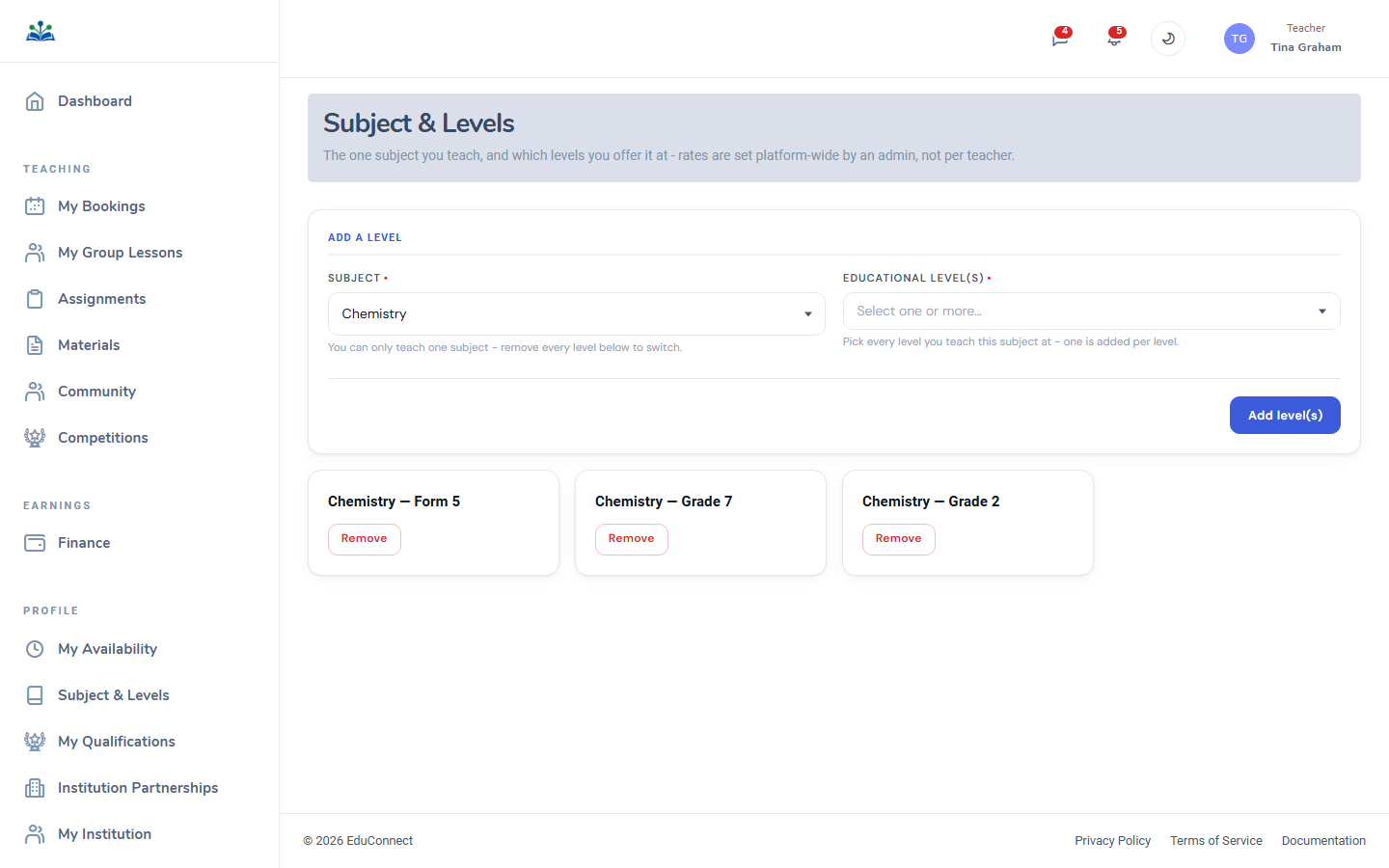
Students search by subject and level (for example Chemistry, Form 5), so this page decides who can find you.
The one-subject rule
You can teach one subject only. The page says: "You can only teach one subject - remove every level below to switch." To change your subject, remove all your levels, then choose the new subject.
Add levels
- Open PROFILE → Subject & Levels.
- Check the Subject (the first time you choose it).
- Open Educational level(s), tick every level you teach and press Add level(s). One entry is created for each level.
- To stop teaching a level, press Remove beside it.
You will see entries such as Chemistry — Form 5, Chemistry — Grade 7 and Chemistry — Grade 2.
Note
You do not set a price. The page says "rates are set platform-wide by an admin, not per teacher." The rate for each lesson is looked up from a table using your subject, your examination board and the level. If no rate exists for a combination, students cannot book it and you cannot schedule a group lesson for it; contact support and ask for the rate to be added.
Why it matters
| Choice | Effect |
|---|---|
| Add a level | Students looking for that subject and level can now find you. |
| Remove a level | Existing bookings stay, but no new students will book that level. |
| Change examination board | Needs an administrator's approval (see Your profile). |
Comments
Log in to read and add comments on this page.
Log in