Bookings and availability on your phone
Answer a request, mark a lesson complete and edit your slots from the app.
Bookings

- Tap Bookings at the bottom.
- Each card shows the student, subject, level, date and time, the fees and a status. Tap the View details icon on a card.
- On a pending request tap the green tick (Confirm) or the red cross (Decline) and confirm in the window.
- On a confirmed lesson you see Lesson completion with who has confirmed, Assignments, Comments, and the Join call (video) button for online lessons. Scroll down for Post assignment, Post comment and the No-show box.
Everything in Booking requests, Completing a lesson and Cancelling and no-shows works exactly the same way in the app, including the cost shown before you cancel.
Availability
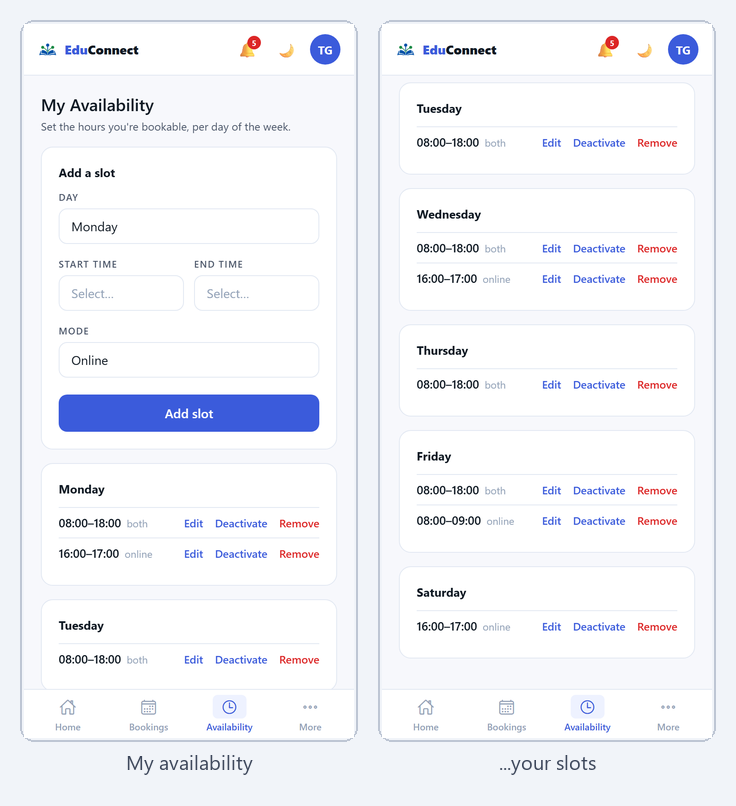
- Tap Availability.
- Add a slot with the day, start, end and mode.
- Scroll to see each day's slots, with Edit, Deactivate or Activate and Remove.
See Availability for what each option does.
Comments
Log in to read and add comments on this page.
Log in