EEduConnect Zimbabwe User manual
Log in

Lessons

Answer requests, teach, confirm completion, handle cancellations, set homework and run group classes.

Show as list

Booking requests: confirm or decline

My Bookings: every request and lesson, with its status

My Bookings: every request and lesson, with its status

Every lesson starts as a request from a student (or a parent booking for their child). My Bookings lists them all. Each row shows the student, the subject, the level, the date and time, and the fees.

The life of a booking

Status Meaning What you can do
PENDING A student has asked for a slot. Nothing is paid yet. Confirm or Decline.
CONFIRMED You accepted. The student must now pay before the pay-by time. Teach it, Mark complete, post homework, or Cancel (with a penalty).
COMPLETED The lesson is done and confirmed. Wait for, or check, your payout.
CANCELLED Declined, cancelled by either side, or the student did not pay in time. Nothing.
NO SHOW A no-show report was upheld. See Cancelling and no-shows.

Use the status filter at the top (All statuses, Pending, Confirmed, Completed, Cancelled, No show) to focus on one kind.

Open a request

Press the small View details icon on a row, or the row itself.

A pending request: who, when, and the fees

A pending request: who, when, and the fees

You see who is asking, the level, date and time, and the fees: Lesson $12.00 + booking $3.00. You are paid the lesson amount (less commission). The booking amount is the platform's fee and is never yours.

Note

The numbers in the screenshots come from demonstration data and can differ from what you see. The booking fee in particular is set by administrators for the whole platform.

Confirm a request

  1. On the pending booking press the green tick (Confirm).
  2. Read the question "Confirm this lesson request from …?" and press Confirm booking.

Confirming a booking

Confirming a booking

What happens next:

  • The booking becomes CONFIRMED and the student is told.
  • The student is given a pay-by time. By default they may pay any time up to the start of the lesson, but your platform can require payment earlier, for example 24 hours before.
  • When the student has paid, the booking shows a green PAID tag.
  • If the student does not pay in time, the booking is cancelled automatically and the student is charged a penalty. You are not penalised, and the slot is free again.

Tip

Look for the PAID tag before you spend time preparing a lesson. A confirmed booking that is not yet paid can still be cancelled by the system at the pay-by time.

Decline a request

Decline when you cannot teach at that time. It is free: no money has moved and it does not count against you.

  1. On the pending booking press the red cross (Decline).
  2. Optionally write a reason. A kind reason helps the student find another time.
  3. Press Decline booking.

Declining a booking is free

Declining a booking is free

Warning

Do not leave requests unanswered. A student is waiting, and an ignored request makes you look unreliable. The dashboard shows how many you have waiting under Needs your attention.

Where else a booking comes from

  • If you work for an institution, it may assign a lesson to you. See My institution. Those lessons still need your confirm or decline (with a reason).
  • Group lessons you schedule turn into ordinary confirmed bookings for each student once they run. See Group lessons.

Talk to the student

Every booking has a Comments thread where you and the student (and administrators, if there is a problem) can leave messages about that lesson: the topic, the link, where to meet. Use Post comment. For private chats, use Messages.
On the day: teaching an online or physical lesson

Online lessons

A confirmed online booking has a video button at the top of its page (Join call). Press it at the lesson time to open EduConnect's built-in lesson room. The student presses the same button on their side.

  • Standard calling (audio and screen sharing) is included. If the student chose Premium video, full camera video is available too.
  • Join a few minutes early and test your sound.
  • In the mobile app the call runs on the phone itself. The browser version of the app, and this manual's screenshots, cannot show it.

Physical lessons

A physical lesson takes place either at the student's home (if you teach at homes) or at a partnered institution's venue. Agree the place beforehand in the booking's Comments or in Messages, and arrive early. A venue you do not have a partnership with cannot be used: see Venues and partnerships.

Before the lesson

Do this Why
Check the PAID tag on the booking Confirms the student has paid.
Read the booking's Comments The student may have asked for a topic.
Keep your internet and a power source ready An online lesson that fails because of you is a failed lesson.

After the lesson

  1. Press Mark complete on the booking (see Completing a lesson).
  2. Post homework if you wish (see Assignments).
  3. Wait for your payout, then check Finance.

If the student does not appear

Wait until the grace period (15 minutes after the start by default) and then press Report that the student didn't show up on the booking. See Cancelling and no-shows. Keep a note in the Comments that you were ready: it helps if the student contests.

If you cannot teach

Tell the student early. If the lesson is already confirmed, cancelling costs you money and a strike, so the earlier you talk to the student the better. An honest message is far better than disappearing.

Completing a lesson and releasing your payout

A student pays before the lesson, but you are only paid once the lesson is confirmed complete. This protects students from paying for a lesson that never happened, and it is how you are protected too.

Mark the lesson complete

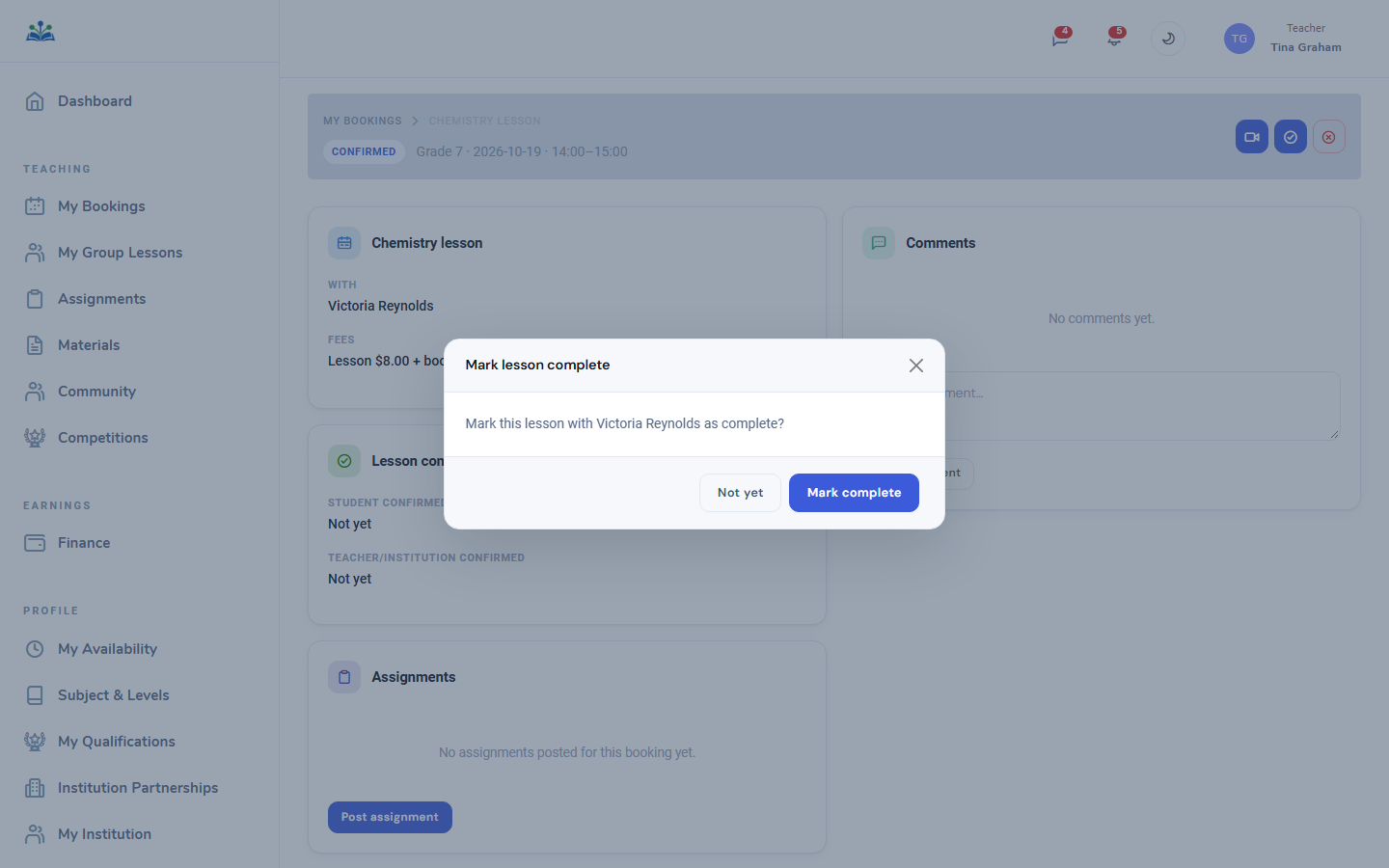
After the lesson, open it from My Bookings and press the tick-in-a-circle button (Mark complete), then Mark complete again in the window to confirm.

Marking a lesson complete

Marking a lesson complete

A confirmed lesson shows who has confirmed

A confirmed lesson shows who has confirmed

The Lesson completion box shows two lines: STUDENT CONFIRMED and TEACHER/INSTITUTION CONFIRMED, each Not yet or the time it was done.

Who has to confirm?

Administrators choose one rule for the whole platform:

Rule When you are paid What you see
Both student and teacher must confirm (default) Once the student and you have both confirmed. Both lines in the box; confirm your side.
Only the student confirms When the student confirms. You have no button; your job is to teach.
Only the teacher confirms The moment you confirm. Confirming releases your payout at once.

When the student does not confirm

If a confirmation you need is still missing a number of hours after the lesson's scheduled end (48 hours by default), a Request payout release box appears on the booking.

The student has not confirmed and the wait has passed: you can ask an administrator to release the payout

The student has not confirmed and the wait has passed: you can ask an administrator to release the payout
  1. Open the booking. The message says: "The student hasn't confirmed this lesson yet, and the wait window has passed. You can ask an admin to release the payout manually."
  2. Write a reason (optional but helpful), for example "Lesson held as planned, student has not responded."
  3. Press Request payout release.

An administrator then reviews your request. If they approve, the payout is released straight away and commission is taken as usual. If they reject, it stays held and you are told.

Example: the default rule, student never confirms

Assumptions: lesson Saturday 10:00 to 11:00; rule Both; wait 48 hours; lesson fee $10.00; commission 10%.

When What happens Your available balance
Saturday 11:00 The lesson ends. The student's money is held. $0.00
Saturday 11:05 You press Mark complete. Nothing is released yet: the student has not confirmed. $0.00
Monday 11:00 48 hours have passed. Request payout release appears. $0.00
Monday 11:30 You press it and give a reason. $0.00
Monday 14:00 An administrator approves. $9.00 ($10.00 less $1.00 commission)

And when the student does confirm, the same lesson is much quicker:

When What happens Your available balance
Saturday 11:05 You confirm. $0.00
Saturday 20:00 The student confirms. Both sides done, payout released. $9.00

Tip

Confirm promptly. If the platform needs both of you, the sooner you press Mark complete, the sooner your payout is ready the moment the student presses theirs.

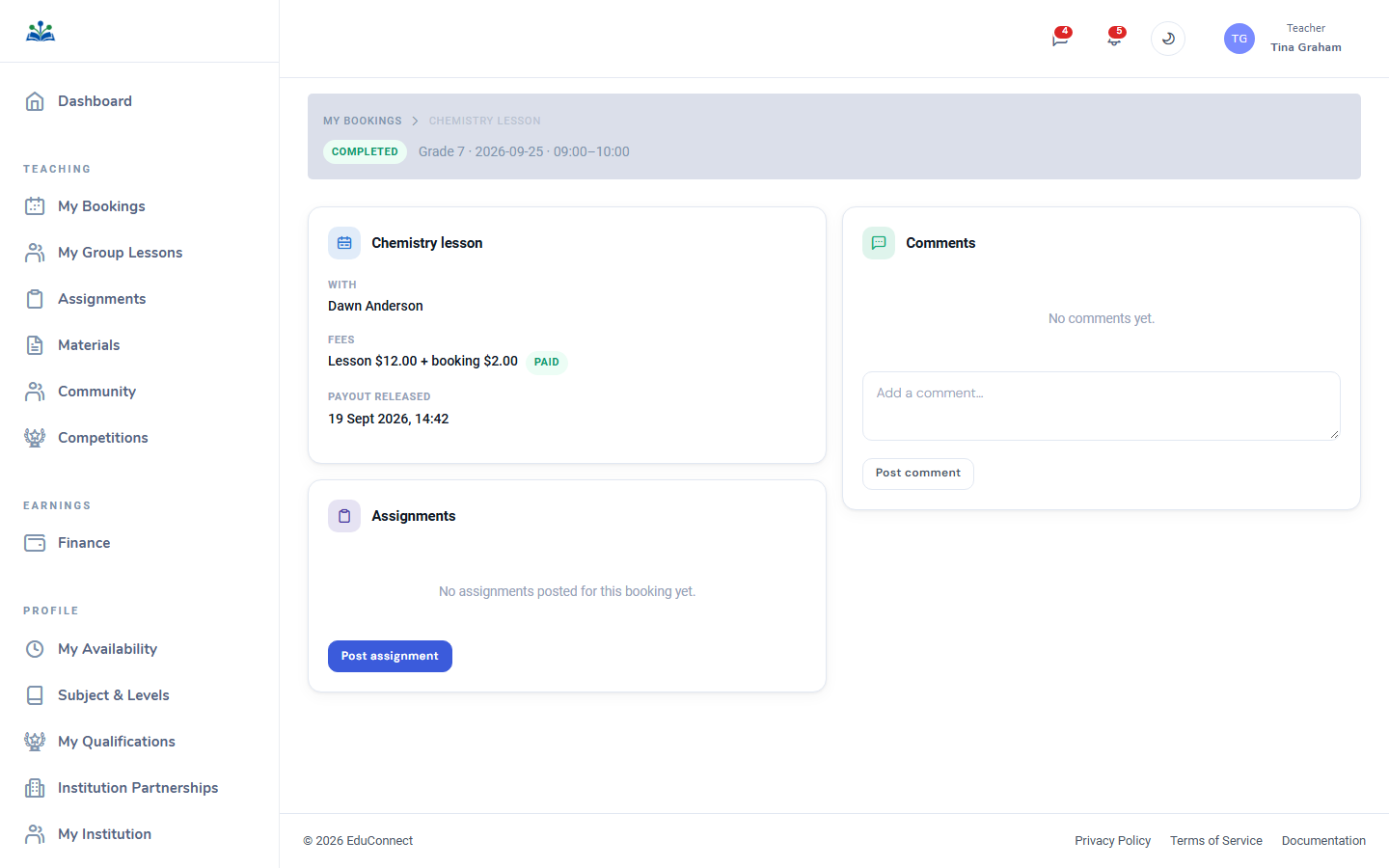
Once released, the booking shows PAYOUT RELEASED with the date and time, and the amount arrives in your available balance (see Finance and withdrawals).

A completed lesson with its payout released

A completed lesson with its payout released

Cancelling, no-shows and strikes

Cancelling a lesson that has not been confirmed is always free. Everything in this chapter applies to lessons you have already confirmed. Percentages are fractions of the lesson fee.

When you cancel a confirmed lesson

Open the booking and press the red cross-in-a-circle button (Cancel). The window tells you the exact cost before you decide:

Cancelling a confirmed lesson costs you money and a strike

Cancelling a confirmed lesson costs you money and a strike

"Cancelling a confirmed lesson refunds the student in full and charges you $1.80: $1.00 for the booking fee plus $0.80 compensation to the student. It also counts as a strike."

So when you fail a confirmed lesson (you cancel it or do not turn up):

  • The student is refunded everything they paid.
  • You are charged the booking fee plus a compensation to the student (10% of the lesson fee by default). The compensation becomes non-withdrawable wallet credit for the student.
  • There is a cap: the most you are charged for one lesson is $20.00 by default.
  • It counts as one strike.

Example

Assumptions: lesson fee $20.00, booking fee $1.00, compensation 10%, cap $20.00, the lesson was already paid.

Step Calculation Amount
Student is refunded Everything they paid $21.00
Compensation to the student 10% × $20.00 $2.00
You are charged Booking fee $1.00 + compensation $2.00 $3.00

Example: a big lesson, the cap protects you

Assumptions: lesson fee $300.00, booking fee $1.00, compensation 10%, cap $20.00.

Step Calculation Amount
Booking fee + compensation $1.00 + 10% × $300.00 $31.00
You are charged The lower of $31.00 and the $20.00 cap $20.00
The student receives as credit $20.00 − $1.00 booking fee $19.00

Warning

The charge is taken from your balance. It can take your balance below zero, and you cannot withdraw until later earnings cover it. See Finance and withdrawals.

When the student cancels or does not show up

The rules protect your time. A student who cancels a confirmed lesson forfeits part of the lesson fee, and you receive that amount (less commission). With the defaults:

The student cancels… Forfeit You are credited (lesson fee $20.00, commission 10%)
More than 24 hours before the start none $0.00
Between 24 and 2 hours before 25% = $5.00 $4.50
Less than 2 hours before 50% = $10.00 $9.00
No-show 100% = $20.00 $18.00

Two cases are different:

  • A free pass. Each student gets one free pass by default: their first late cancellation or no-show is forgiven entirely, and you receive nothing for it.
  • The student had not paid yet. No money moves, so you are credited nothing.

Reporting a student no-show

If the student did not turn up, report it:

  1. Wait until 15 minutes after the lesson's start time (the platform's grace period). Reports are not accepted earlier.
  2. Open the booking and find No-show.
  3. Press Report that the student didn't show up.

The student then has 24 hours to respond:

What happens Result
The student does not respond After 24 hours the report is upheld automatically: the no-show forfeit applies and you are credited.
The student contests it An administrator decides. They can uphold (you are credited) or waive (no penalty either way).

The report shows its state on the booking: pending, contested, upheld or waived.

Note

If you are accused of not showing up, you will see the report on the booking with a box asking "Why is the report wrong?" Answer it within the window and explain: otherwise the report takes effect automatically and counts as a strike. Screenshots, messages and comments in the booking's thread are the best evidence.

Strikes and restrictions

A strike is recorded when you cancel or fail a confirmed lesson. Enough strikes in a short time restrict you.

Setting Default Meaning
Strikes before a restriction 3 Failures counted within the window. 0 turns this off.
Strike window 30 days How far back strikes are counted.
Restriction length 7 days How long a restriction lasts after your latest strike.

A restriction stops students from booking you until it ends.

Example

Assumptions: defaults (3 strikes, 30 days, 7 days). You fail confirmed lessons on 1, 10 and 20 September.

Date Strikes in the last 30 days Status
1 Sep 1 Normal
10 Sep 2 Normal
20 Sep 3 Restricted until 27 Sep
27 Sep 3 Restriction ends, but one more failure restricts you again
1 Oct 2 (the 1 Sep strike is over 30 days old) Safer

Tip

The best protection is honest availability. Only offer slots you can keep, decline a request instead of confirming one you may not manage, and use Deactivate on a slot before an absence.

Assignments (homework)

You can set homework for a student you teach. Assignments are always linked to one of your bookings.

All the assignments you have posted

All the assignments you have posted

The Assignments page lists them with the student, the subject, the type, the due date and a status such as PENDING. Open one to view, edit or grade it.

Post an assignment

  1. Open a booking from My Bookings and find the Assignments box.
  2. Press Post assignment.
  3. Fill in the form and press Post assignment again.

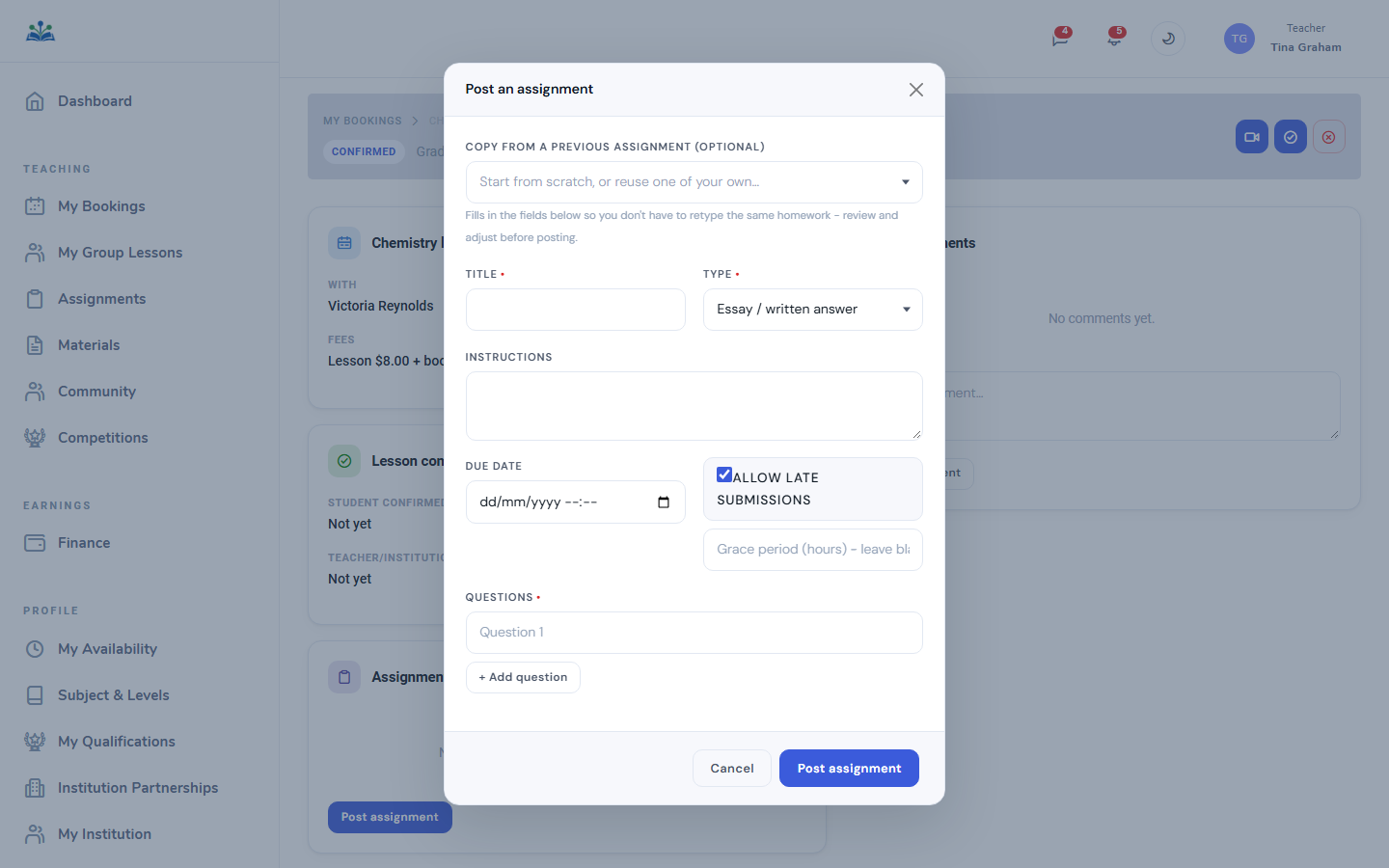
The Post an assignment form

The Post an assignment form
Field What to enter
Copy from a previous assignment Optional. Pick one of your own earlier assignments to fill in the fields, then adjust. It saves retyping the same homework.
Title A clear name, for example Chemistry homework.
Type Essay / written answer, Multiple choice or File upload (the student uploads a document or photo).
Instructions What the student must do.
Due date When it is due.
Allow late submissions Whether the student may hand it in after the due date, and for how long. With no due date, nothing is ever late.
Questions Press + Add question to add questions (used for multiple-choice and written questions).

Grade a submission

  1. Open Assignments and choose the assignment.
  2. Press View submitted file (or read the answer) to see what the student sent.
  3. Enter a score out of the maximum and write feedback.
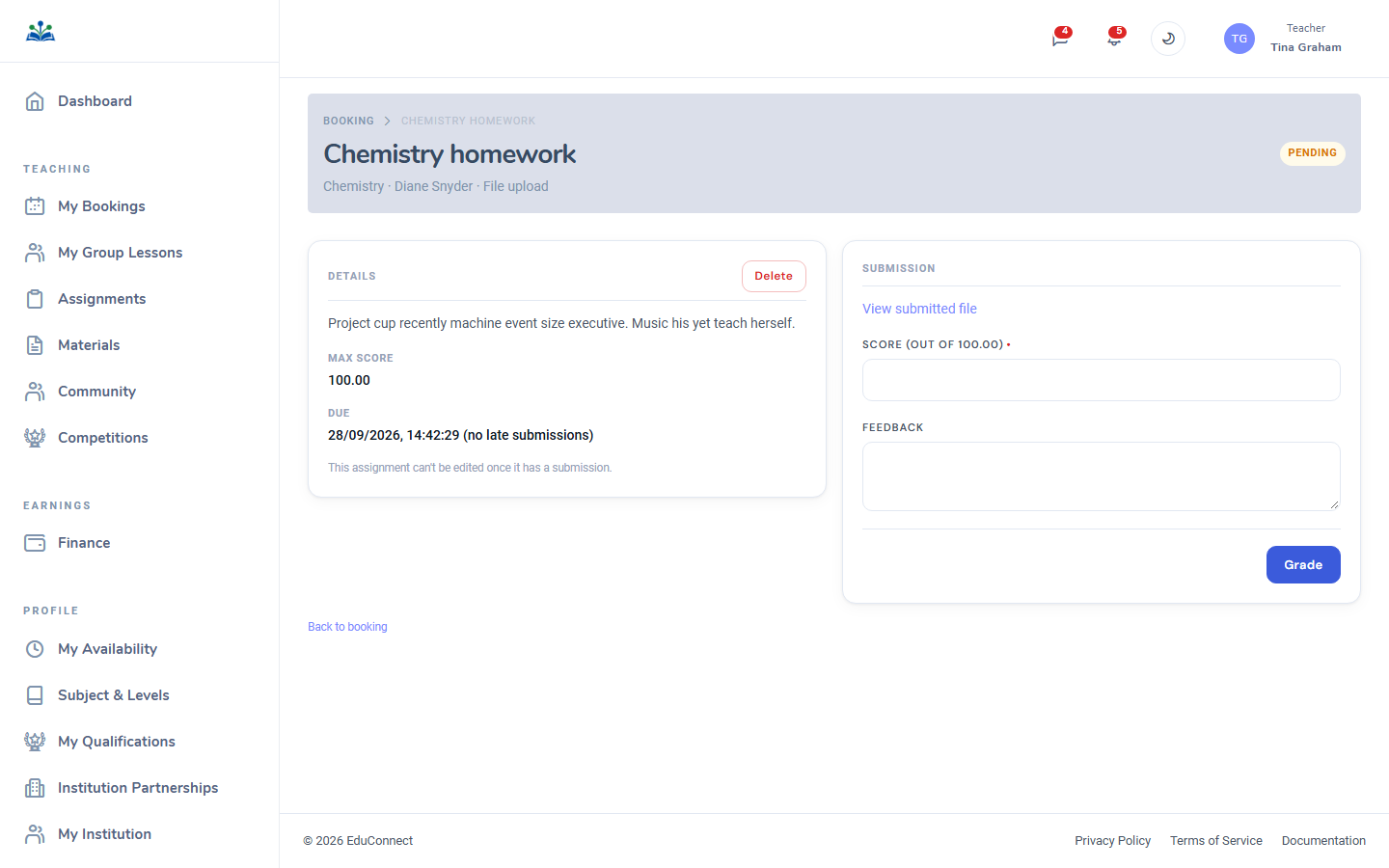
  4. Press Grade.

Grading a submission: score, feedback and the due date

Grading a submission: score, feedback and the due date
  • Multiple choice assignments are auto-graded: the student sees the score straight away (for example Auto-graded: 8/10), and there is nothing for you to mark.
  • Written and file assignments are graded by you.

Warning

An assignment cannot be edited once it has a submission. Check the details before you post. You can still Delete an assignment that has no submission.

Group lessons

In a group lesson several students share one lesson and each pays less than a one-to-one price. You schedule it, students join, and at a cutoff time the platform decides whether it goes ahead.

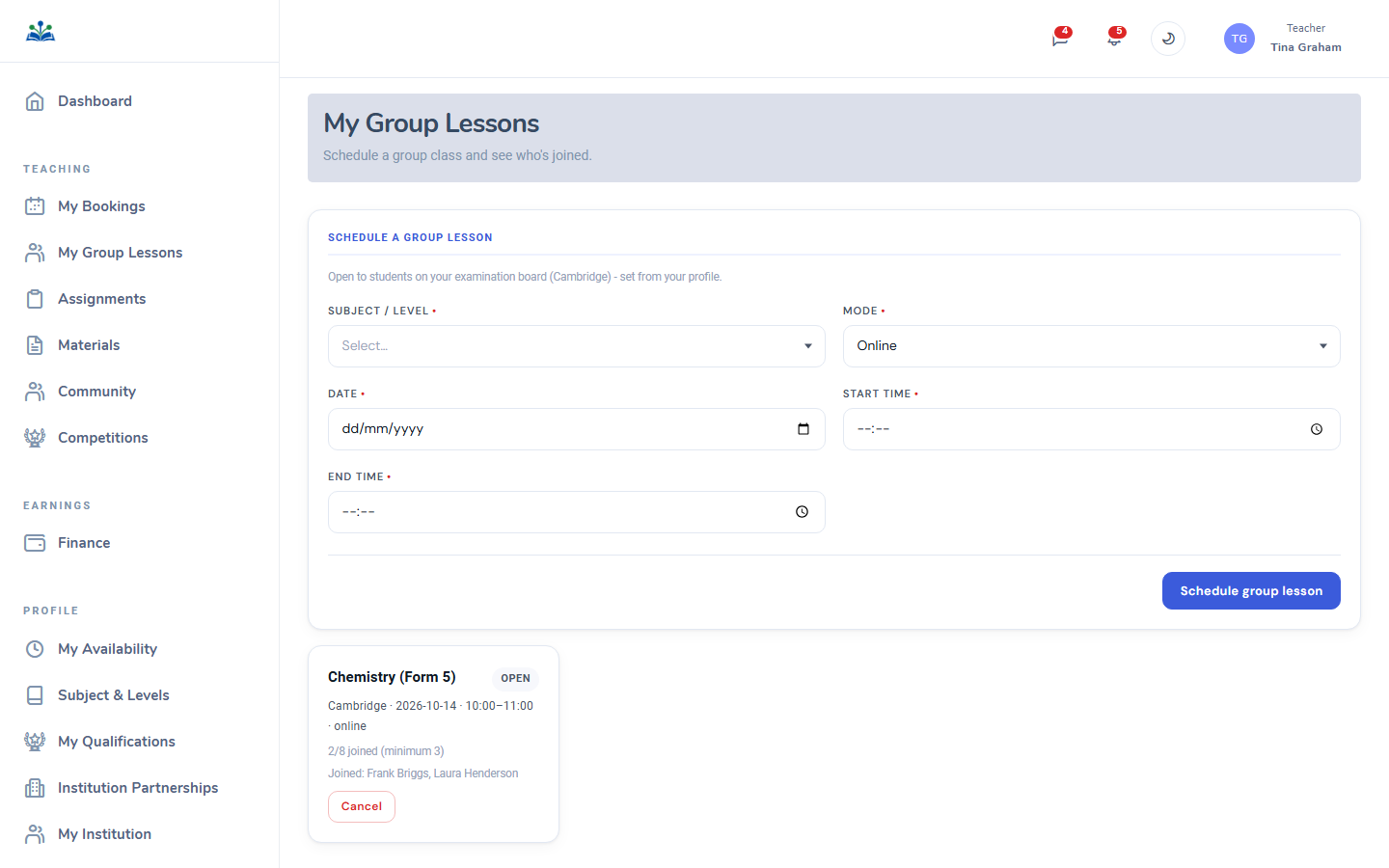
My Group Lessons: schedule a class and see who has joined

My Group Lessons: schedule a class and see who has joined

Schedule a group lesson

  1. Open TEACHING → My Group Lessons.
  2. In Schedule a group lesson, choose the subject / level (one you teach), the mode (Online or Physical), the date, and the start and end time.
  3. For a Physical lesson, choose the partnered institution whose venue you will use.
  4. Press Schedule group lesson.

The page reminds you: "Open to students on your examination board (Cambridge) - set from your profile." Only students on your board can join.

The platform refuses a lesson when:

Problem Message
The date is in the past Cannot schedule a date in the past.
The end is not after the start End time must be after start time.
You do not teach that subject and level You don't teach this subject at this level.
Your delivery mode does not include it You only offer … lessons.
A physical lesson has no venue A physical group lesson needs a partnered institution's venue: there is no home-visit option for a group.
You have no approved partnership with that venue, or it has no venue rate You aren't partnered with that institution yet. / contact an administrator
No rate is set for that subject, board and level No rate has been set for this subject/board/level combination yet.
You already have something at that time You already have something scheduled at this time.

How a group lesson is decided

Nobody is charged when they join: joining is a reservation. The lesson is decided in one of two ways:

  1. It fills up. When the maximum number of students (8 by default) has joined, it is confirmed immediately and closes to new students.
  2. The cutoff arrives. At the join cutoff (24 hours before the start, by default) the platform confirms or cancels it.

Each lesson shows its state, for example OPEN · Cambridge · 2026-10-14 · 10:00–11:00 · online and 2/8 joined (minimum 3), with the names of those who have joined.

What happens at the cutoff

Assumptions: lesson Saturday 10:00; cutoff 24 hours (so the decision is on Friday 10:00); minimum 3; maximum 8; the platform runs an undersized lesson with at least 2 students.

Students joined When decided Result
8 The moment the 8th joins Confirmed at once and closed.
5 Friday 10:00 Confirmed. Priced for 5 students.
3 Friday 10:00 Confirmed. Minimum reached.
2 Friday 10:00 Confirmed, even though it is below 3, because 2 is the lowest the platform allows.
1 Friday 10:00 Cancelled. Nobody is charged.
0 Friday 10:00 Cancelled (no students).

Note

Students can leave for free while the lesson is still open. After it is confirmed, leaving is a normal cancellation. When a student joins, you get a notification.

What each student pays, and what you earn

Every student pays the same price, set by how many students there are when the lesson is confirmed:

  1. One-to-one price = hourly rate × hours.
  2. Extra students = students − the minimum (never below 0).
  3. Discount = discount rate × extra students.
  4. Price = one-to-one price × (1 − discount).
  5. The price never falls below one-to-one price × the price floor.

Up to the minimum number of students, everyone pays the full one-to-one price.

Example: the full table

Assumptions: rate $12.00 per hour, lesson 2 hours, so the one-to-one price is $24.00. Minimum 3, maximum 8, discount rate 0.100 (10% per extra student), price floor 0.500 (never below $12.00). Booking fee $1.00, commission 10%.

Students Extra beyond 3 Discount Price per student Each student pays (+ $1.00 booking fee) All lesson fees You receive (after 10%)
2 0 0% $24.00 $25.00 $48.00 $43.20
3 0 0% $24.00 $25.00 $72.00 $64.80
4 1 10% $21.60 $22.60 $86.40 $77.76
5 2 20% $19.20 $20.20 $96.00 $86.40
6 3 30% $16.80 $17.80 $100.80 $90.72
7 4 40% $14.40 $15.40 $100.80 $90.72
8 5 50% $12.00 $13.00 $96.00 $86.40

What this teaches you:

  • Each student pays less as the group grows, from $24.00 down to $12.00.
  • With these settings you earn the most with 6 or 7 students ($90.72), slightly less with 8 ($86.40), because the discount outgrows the extra student. Even so, 8 students at $12.00 each is a full class you earn well from, compared with $21.60 for a single one-to-one hour.
  • The $1.00 booking fee is the same for everyone and is the platform's. You never receive it.

Example: a physical lesson at a partner venue

For a physical group lesson the venue fee is discounted the same way. The venue fee belongs to the institution, not to you; you still earn the lesson fee.

Assumptions: 2-hour lesson at $12.00 per hour, 5 students, minimum 3, discount 0.100, floor 0.500, venue fee $5.00 per hour (one-to-one venue price $10.00), booking fee $1.00.

Line Calculation Each student pays
Lesson fee $24.00 × (1 − 2 × 0.10) = $24.00 × 0.80 $19.20
Venue fee $10.00 × 0.80 $8.00
Platform booking fee flat $1.00
Total per student $28.20

For the whole group of 5: lesson fees $96.00, venue fees $40.00, booking fees $5.00. With 10% commission you receive $86.40 and the institution receives $36.00.

Cancel a group lesson

Press Cancel on a lesson that is still OPEN to withdraw it. Nobody has been charged yet, so there is nothing to refund, and the students who joined are told. Do it early: they were counting on you.

Once a lesson has been confirmed it can no longer be cancelled from this page ("Cannot cancel a group lesson that is already confirmed"). Each student then has an ordinary confirmed booking, and if you cannot teach it you must cancel those bookings from My Bookings. That carries the same charge and strike as cancelling any confirmed lesson (see Cancelling and no-shows), so only schedule a group lesson you can keep.

Tip

Fill a group lesson faster by choosing an evening or weekend slot, a clear level, and a date at least a few days ahead so students have time to join before the cutoff.

Reviews and your rating

After a lesson, students can leave a star rating and a comment. (Parents booking for a child use the child's student account for reviews; only the student role has the review button.)

  • Your Rating appears on the dashboard as the average across all reviews.
  • You are notified with Review received when someone rates you.
  • Reviews are shown to students who are choosing a teacher, so they matter for how many requests you receive.

You cannot delete or edit a review. If a review is abusive or untrue, contact support and explain why.

Tip

The simplest way to earn good reviews is to be on time, prepared, and to follow up with homework (see Assignments).