Your description for students. Write it in the first person, say what you teach, who you teach and how. Keep it professional; an administrator can read it.
Press Save profile.
Verification and documents: changes need approval
Some things affect trust or price, so once you are approved you cannot change them silently. You send a change request and an administrator decides. Nothing on your profile changes until it is approved.
Item
Where
How you change it
Examination board (for example ZIMSEC or Cambridge)
Verification and documents
Press Request change, choose the new board and give a reason.
Delivery mode (online only, physical only, or both)
Your examination board decides which students can book you and which rate applies to your lessons. Group lessons you schedule are open to students on your board. Ask for a change only when you really need one.
Tip
The Verification box says exactly what is still needed, for example "Still needed: National ID or passport, Police clearance." If the status reads NOT SUBMITTED, upload the missing items and press Send for review.
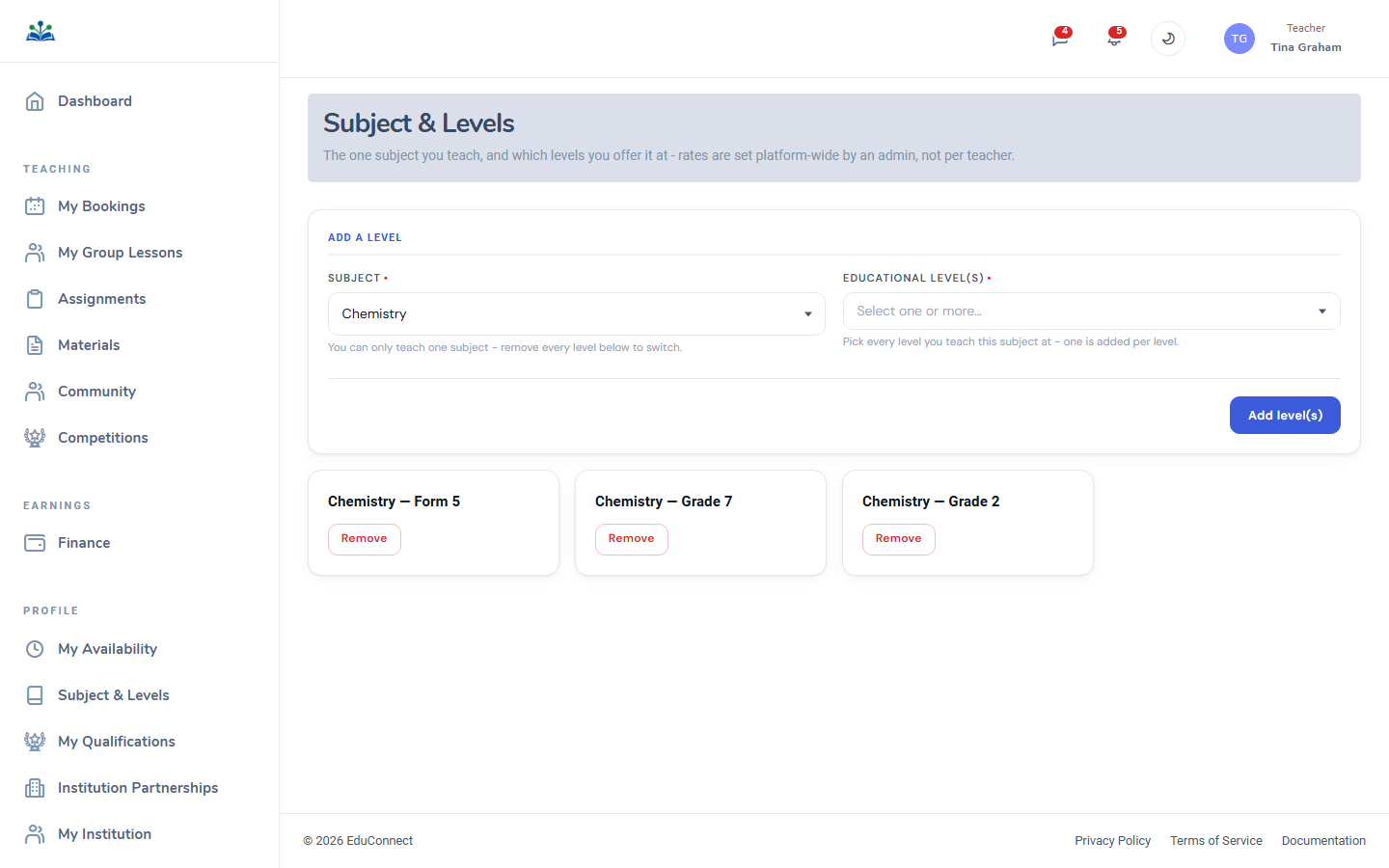
You can teach one subject only. The page says: "You can only teach one subject - remove every level below to switch." To change your subject, remove all your levels, then choose the new subject.
Open Educational level(s), tick every level you teach and press Add level(s). One entry is created for each level.
To stop teaching a level, press Remove beside it.
You will see entries such as Chemistry — Form 5, Chemistry — Grade 7 and Chemistry — Grade 2.
Note
You do not set a price. The page says "rates are set platform-wide by an admin, not per teacher." The rate for each lesson is looked up from a table using your subject, your examination board and the level. If no rate exists for a combination, students cannot book it and you cannot schedule a group lesson for it; contact support and ask for the rate to be added.
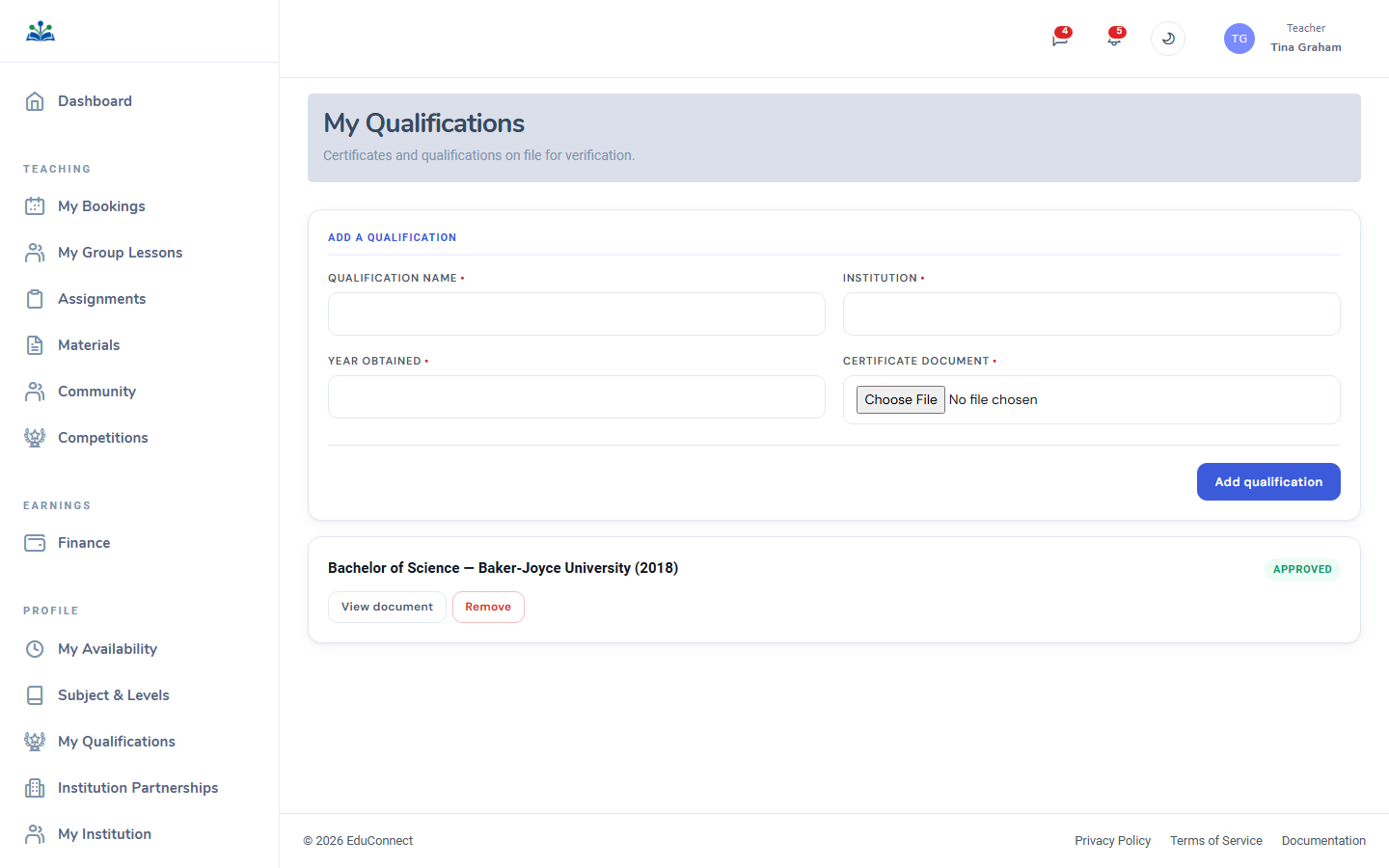
Under Add a qualification, type the qualification name (for example Bachelor of Science), the institution, and the year obtained.
Attach the certificate document (a photo or PDF).
Press Add qualification.
Each entry shows its own status, for example Bachelor of Science — Baker-Joyce University (2018) with APPROVED, and links to View document and Remove.
Status
Meaning
PENDING
Waiting for an administrator to check the document.
APPROVED
Accepted. Students can see it.
REJECTED
The document could not be accepted. Remove it and add a clear copy.
Tip
Qualifications are optional when you first apply, but they make a real difference to students choosing between teachers. Add the ones that prove you can teach your subject.
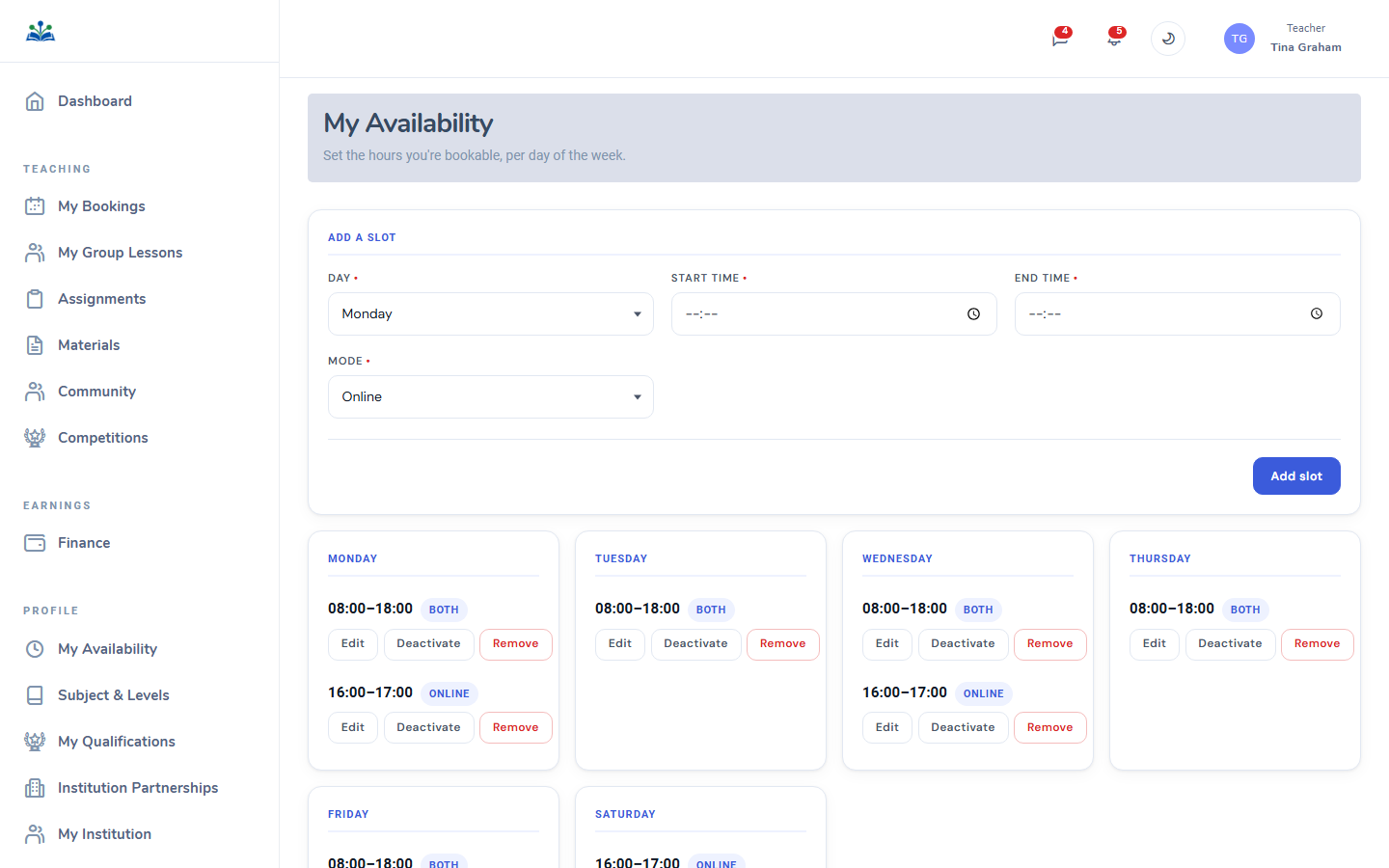
Open PROFILE → My Availability (in the app, the Availability tab at the bottom).
Under Add a slot, choose the day, the start time and the end time.
Choose the mode: Online, Physical or Both.
Press Add slot.
Note
A mode is only offered to you if your delivery mode is both online and physical. A teacher who is online-only or physical-only does not choose: every slot automatically follows their delivery mode.
A student picks a day and time inside one of your slots and the length of lesson.
The booking only exists for the exact hour(s) chosen. The rest of your slot is still free.
Once a lesson is pending or confirmed, that time is taken: nobody else can book it, and you cannot be booked twice at the same time (this also applies to your group lessons).
Changing a slot does not cancel lessons that are already confirmed.
Keep your slots honest: a slot you cannot really teach in leads to cancellations, and cancelling a confirmed lesson costs you money and a strike. See Cancelling and no-shows.
Use Deactivate or the Available for new bookings switch on your profile before you travel, rather than leaving requests unanswered.
Add a longer evening slot online if you want students who study after school.