Password and security
Change your password, add a second step to your login and check who has signed in.
Change your password
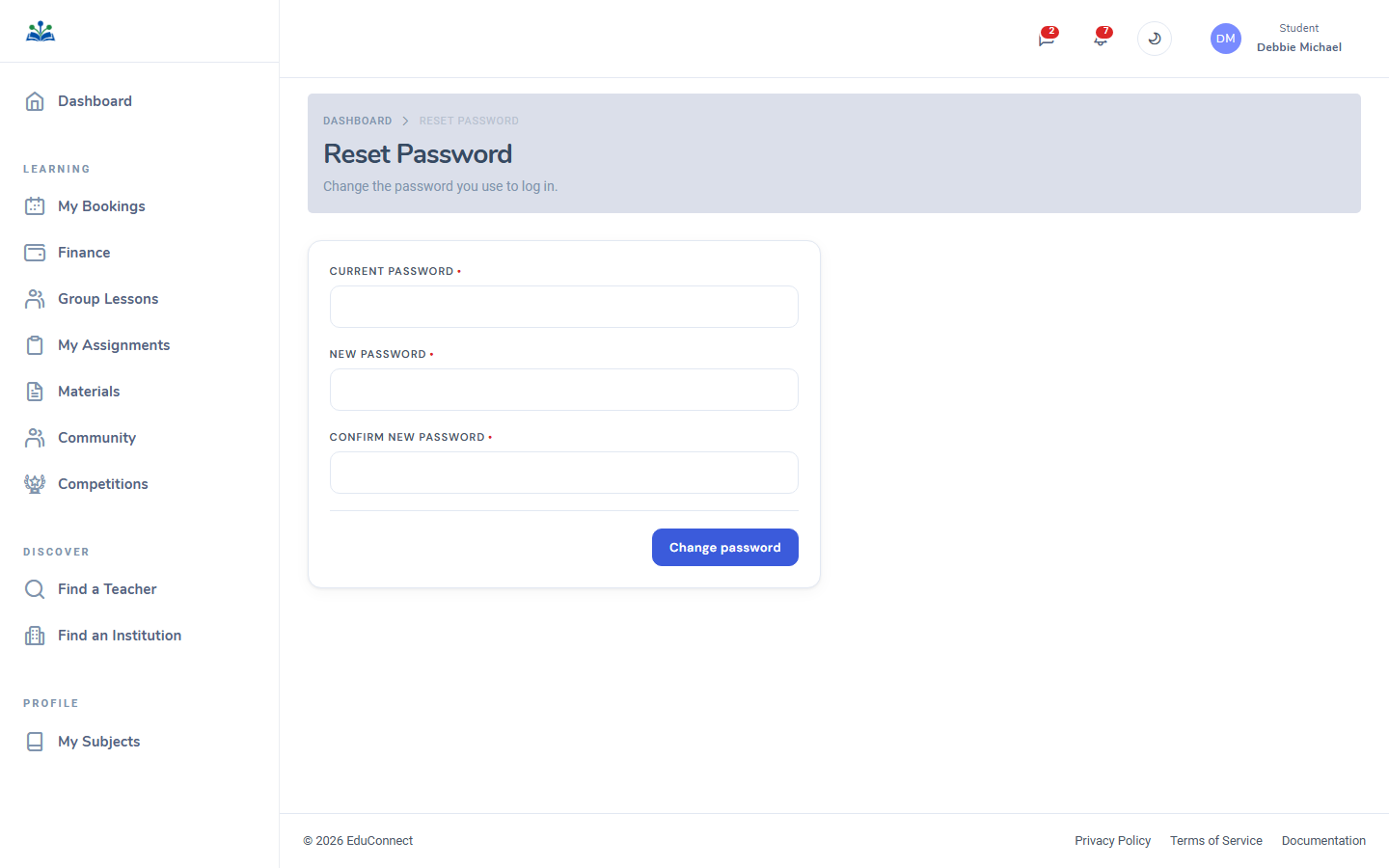
- Open Change password from your profile (in the app, More → your name → Change Password).
- Enter your current password, then the new password twice.
- Press Change password.
Two-step login
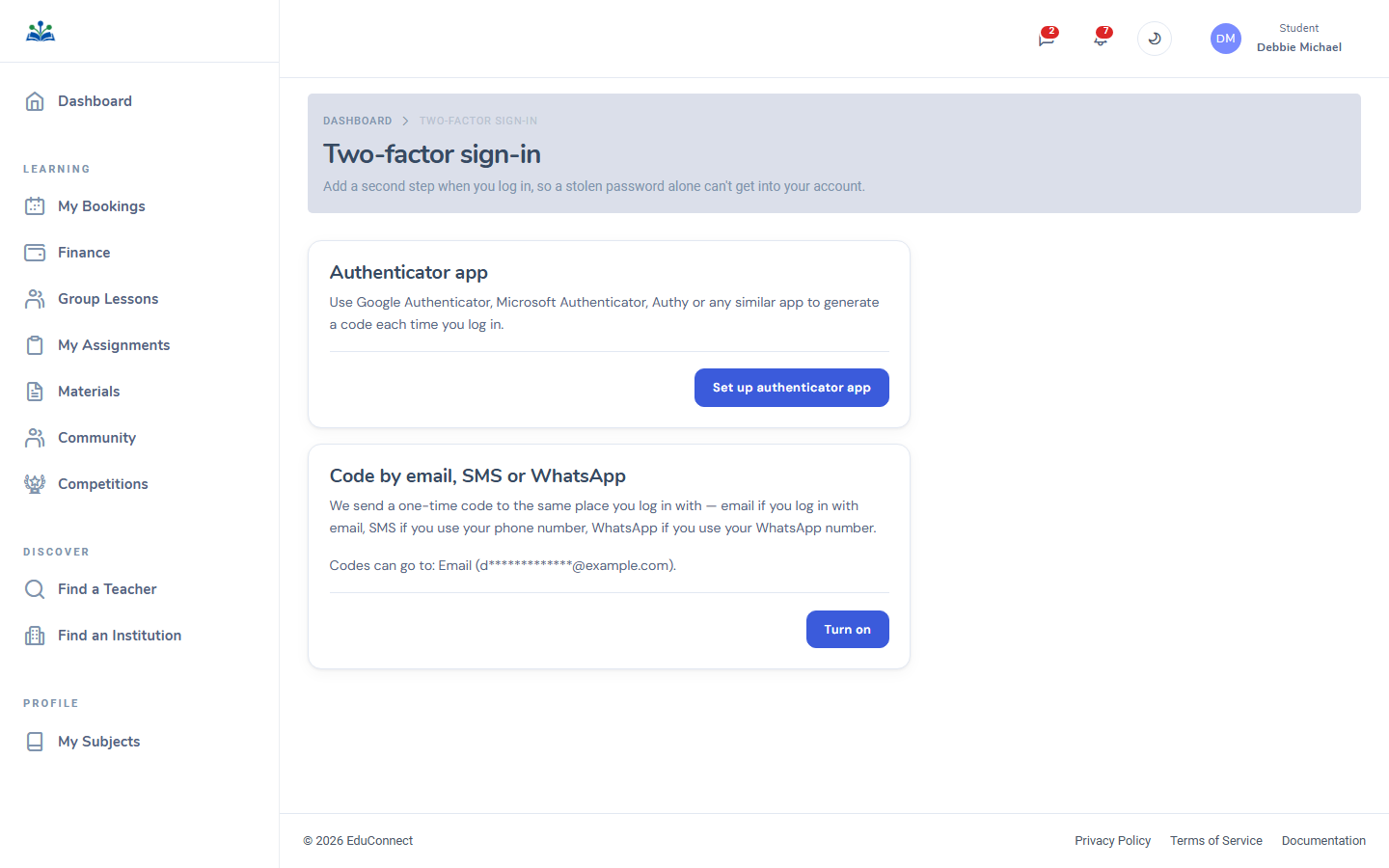
Two-step login adds a second code when you log in, so a stolen password alone cannot get into your account. This matters because your account holds money (your wallet).
| Option | How it works |
|---|---|
| Authenticator app | Use Google Authenticator, Microsoft Authenticator, Authy or a similar app. It shows a new code each time you log in. Press Set up authenticator app and follow the steps. |
| Code by email, SMS or WhatsApp | A one-time code is sent to the same place you log in with. Press Turn on. |
Login activity
In the app, More → your name → Login Activity shows every sign-in to your account, so you can spot one that is not yours. If you see one, change your password at once.
Tip
Use a password nobody can guess, and different from the one you use anywhere else. Do not let anyone use your account: lessons and money booked from it are your responsibility.
Comments
Log in to read and add comments on this page.
Log in