Finding a teacher
Search and filter teachers, read a teacher's page and see why you may not see everyone.
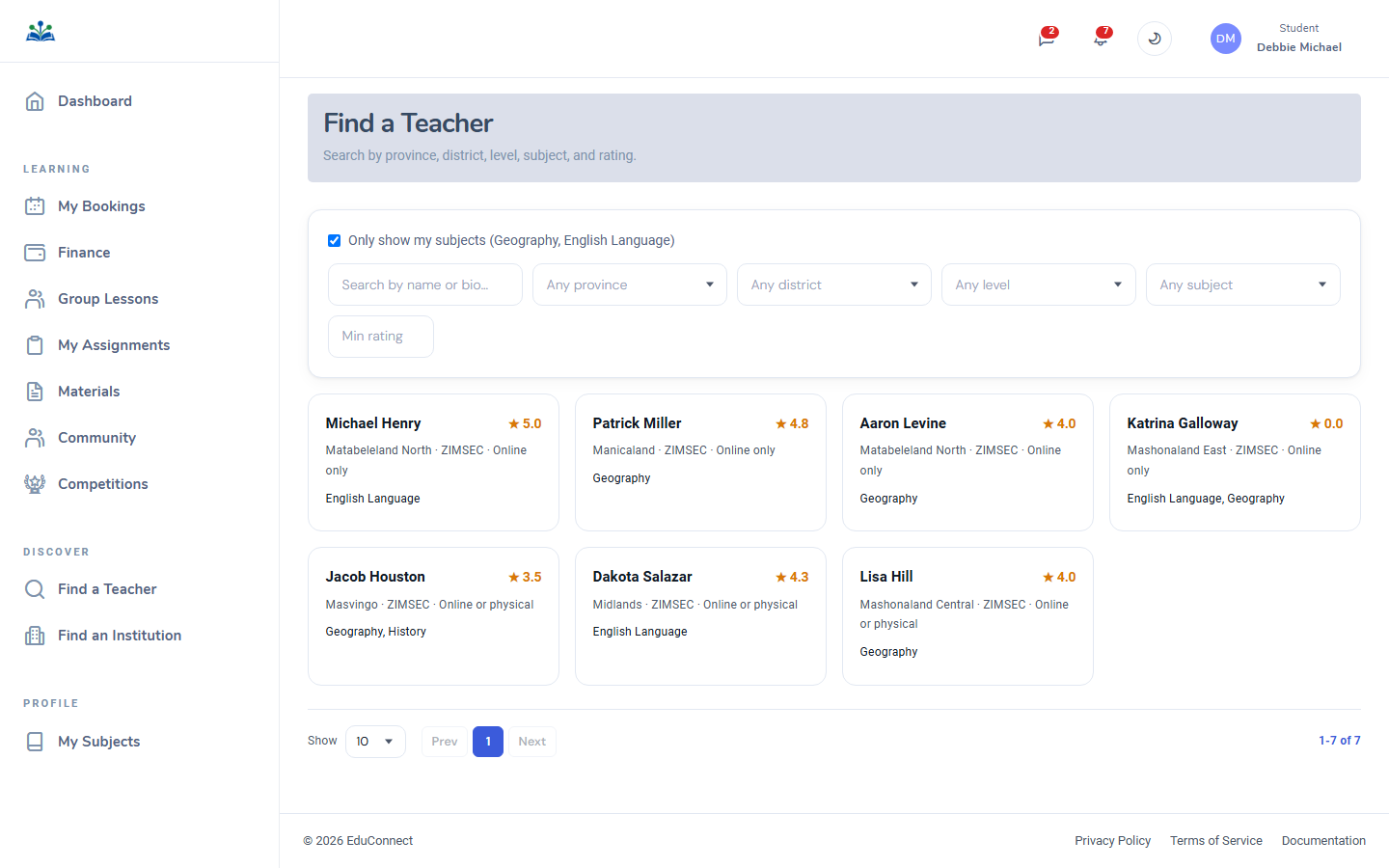
Open DISCOVER → Find a Teacher (in the app, the Teachers tab). Every card shows the teacher's name, star rating, province, examination board, whether they teach online, physical or both, and the subjects they teach.
Narrow the list
| Control | What it does |
|---|---|
| Only show my subjects (…) | Shows teachers of the subjects you saved in My Subjects. Switch it off to see all. |
| Any province / district | Teachers in a place near you. |
| Any level | Teachers who teach that level. |
| Any subject | One subject. |
A teacher's page
Press a teacher's name to open their page.
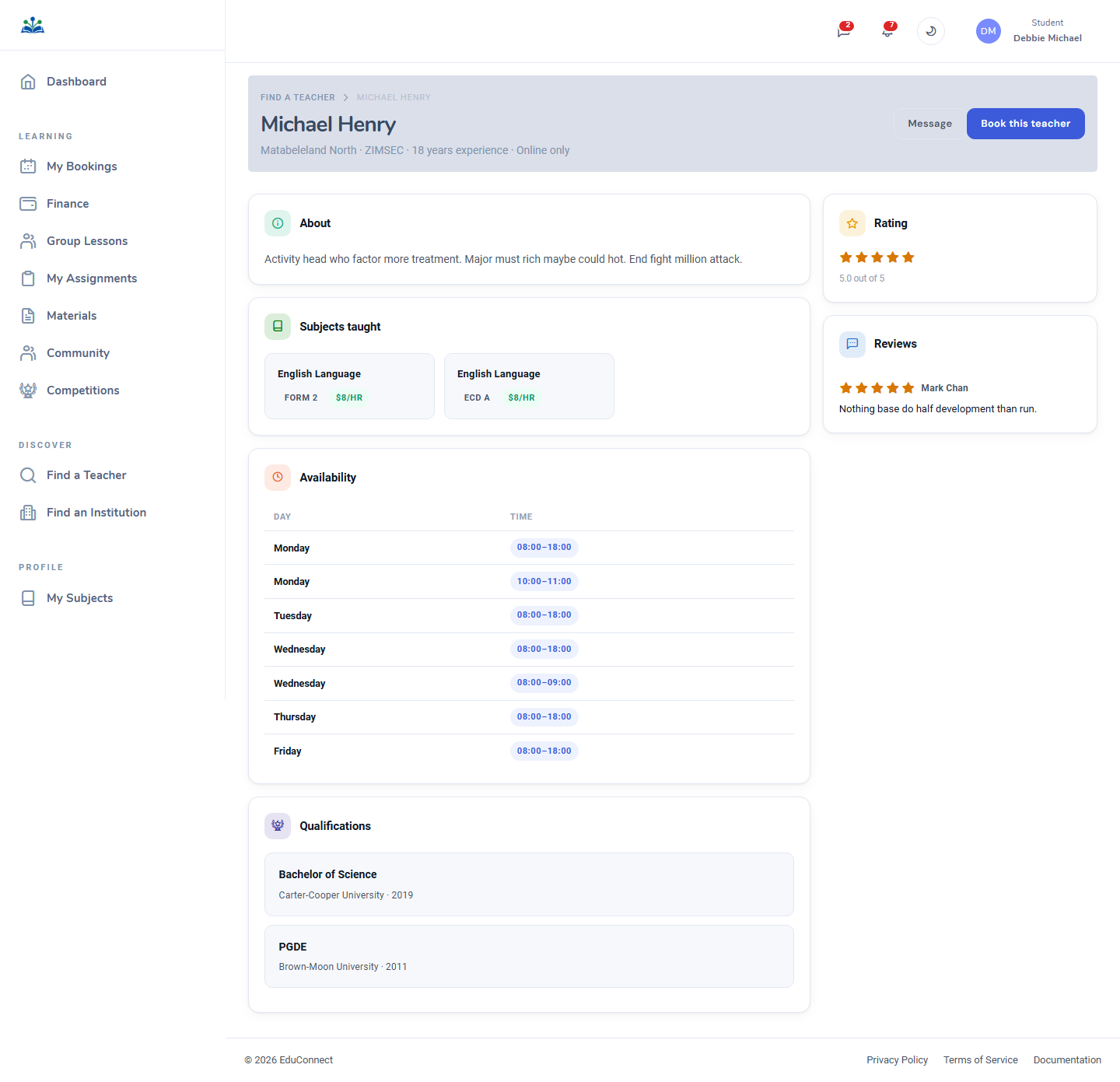
| Section | What it tells you |
|---|---|
| About | The teacher's own description. |
| Subjects taught | Each subject and level with its price per hour, for example English Language, Form 2, $8/hr. The price is the platform rate, the same for every teacher. |
| Availability | The weekly hours the teacher can be booked. |
| Qualifications | Their degrees and certificates. |
| Rating and Reviews | The average of the stars students gave, and what students wrote. |
At the top right are Message (ask a question first) and Book this teacher.
Note
Every teacher you can book has been approved by an administrator: their identity and qualifications were checked before they appeared here.
Why a teacher is missing
- Examination board. By default you can only book under your own examination board, so teachers on another board may not be shown.
- Level. A teacher must teach your level in that subject.
- Not taking bookings. A teacher can pause new bookings, or be temporarily restricted after repeated failures.
- Your saved subjects. Check the Only show my subjects switch.
The next chapter explains how to book: Booking a lesson.
Comments
Log in to read and add comments on this page.
Log in