Creating your account and logging in
Sign up as a student, confirm your email with a code, log in with email, phone or WhatsApp, and reset a forgotten password.
Sign up
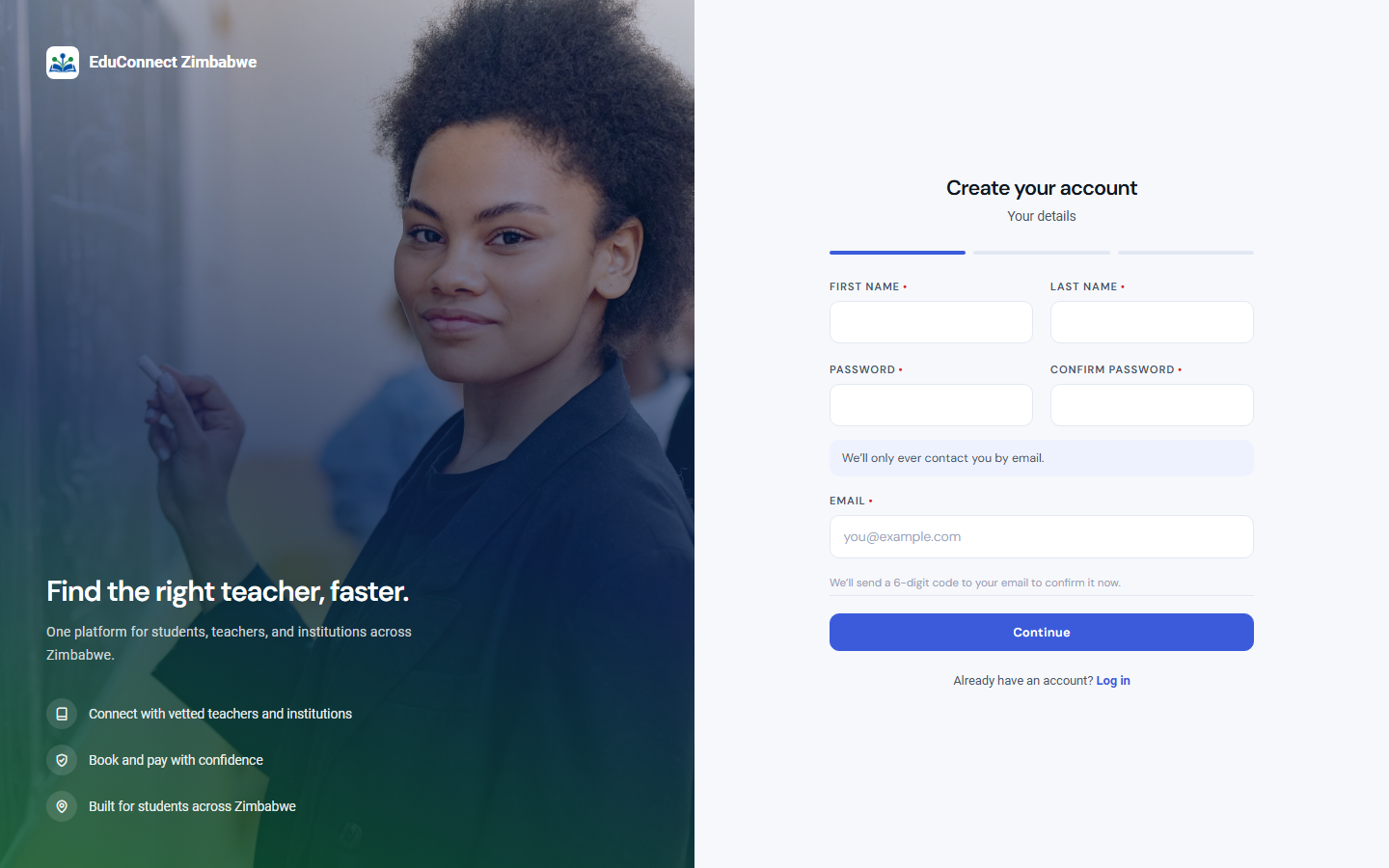
- Open the EduConnect website (or the app) and choose Sign up.
- Enter your first name, last name, email and a password (twice).
- EduConnect sends a 6-digit code to your email. Enter it to confirm that the address is yours.
- On Choose your role, pick Student and press Create account.

Warning
Choose Student, not Teacher. Your role decides which menu you get. If you picked the wrong role, contact support.
You log in with the email address you signed up with. You cannot change it yourself afterwards: contact support if you need to.
Log in
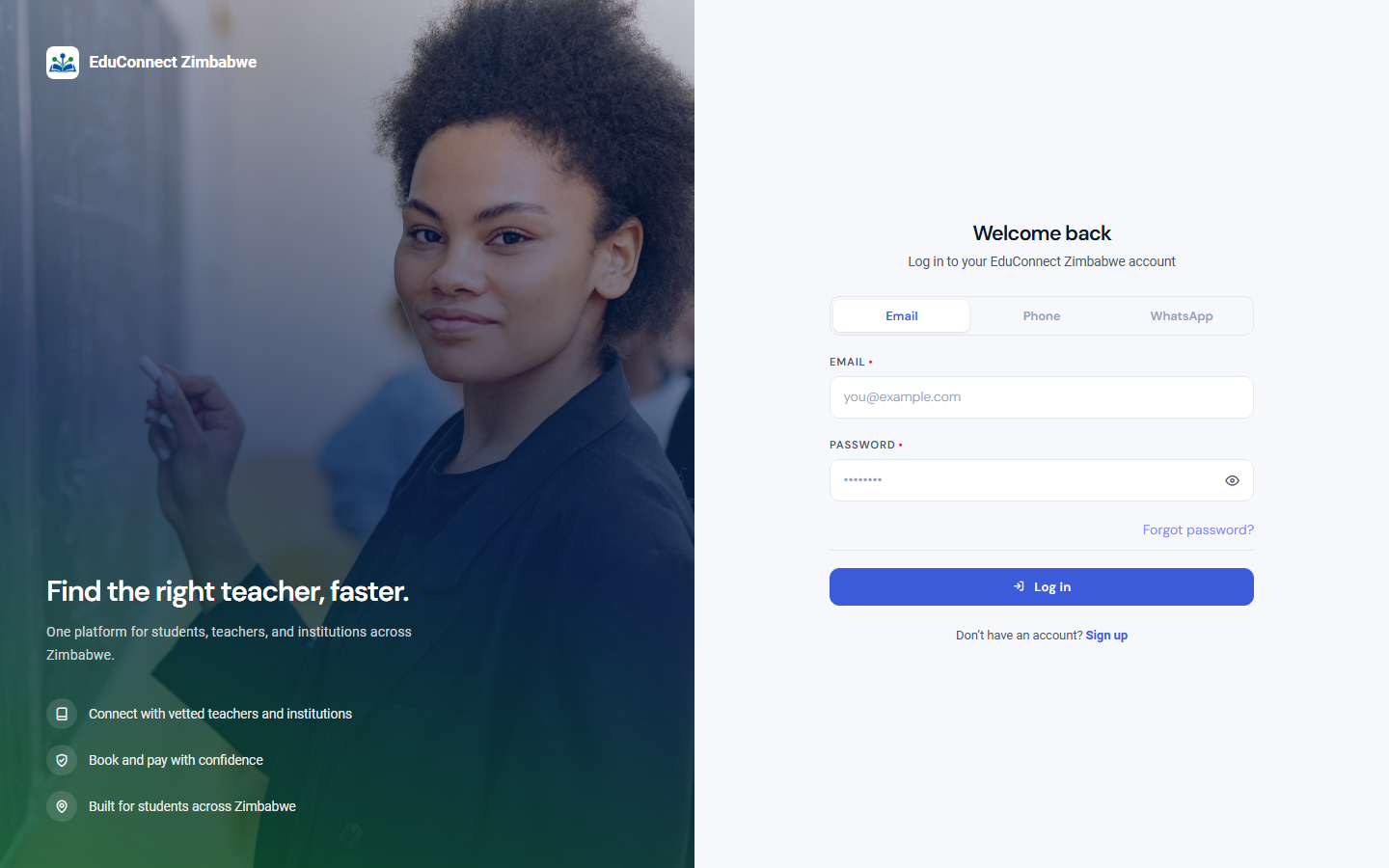
The login page has three tabs. Use the one that matches how you want to be recognised:
| Tab | You enter | Best for |
|---|---|---|
| Your email address and password | Most people. | |
| Phone | Your phone number and password | If you saved a phone number on your profile. |
| Your WhatsApp number and password | The same, for your WhatsApp number. |
If you turn on two-step login (see Password and security), the extra code is sent to the same place you log in with: email, SMS or WhatsApp.
Forgot your password?
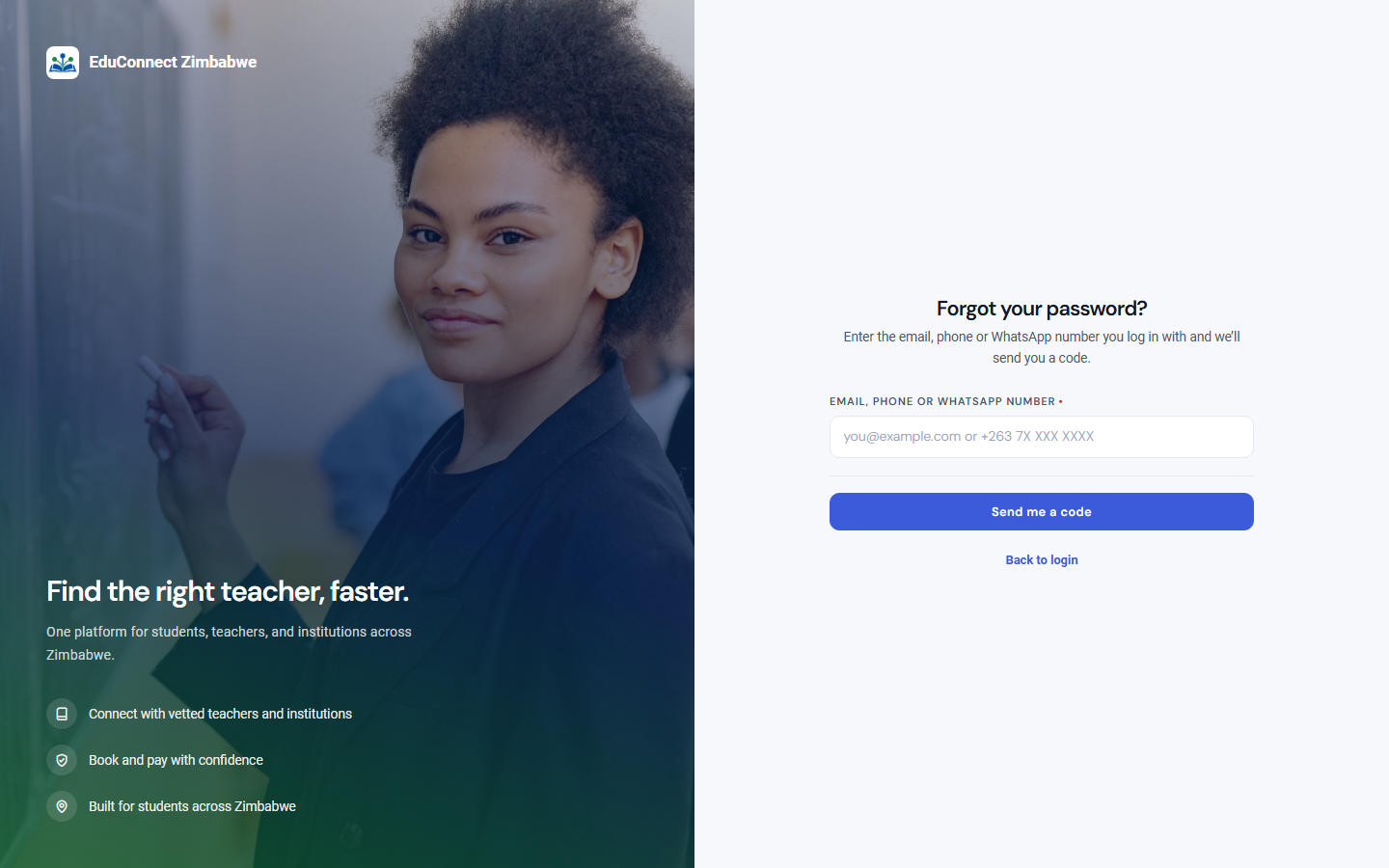
- On the login page choose Forgot password?
- Enter your email, phone or WhatsApp number and press Send me a code.
- Enter the code you receive and choose a new password.
Tip
The code goes to the same kind of address you typed: an email address gets an email, a phone number gets an SMS. If nothing arrives within a minute or two, check your spam folder, then try again.
Staying safe
- Never share your password or login codes with anyone, not even a friend or a teacher. EduConnect staff will never ask for them.
- Never pay a teacher directly. All lesson payments go through EduConnect, which is how you are protected if something goes wrong.
- Log out on shared computers.
Comments
Log in to read and add comments on this page.
Log in