Booking a lesson
The two ways to book, what each field means, and what happens right after you press Book.
There are two ways to book a one-to-one lesson. Use New booking when you know when you want a lesson; use Book this teacher when you already know who you want.
Way 1: New booking ("who is free at my time?")
- Open My Bookings and press New booking.
- Choose the subject (from your saved subjects), the lesson type, the mode, the date and the start and end time.
- Press Find a teacher.
- You see every teacher who teaches that subject at your level and is free at that time. For an online lesson, choose the video call type first, then press Book on a teacher.
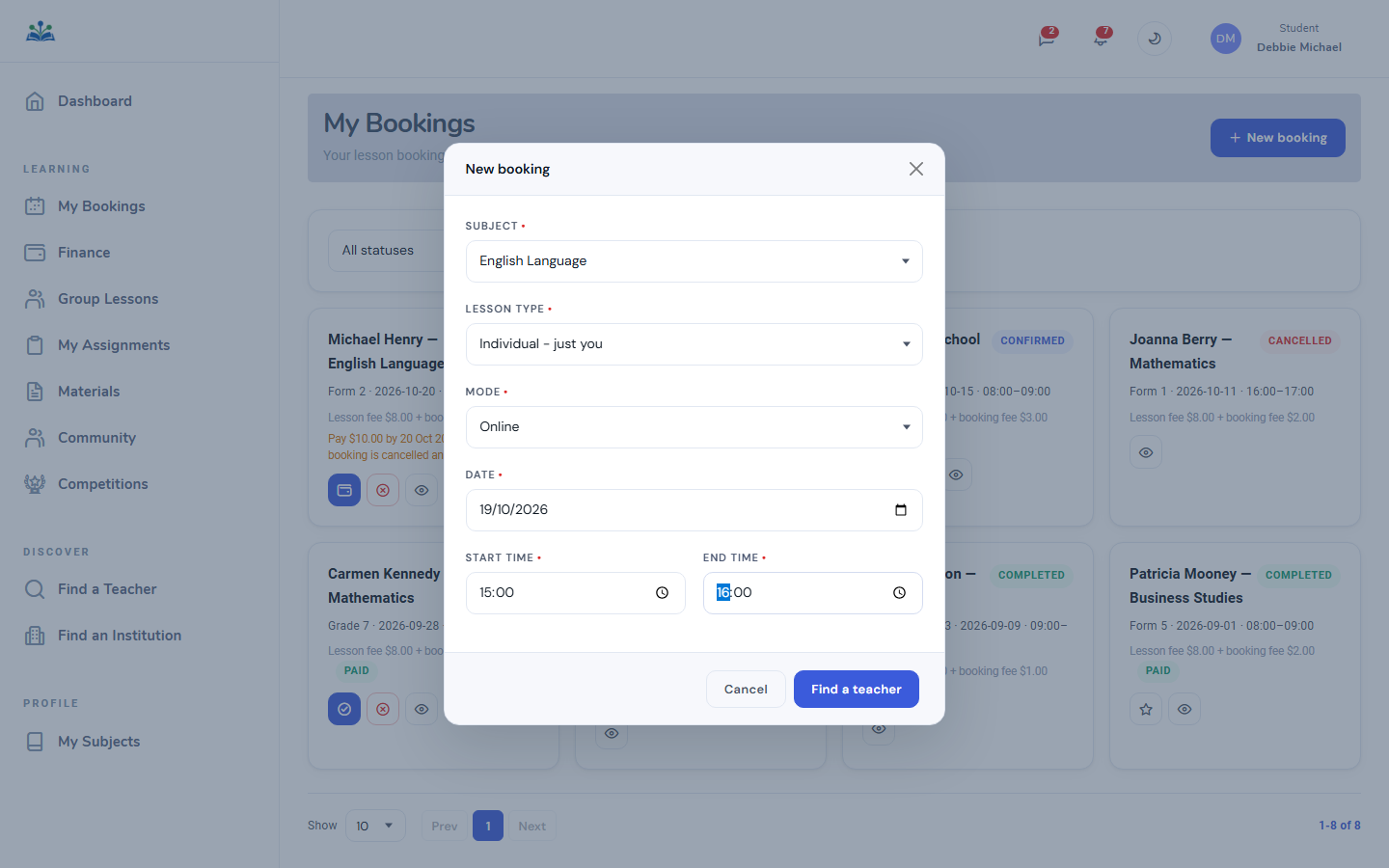
| Field | Meaning |
|---|---|
| Subject | Only your saved subjects are offered. |
| Lesson type | Individual (just you) or Group (you start a group lesson and others can join: see Group lessons). |
| Mode | Online or Physical. |
| Date, Start time, End time | When you want the lesson. The end must be after the start. |

If nobody is free, the page says so: "Nobody who teaches this subject at this level is free at that time. Try a different time."
Way 2: Book this teacher
- Open a teacher's page (see Finding a teacher) and press Book this teacher.
- Choose the subject / level, the date and the start and end time.
- Choose the mode if the teacher offers both, then the video call type for an online lesson.
- Press Book.

Online or physical?
| Mode | What else you choose |
|---|---|
| Online | Video call: Standard (audio and screen sharing, always included) or Premium (full camera video). Premium may cost extra per lesson hour; the form says included or +$… /hour. |
| Physical | Location: A partnered institution's venue, or My home (a home visit, only if the teacher offers it and the platform allows it). For a venue you choose the institution, and may tick extra facilities, each with its own price per hour. For a home visit you type your home address. |
Note
A venue has its own venue fee per hour, added automatically. You see it on the form: "Venue fee: $…/hr (added automatically)." A group lesson held physically is always at a venue.
After you press Book
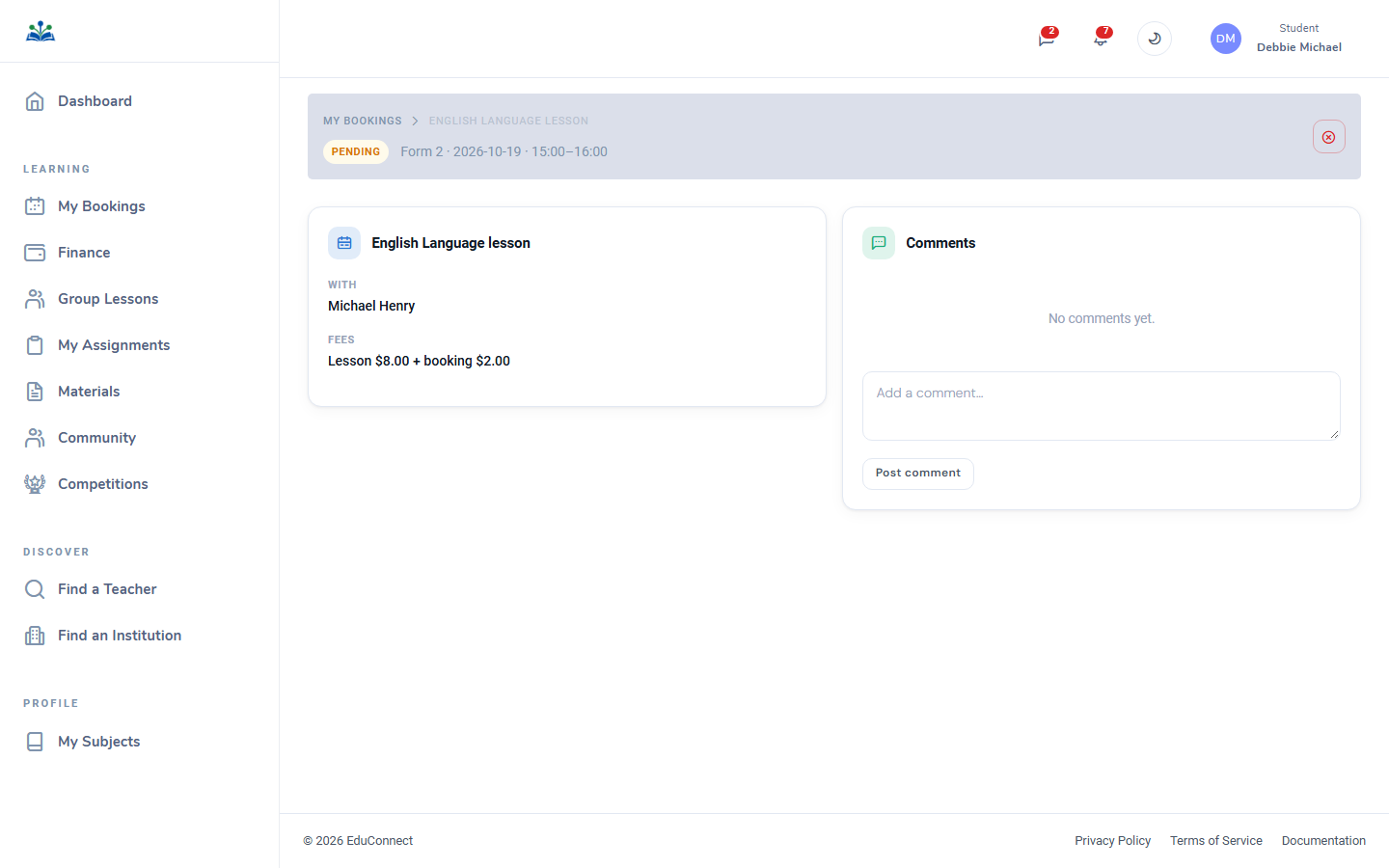
- The booking is created as PENDING. Nothing is charged yet.
- The teacher is told, and can confirm or decline. A confirmed lesson then waits for you to pay: see Paying for a lesson.
- You can cancel a pending booking for free.

Things that stop a booking
| Message or problem | What to do |
|---|---|
| You owe money for an unpaid lesson | You cannot book or join anything until it is settled. See Owing money. |
| Your wallet is restricted after repeated failures | After several late cancellations or no-shows in a short time you must have enough in your wallet to cover the whole booking before you can book. See Cancelling and no-shows. |
| The teacher has something at that time | Pick another time or another teacher. |
| Examination board mismatch | By default a lesson must be on your board. Check your profile. |
| No rate is set for your subject, board and level | Contact support and ask for it to be added. |
Comments
Log in to read and add comments on this page.
Log in