Finding your way around
The menu, the top bar and the dashboard.
After you log in, the left menu has three groups:
| Menu group | Pages | What it is for |
|---|---|---|
| LEARNING | My Bookings, Finance, Group Lessons, My Assignments, Materials, Community, Competitions | Your lessons, your money and your study life. |
| DISCOVER | Find a Teacher, Find an Institution | Finding who to learn from. |
| PROFILE | My Subjects | The subjects you study. |
The Dashboard sits at the top, and your profile opens from your name or picture at the top right.
The top bar
- The speech bubble opens your Messages. A number shows unread messages.
- The bell shows your notifications, with a count of what you have not read.
- The moon switches between light and dark.
- Your name and picture open your profile.
The dashboard
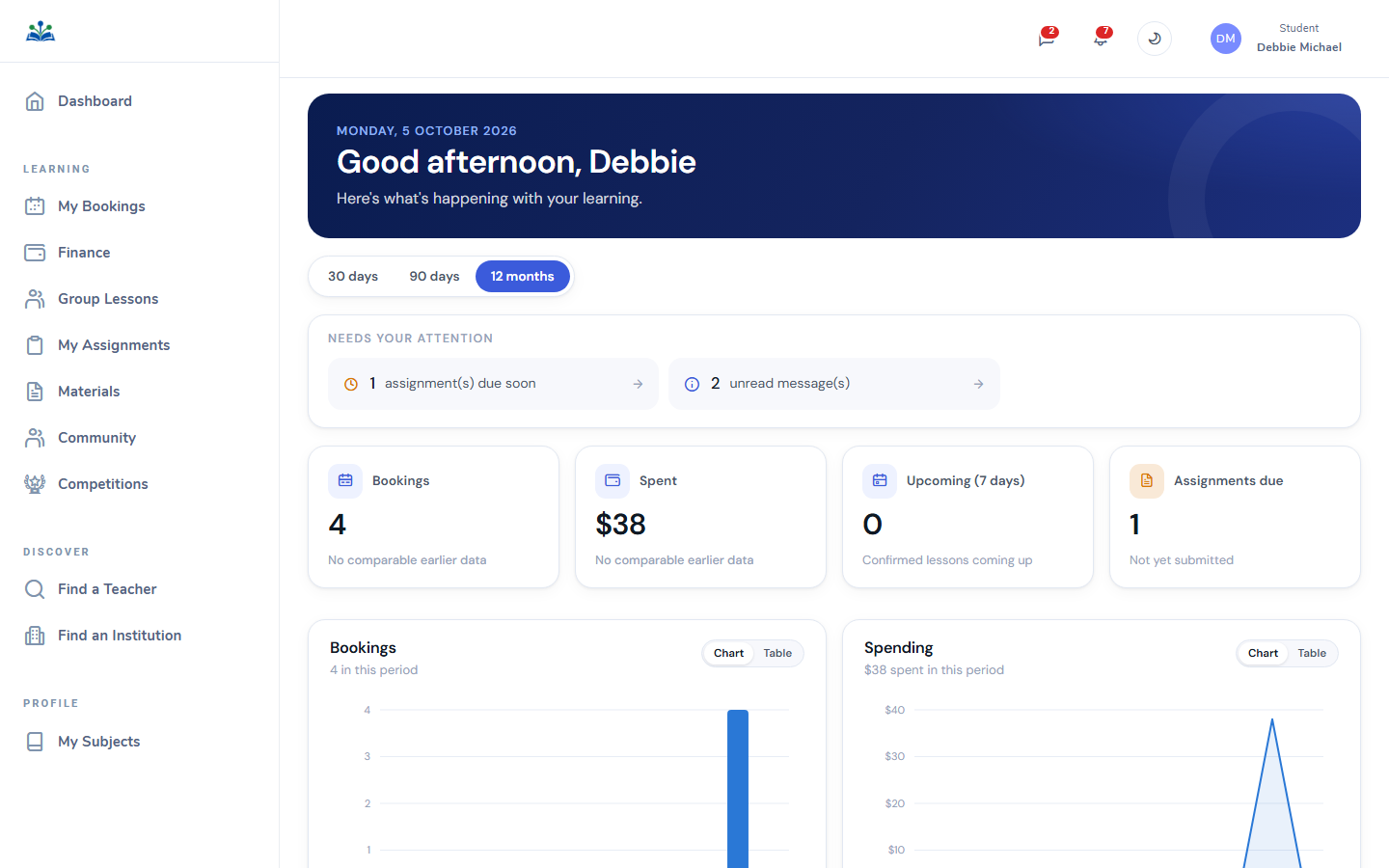
The dashboard answers "what do I need to do today?".
| Part | What it shows |
|---|---|
| Needs your attention | Jobs waiting for you, for example 2 unread message(s), or homework due soon. |
| 30 days / 90 days / 12 months | Changes the period used by the numbers and charts. |
| Bookings | How many bookings you had in the period. |
| Spent | How much you spent on lessons in the period. |
| Upcoming (7 days) | Confirmed lessons coming up this week. |
| Assignments due | Homework you have not handed in. |
| Charts | Bookings and Spending over time. Press Table to see the exact numbers. |
Note
"No comparable earlier data" simply means you were not active in the period before, so there is nothing to compare with.
Lists share the same controls
Every list (bookings, materials, communities and so on) has the same controls: a Show box to choose 10, 25, 50 or 100 rows per page, Prev and Next, and a count such as 1-7 of 7.
Comments
Log in to read and add comments on this page.
Log in