Your wallet: deposit, spend and withdraw
Top up your wallet, understand your balance (including credit that cannot be withdrawn), request a withdrawal and read your history.
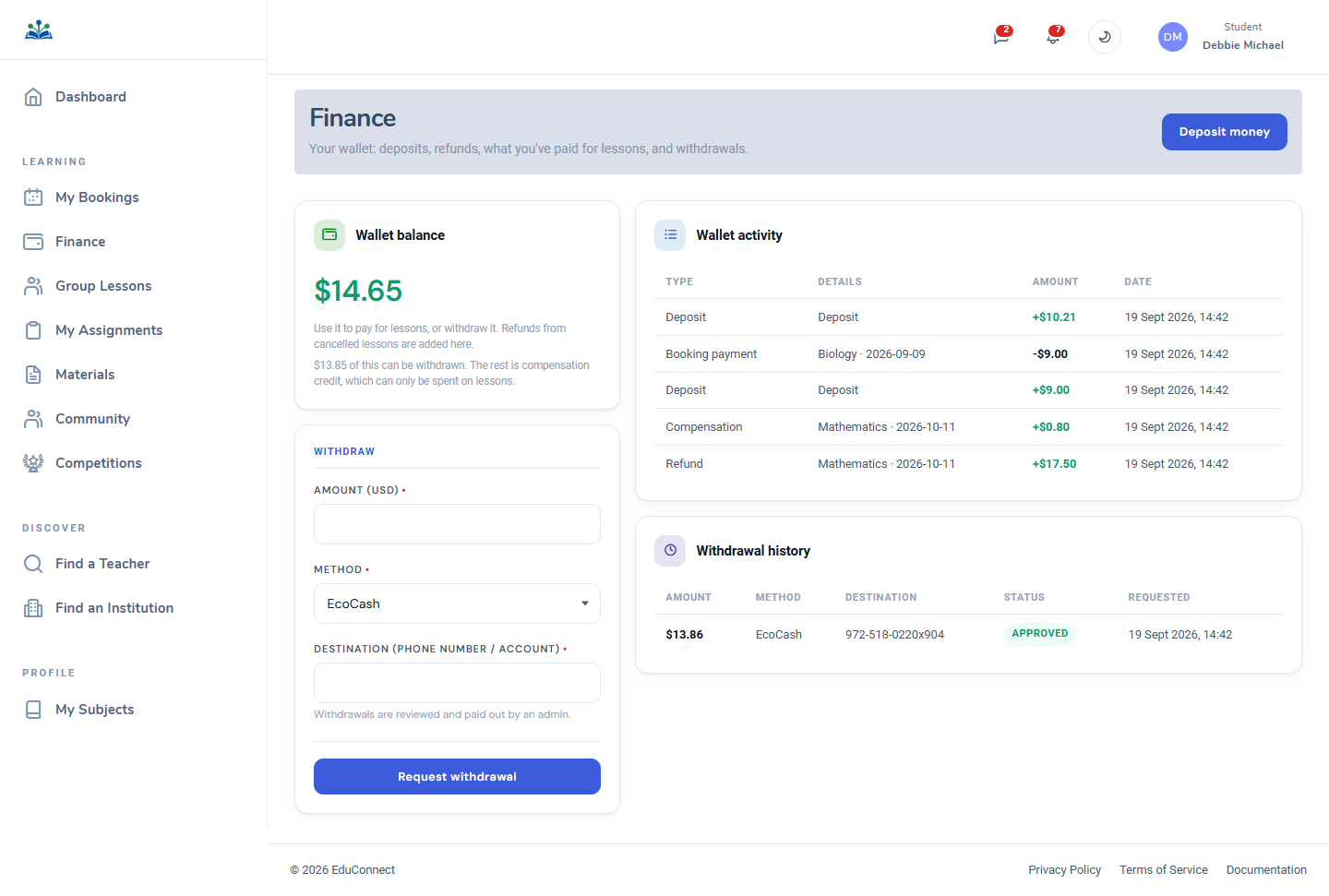
Open LEARNING → Finance (in the app, More → Finance). Your wallet is money you hold on EduConnect. You can spend it on lessons, and refunds and compensation are paid into it.
Your balance
The box at the top shows your Wallet balance, for example $14.65, with a line such as:
$13.85 of this can be withdrawn. The rest is compensation credit, which can only be spent on lessons.
| Part of your balance | Can you spend it on lessons? | Can you withdraw it? |
|---|---|---|
| Deposits and refunds | Yes | Yes |
| Compensation credit (from a lesson your teacher failed) | Yes | No |
Your balance is worked out like this:
Wallet balance = deposits + refunds + compensation − what you spent on lessons − withdrawals you have requested (not rejected).
Example
Assumptions: you deposited $19.21, a cancelled lesson gave you a $17.50 refund and $0.80 of compensation, and you spent $9.00 on a lesson. You have asked to withdraw $13.86.
| Line | Amount |
|---|---|
| Deposits | + $19.21 |
| Refund | + $17.50 |
| Compensation | + $0.80 |
| Lesson payment | − $9.00 |
| Withdrawal requested | − $13.86 |
| Wallet balance | $14.65 |
| Of which compensation credit (not withdrawable) | $0.80 |
| Can be withdrawn | $13.85 |
Deposit money
- Press Deposit money.
- Enter the amount in US dollars.
- Choose a payment method: EcoCash, OneMoney, ZIPIT or Visa/Mastercard.
- For mobile money, enter your phone number: you will get a prompt to approve the payment.
- Press Deposit.

Your wallet updates automatically once the payment is confirmed ("Your wallet updates automatically once the payment is confirmed").
Withdraw
- In Withdraw, enter the amount (in US dollars).
- Choose the method: EcoCash, OneMoney, ZIPIT or Bank transfer / other.
- Enter the destination: the phone number or account the money must go to.
- Press Request withdrawal.
Warning
Check the destination carefully. An administrator pays exactly what you typed, and a payment to a wrong number usually cannot be recovered.
You cannot withdraw more than the withdrawable amount. The amount you request is taken off your wallet immediately, so it cannot be requested twice.
| Status in your history | Meaning |
|---|---|
| REQUESTED | Waiting for an administrator. |
| APPROVED | Accepted, waiting to be paid. |
| PAID | The administrator has sent the money. |
| REJECTED | Not paid. The amount returns to your wallet. |
EduConnect does not send the money automatically: an administrator pays you by hand and then marks it paid, so allow time.
Wallet activity
Wallet activity lists everything that moved your wallet: Deposit, Booking payment, Refund and Compensation, with the lesson it was for and the date. Withdrawal history lists your withdrawal requests.
Tip
Keep a little in your wallet: you can pay a lesson in one tap, you avoid the pay-by deadline rush, and refunds come back to a place you can use at once.
Comments
Log in to read and add comments on this page.
Log in