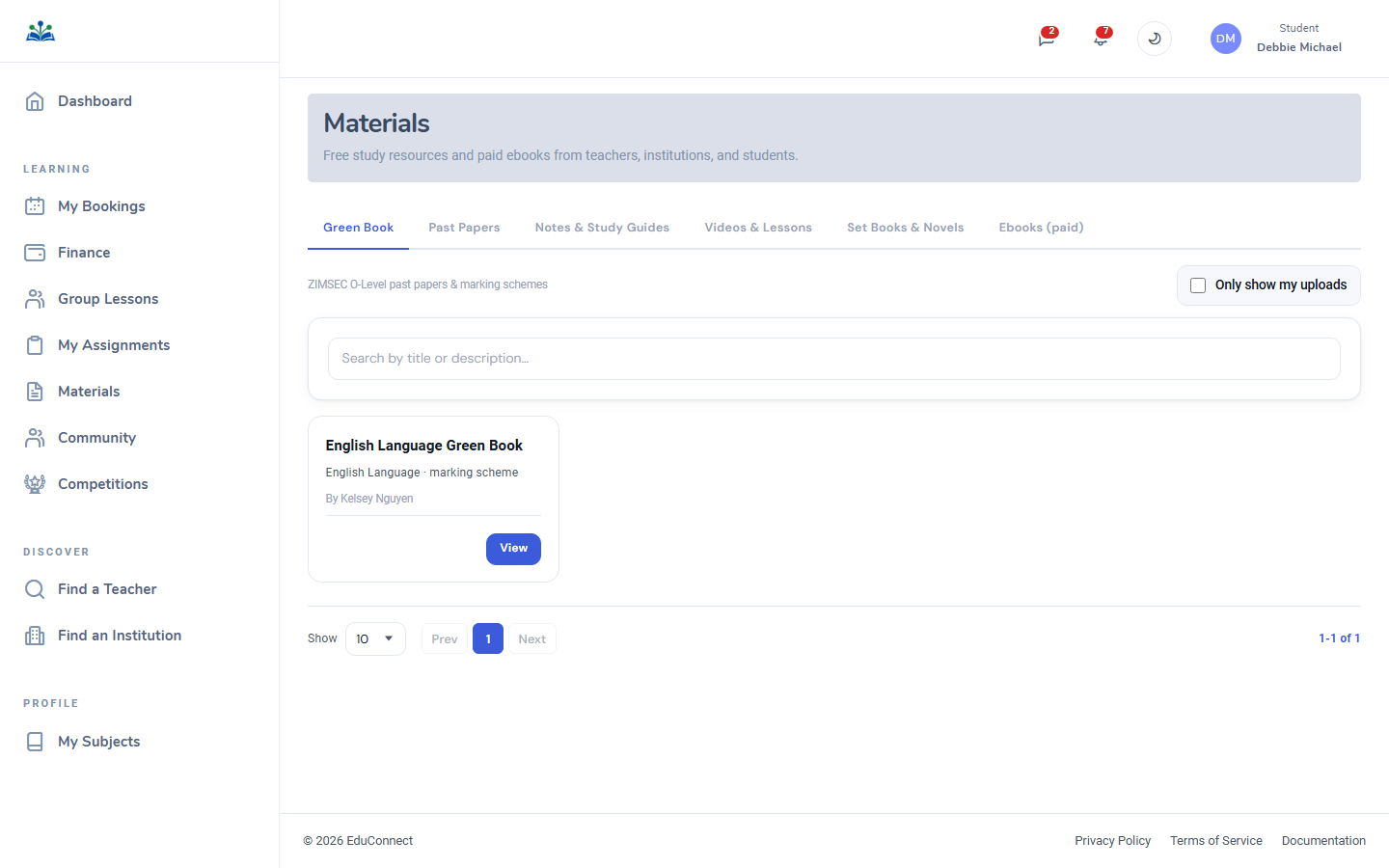
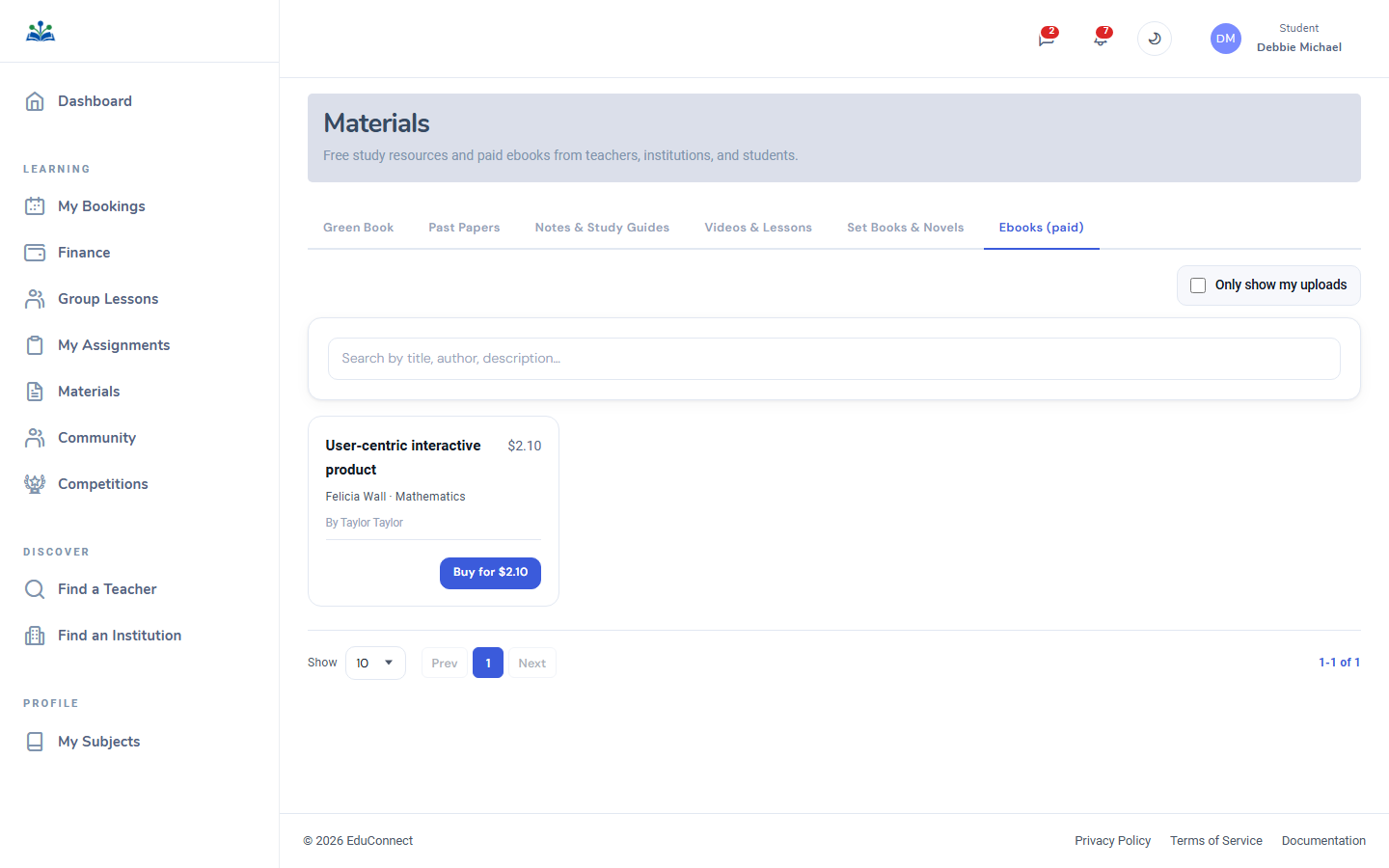
LEARNING → Materials is a library of free study resources and paid ebooks shared by teachers, institutions and sometimes other students. Use the tabs to browse by category: Green Book, Blue Book, Past Papers, Notes & Study Guides, Videos & Lessons, Set Books & Novels and Ebooks (paid). The line under the tabs tells you what the category holds, for example ZIMSEC O-Level past papers & marking schemes.
Resources are shown for your subjects: add them in My Subjects.
Press View on a card. A card shows the title, the subject and type (for example Mathematics · marking scheme) and who uploaded it. Free resources cost nothing.
Note
Every time you open a resource, its uploader may earn a small amount from EduConnect (for example $0.02, at most once per day per resource). It never costs you anything.
Whether students can share materials is set by administrators. By default students can browse only. If uploading is allowed, an Upload button appears, and Only show my uploads lets you see your own.
Uploads may need an administrator's approval before others can see them.
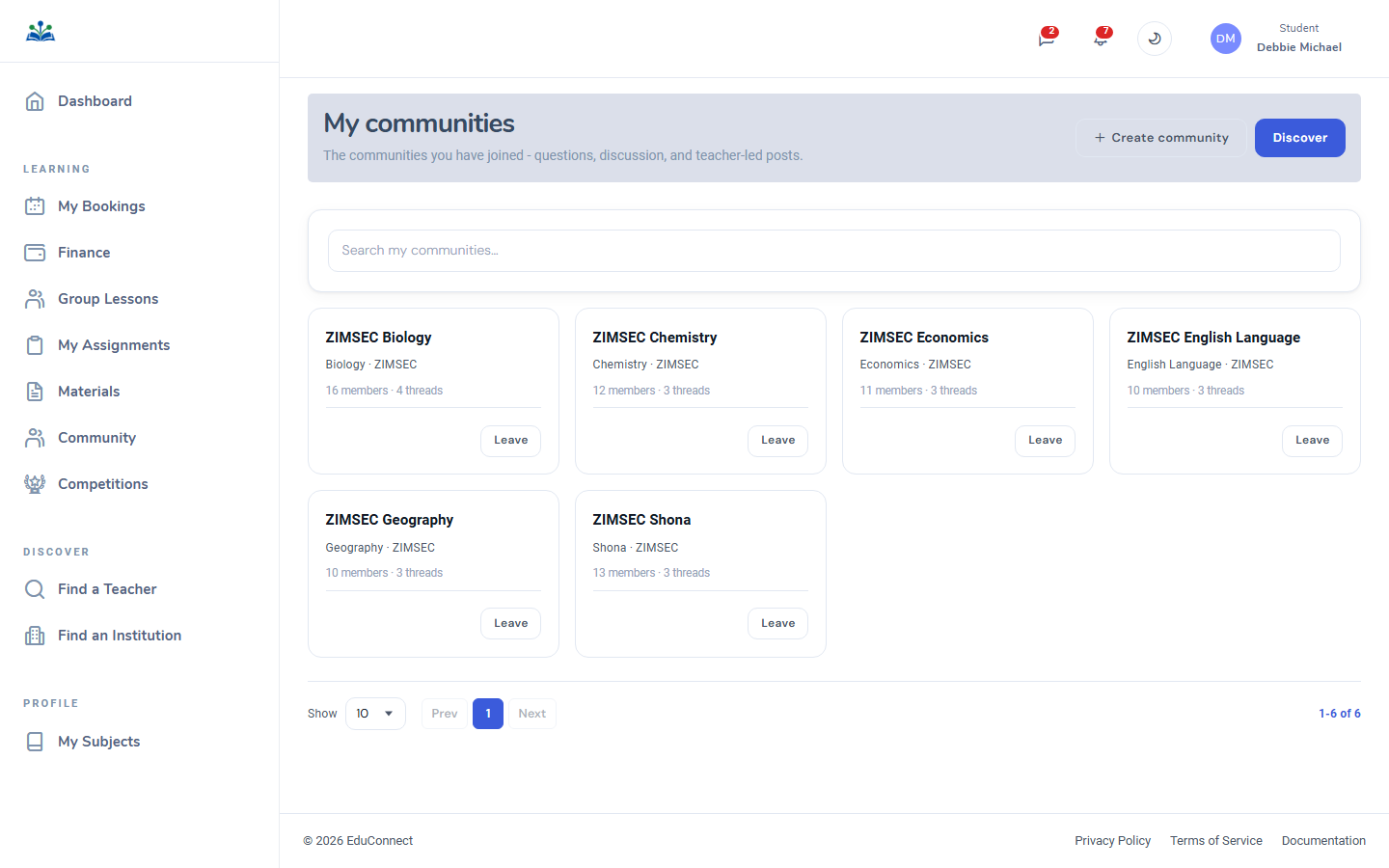
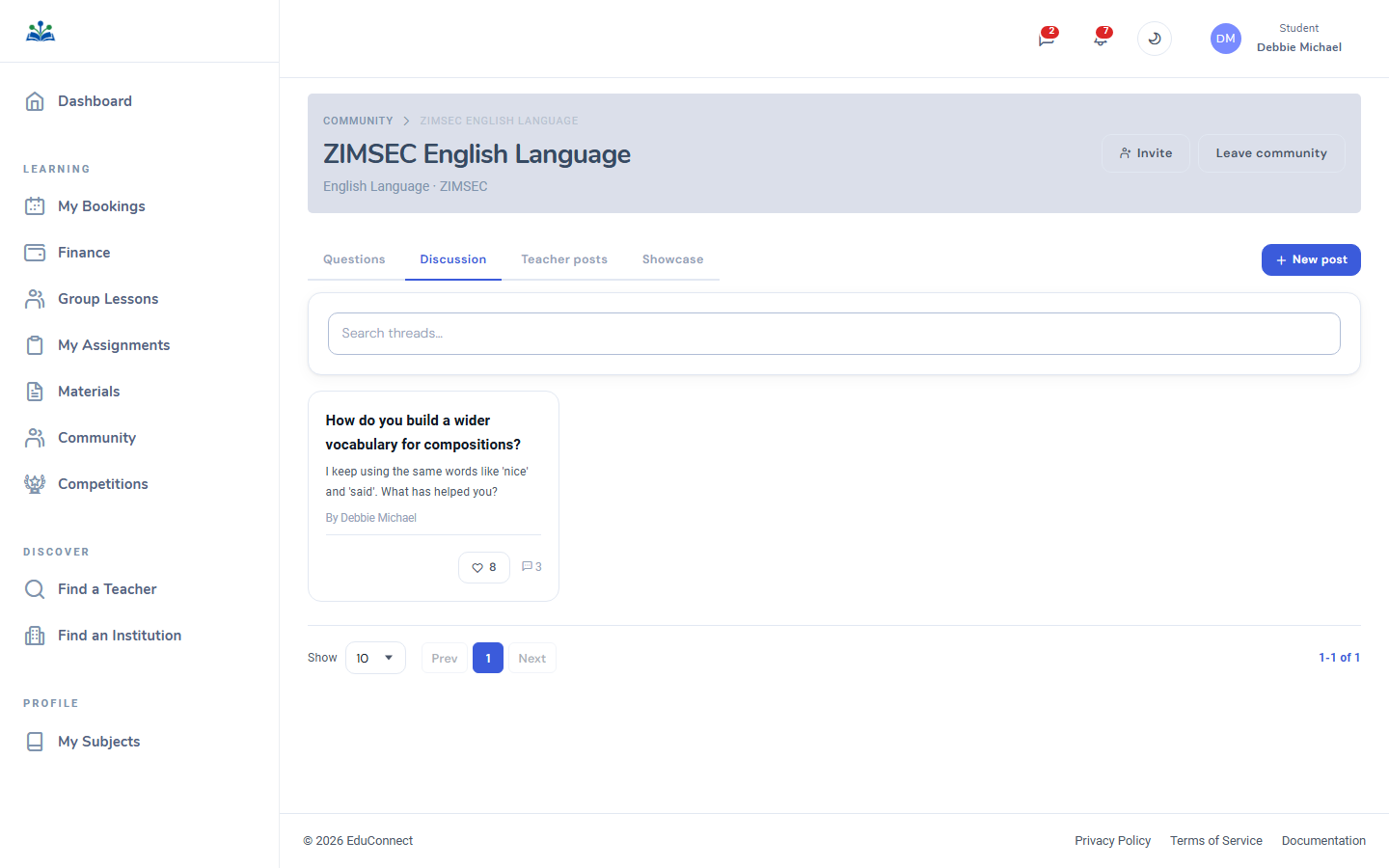
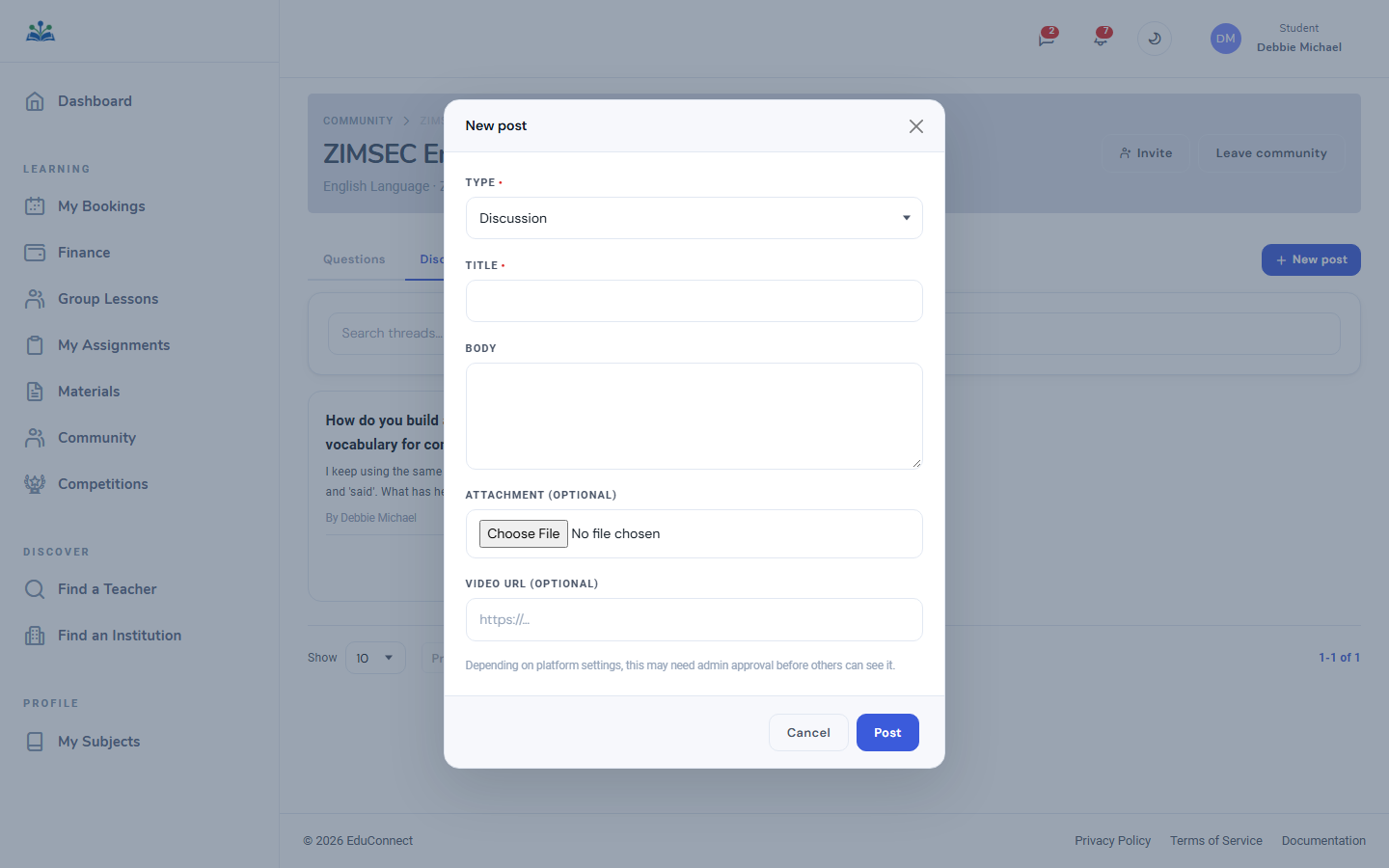
LEARNING → Community is where students and teachers talk about a subject. Each community is tied to a subject and an examination board, for example ZIMSEC English Language.
My communities lists the ones you have joined, with members and threads.
Discover lists others you can join. Press Leave to stop following one.
Create community lets you start one, if the platform allows it.
When someone invites you to a community, you get a notification and the invitation appears on the Invitations page.
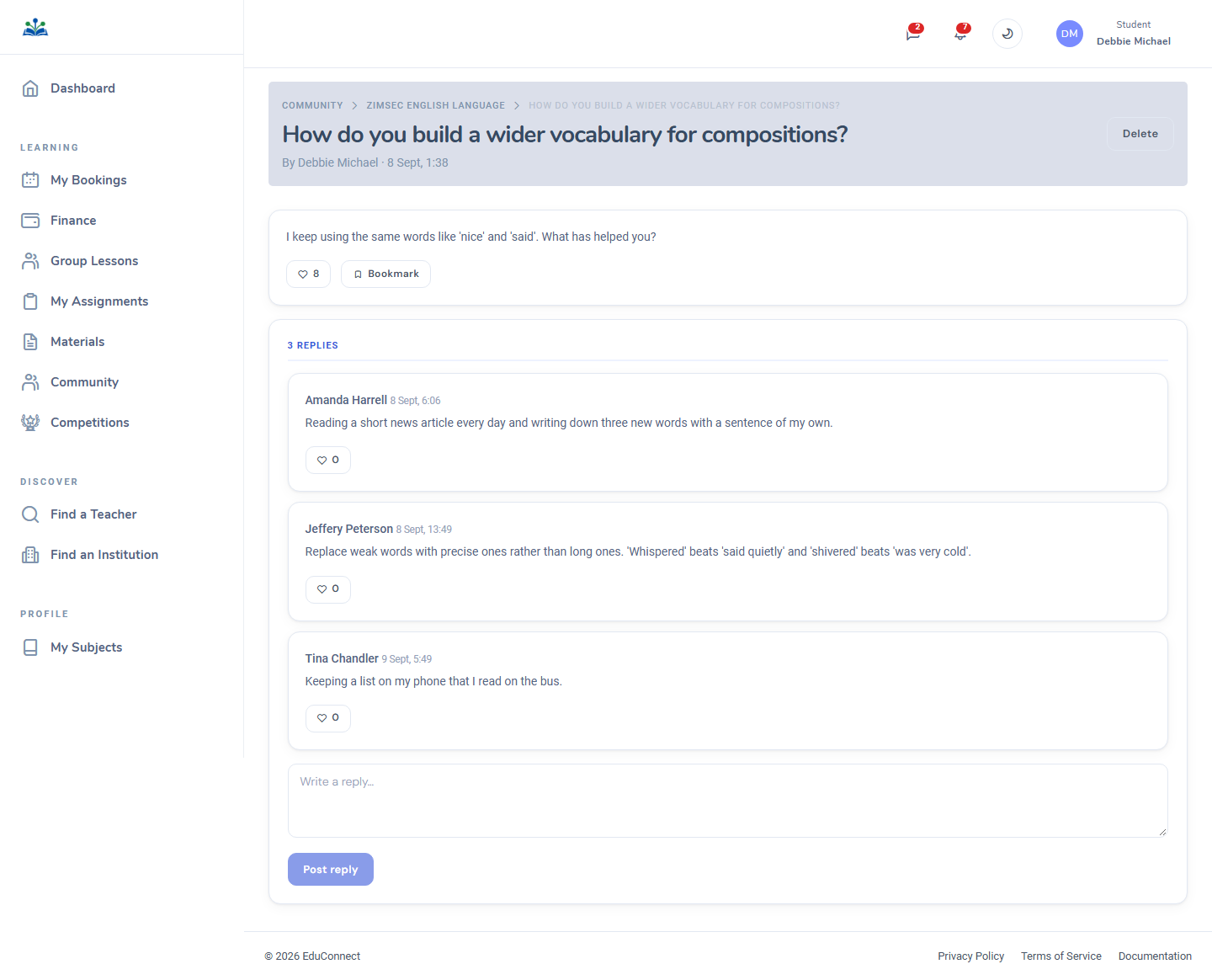
Press Post reply to answer. A helpful answer can be marked as the accepted one by the person who asked.
Each post shows how many people liked it. You can Bookmark a post to find it again.
You can Delete your own post. You can report a post that breaks the rules; administrators review reports.
You can block a user who bothers you: in the app see Blocked users under your account.
Warning
Be kind and keep it about studying. Do not ask others to do your homework for you, do not advertise, and do not share phone numbers or take the conversation off the platform. Such posts are rejected.
You can earn badges for taking part, and you get a notification when you do.
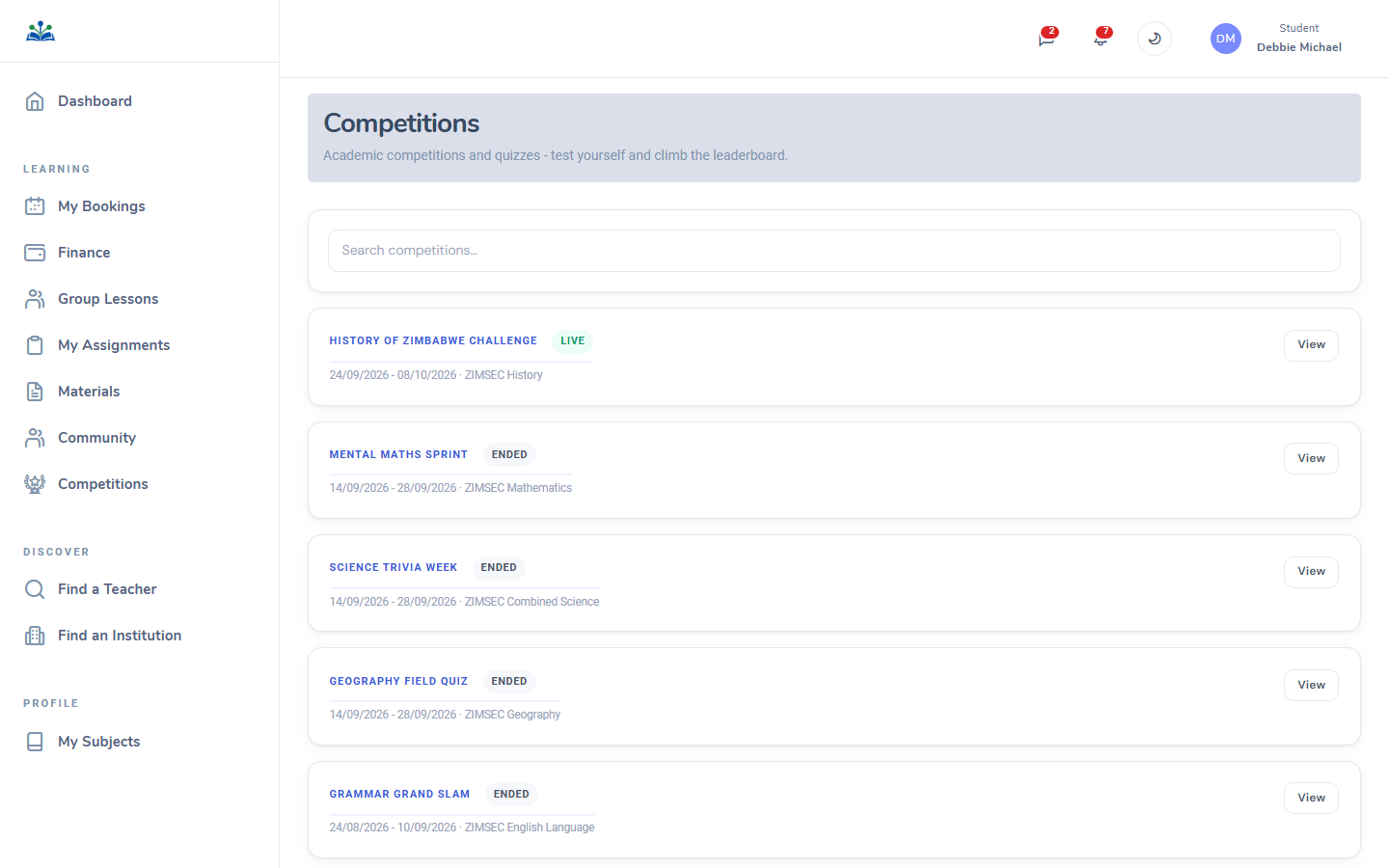
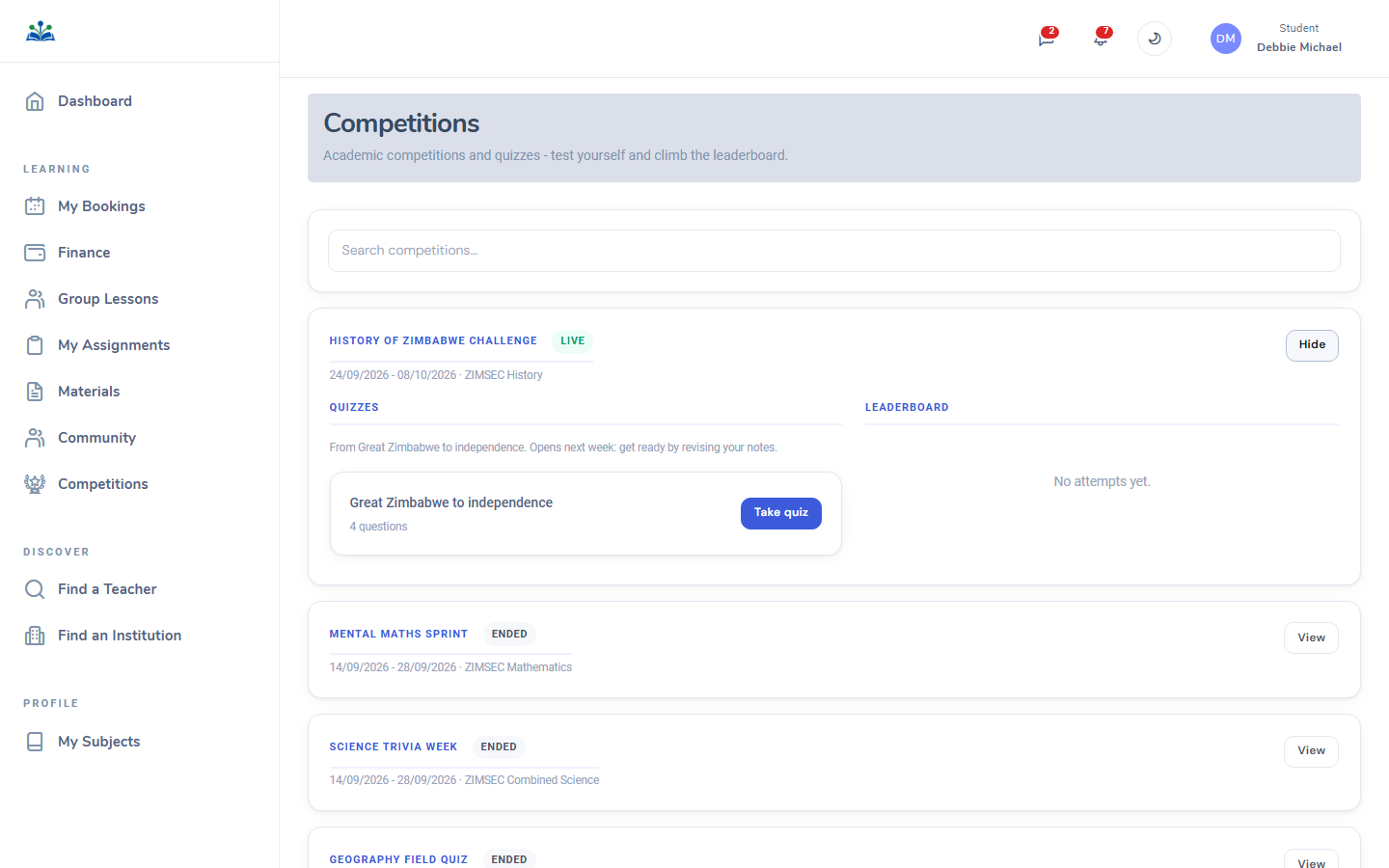
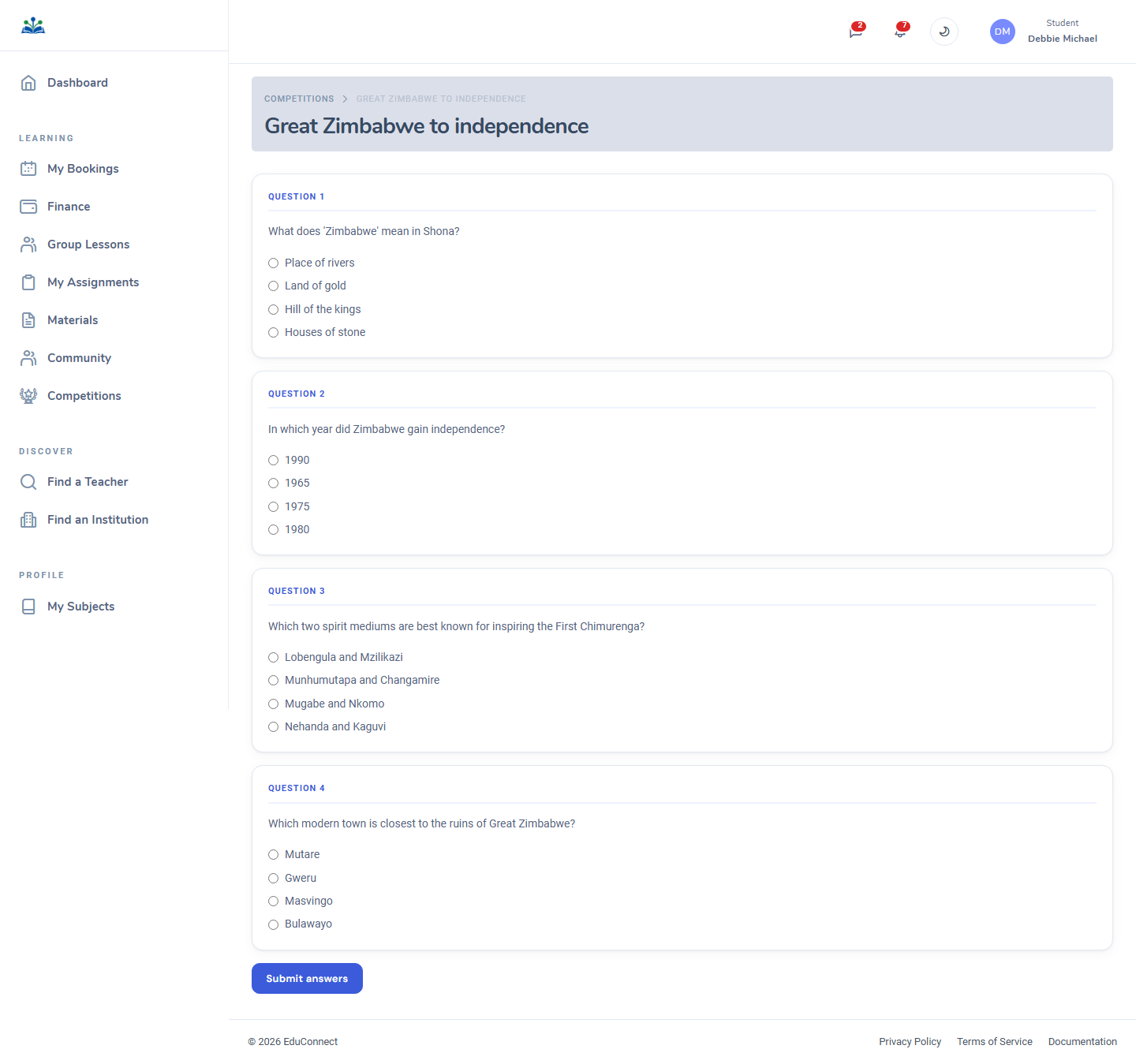
LEARNING → Competitions lists academic competitions, each made of one or more quizzes, with a leaderboard. Each row shows the title, its status (LIVE or ENDED), its dates and its subject.