My Bookings: every request and lesson with its status
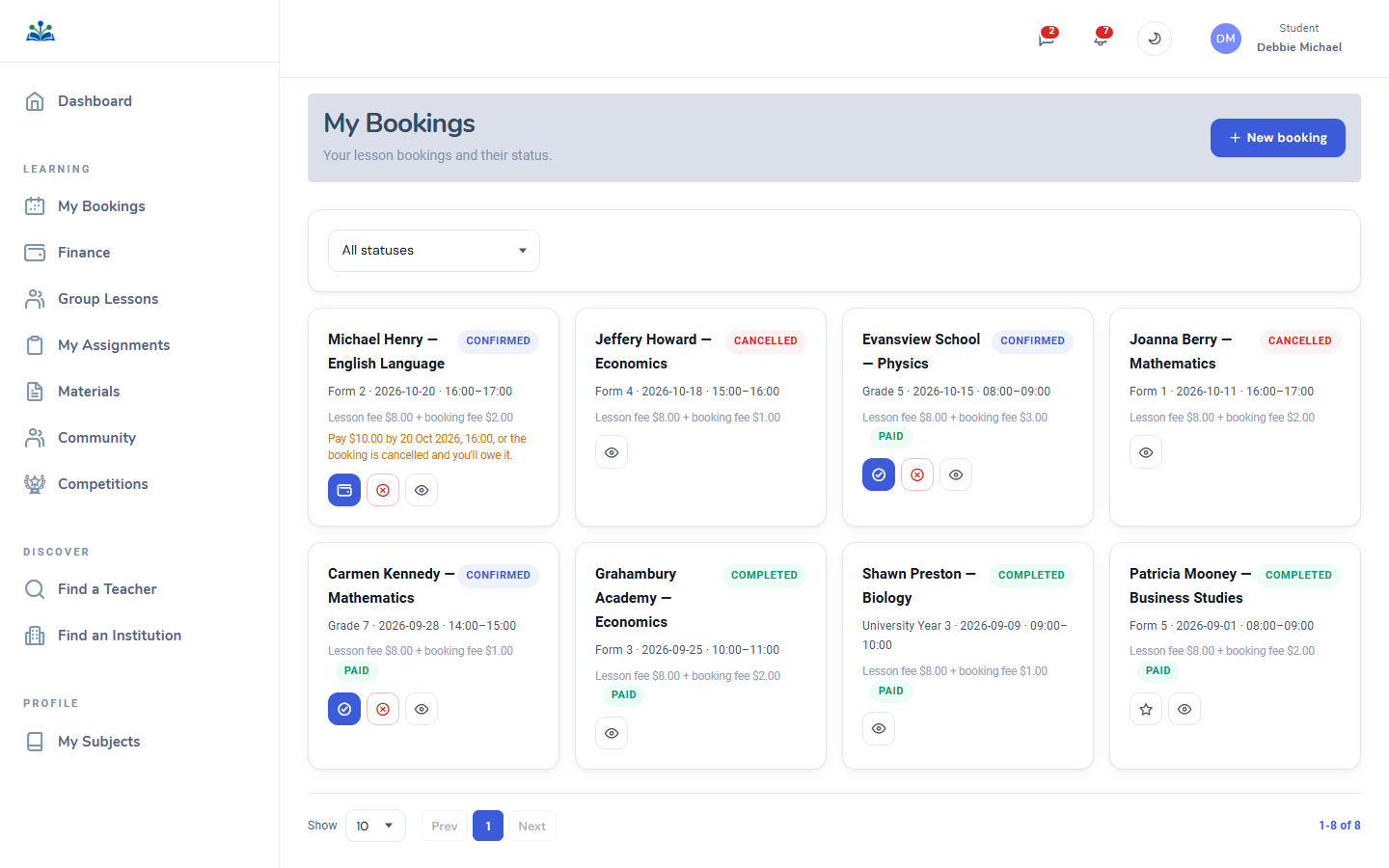
My Bookings lists every lesson you have asked for. Each row shows the teacher, subject, level, date and time, the fees and a status. Use the status filter (All statuses, Pending, Confirmed, Completed, Cancelled, No show) to focus on one kind.
Every confirmed lesson has a pay-by time. The booking page and the list both show it:
A confirmed lesson that still needs paying: it shows the pay-by time
"Pay $10.00 by 20 Oct 2026, 16:00, or the booking is cancelled and you'll owe it."
By default you can pay any time up to the start of the lesson, but a platform can ask for payment earlier, for example 24 hours before. The pay-by time is fixed when the teacher confirms, and a lesson confirmed close to its start still gives you at least 60 minutes to pay (never later than the start). You get a reminder a few hours before the deadline.
Warning
If you do not pay by the pay-by time, the booking is cancelled and you owe a fee (the same as a no-show would cost), unless a free pass covers you. Until it is settled you cannot book or join anything. See Owing money.
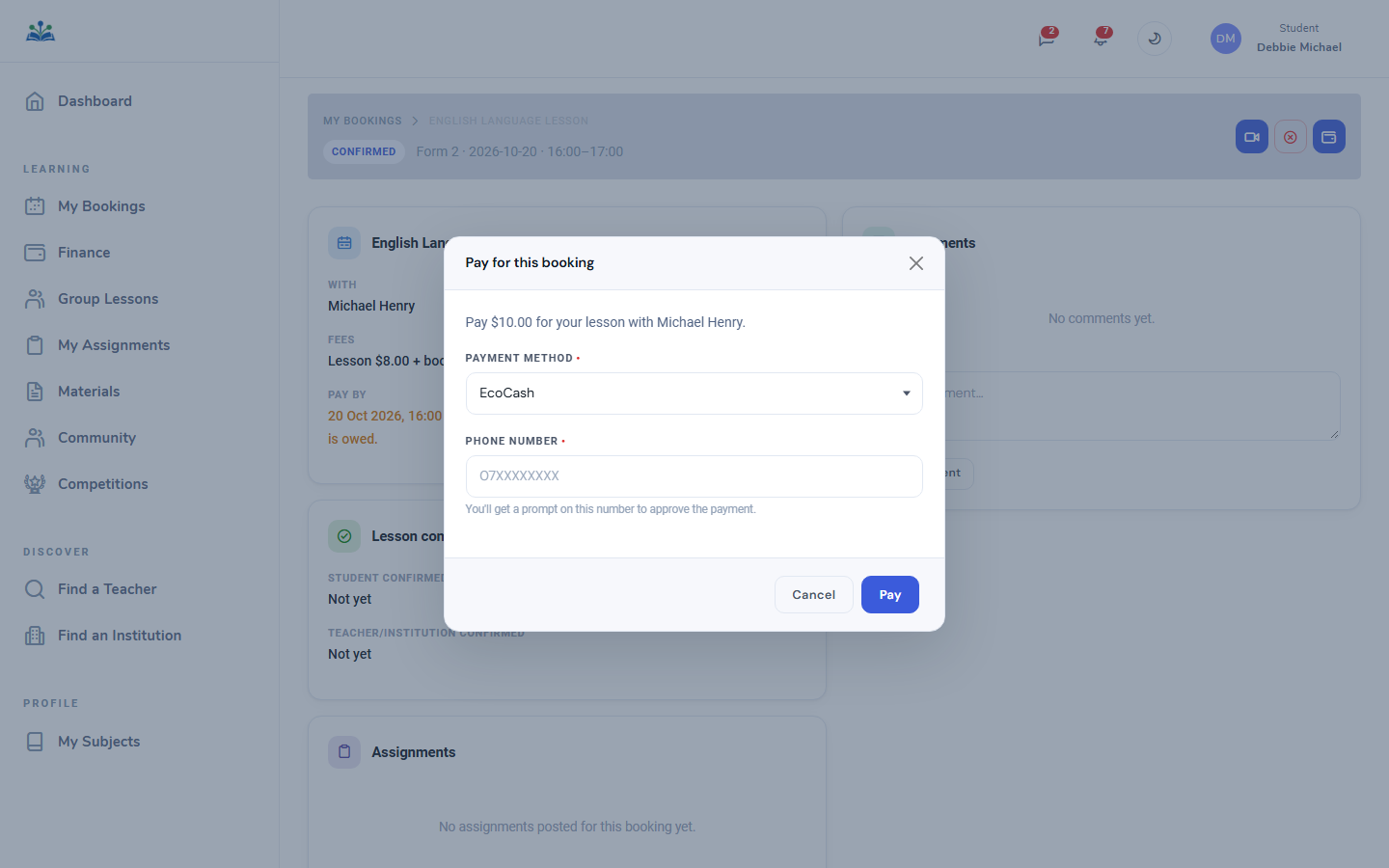
On the confirmed booking (or its card in My Bookings) press the wallet button (Pay now).
Choose a payment method.
For EcoCash, OneMoney or ZIPIT enter the phone number to charge. You will get a prompt on that phone to approve the payment.
Press Pay.
Paying for a booking
Method
How it works
Wallet
Offered in My Bookings when your wallet holds enough to cover the whole amount. It is instant.
EcoCash, OneMoney, ZIPIT
You get a prompt on your phone. Approve it with your PIN.
Visa/Mastercard, PayPal
Open payment page opens a secure page to complete the payment.
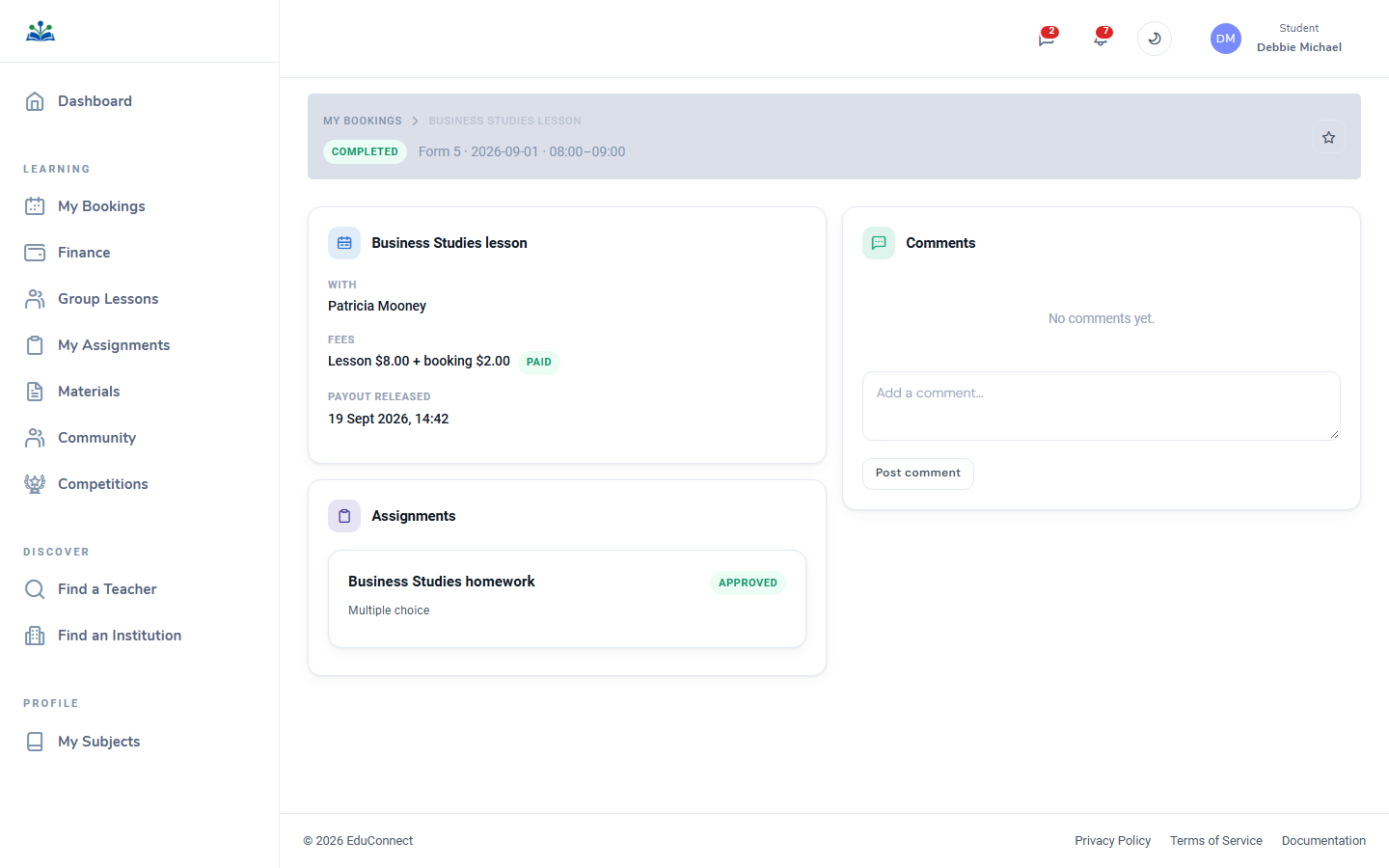
After you press Pay, the page says "This will update automatically once the payment is confirmed - you can close this and check back later too." When it succeeds the booking shows a green PAID tag. A mobile-money prompt can take a little while to reach you.
Tip
Keep some money in your wallet. It lets you pay with one tap, and refunds and compensation are paid there too.
The booking shows Lesson $8.00 + booking $2.00: the lesson fee (the teacher's pay, less the platform's commission) plus the booking fee (kept by the platform). An online lesson with Premium video can add a video fee, and a lesson at a venue adds the venue fee. See What a lesson costs.
A confirmed online booking has a video button at the top of its page (Join call). Press it at the lesson time to open EduConnect's built-in lesson room. The teacher presses the same button on their side.
Standard calling (audio and screen sharing) is included. Premium adds full camera video, if you chose it when booking.
Join a few minutes early and test your sound.
In the mobile app the call runs on your phone. The screenshots in this manual cannot show the call itself.
A physical lesson takes place at your home (a home visit) or at a partnered institution's venue, whichever you chose when booking. Agree the details in the booking's Comments or in Messages, and be ready on time.
Cancel as early as you can. The earlier you cancel, the less it costs, and cancelling more than 24 hours ahead is free by default. See Cancelling and no-shows.
Wait until the grace period (15 minutes after the start, by default) and then report it on the booking: see Cancelling and no-shows. You are refunded in full if the report stands.
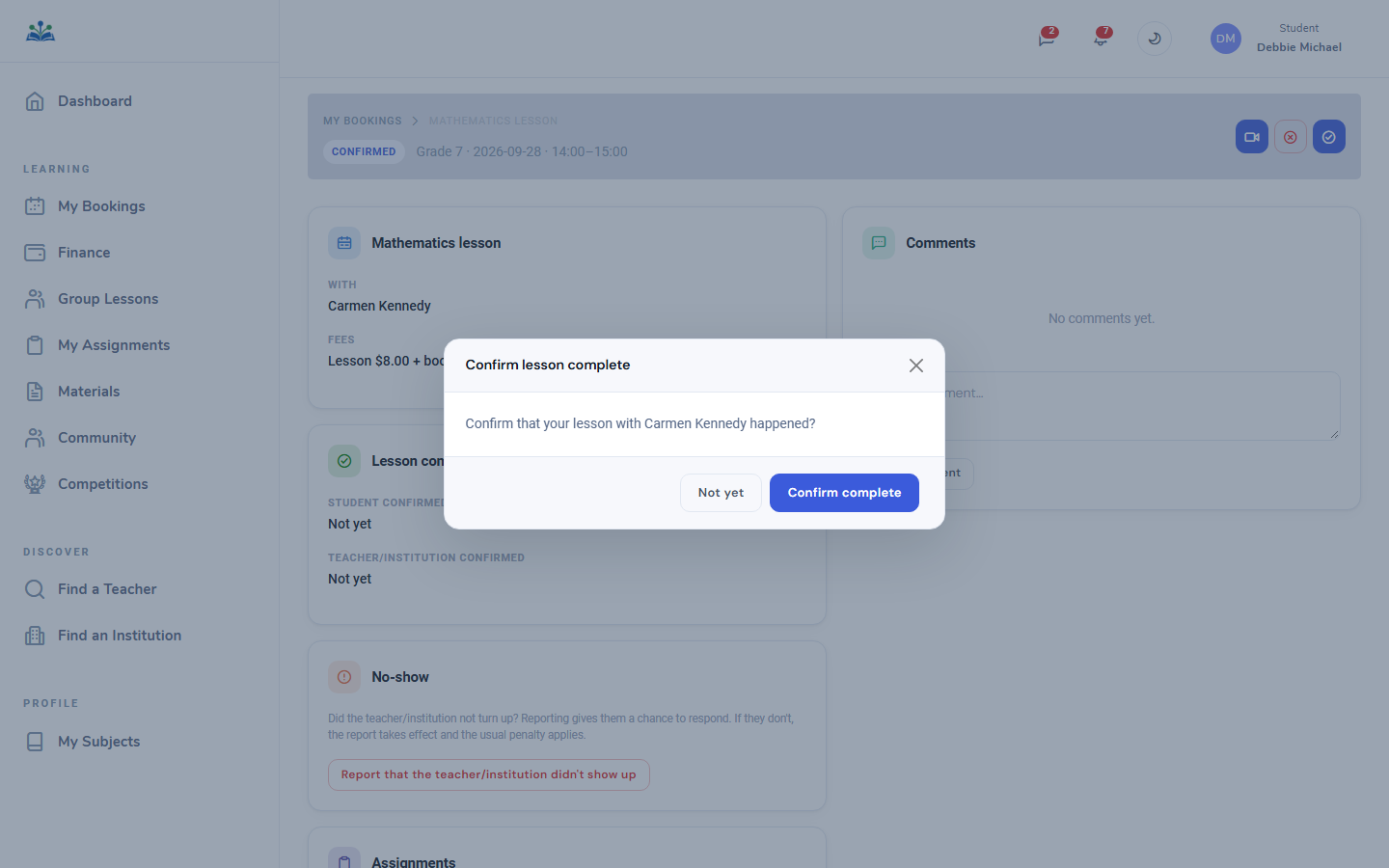
The teacher is only paid once the lesson is confirmed complete. Your confirmation is how you tell EduConnect that the lesson really happened, and it protects you: until it is confirmed, your money is held.
Administrators choose one rule for the whole platform:
Rule
When the teacher is paid
What you see
Both student and teacher must confirm (default)
When you and the teacher have both confirmed.
A button for your side.
Only the student confirms
When you confirm.
A button for your side.
Only the teacher confirms
When the teacher confirms.
No button: nothing to do.
Warning
Only confirm a lesson that really happened. If it did not, do not confirm: report the no-show instead (see Cancelling and no-shows).
If you forget, the teacher can ask an administrator to release the payout after a waiting period (48 hours after the lesson by default). So it is better to confirm promptly, and use Comments if there is anything an administrator should know.
Cancelling a booking that has not been confirmed by the teacher is always free. Everything below applies to confirmed lessons. Percentages are shares of the lesson fee.
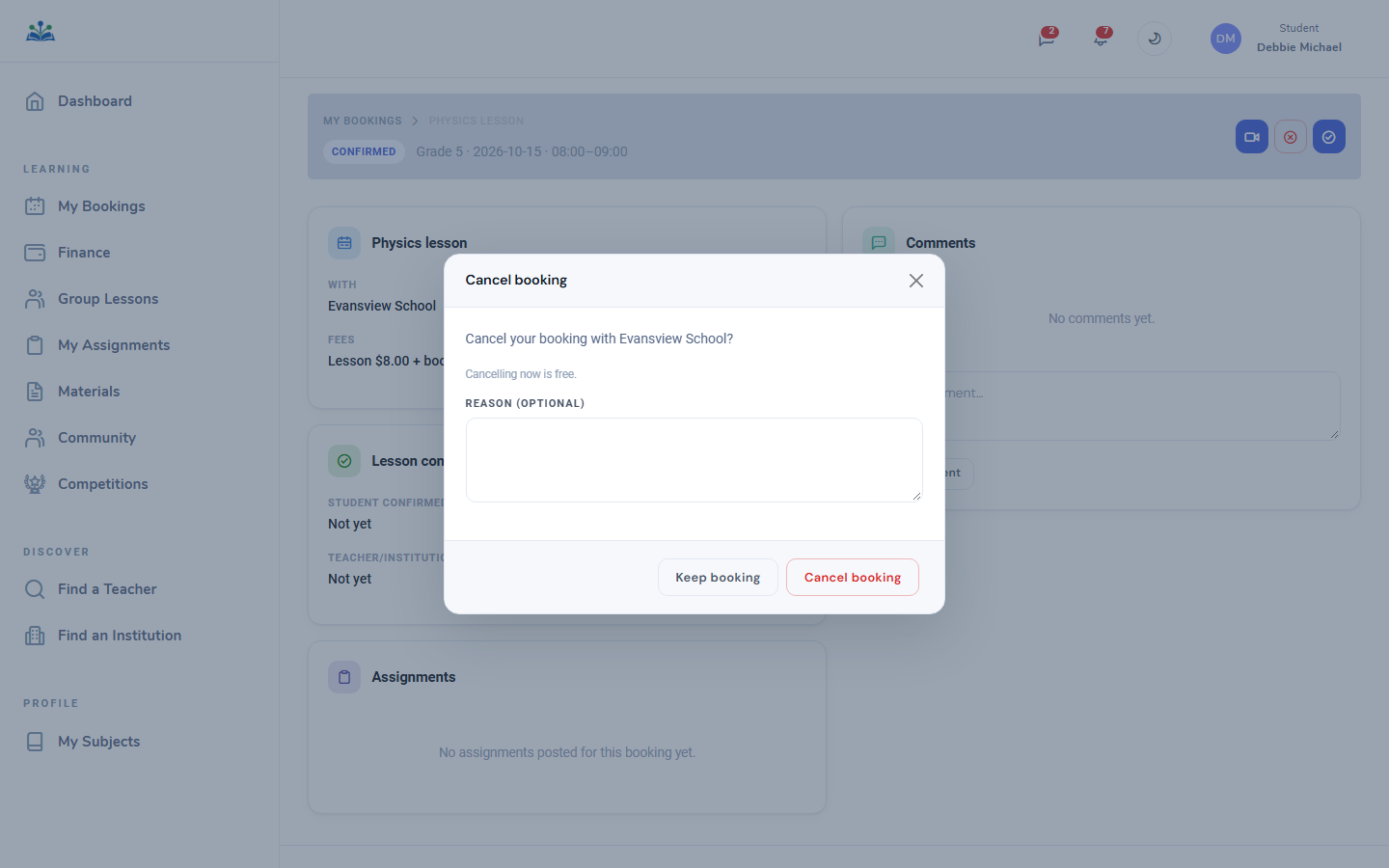
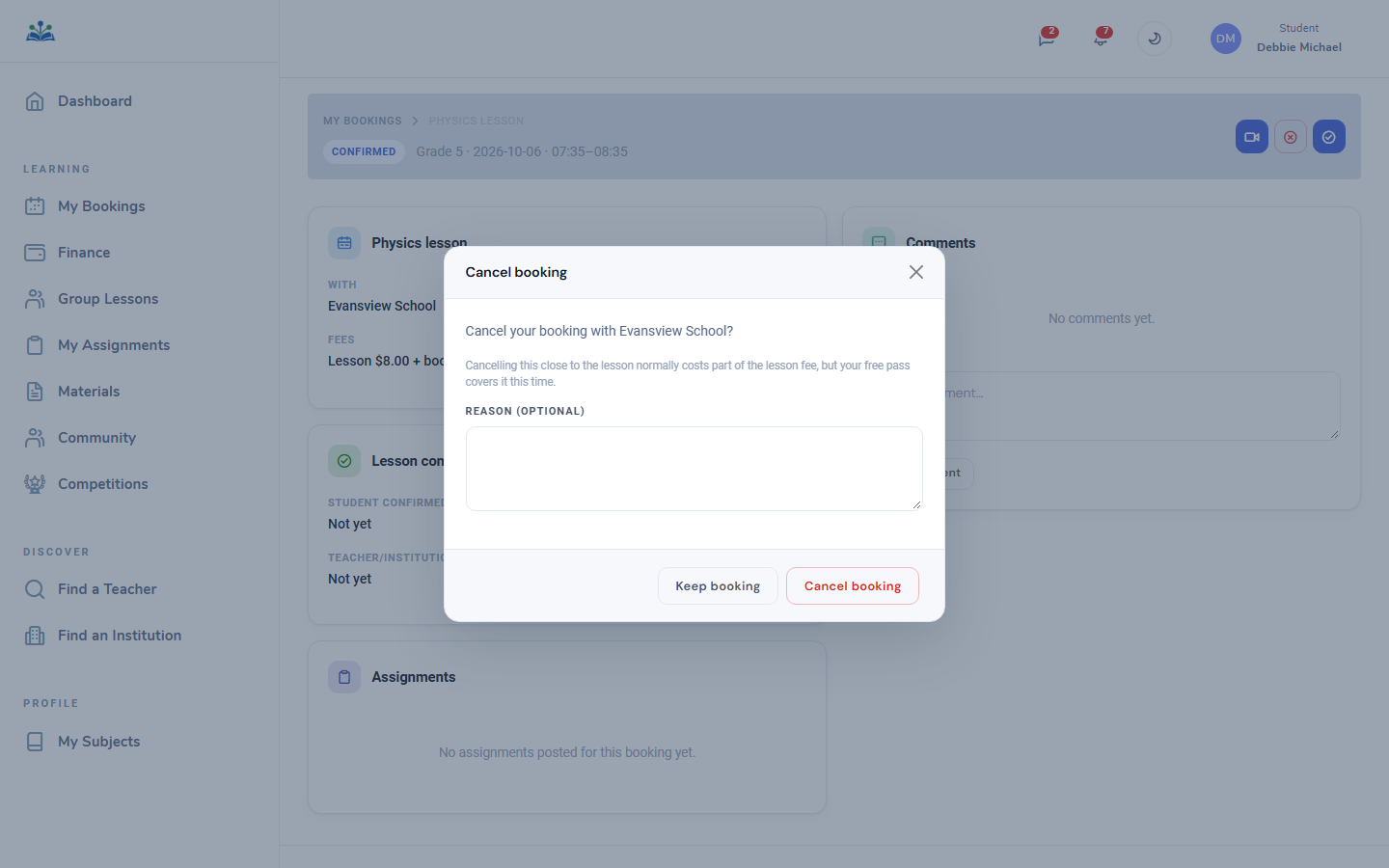
Press the Cancel button on the booking. The window tells you exactly what it will cost before you decide.
The notice says…
It means
"Cancelling now is free."
You are early enough. Nothing is lost.
"Cancelling this close to the lesson normally costs part of the lesson fee, but your free pass covers it this time."
You are late, but you still have a free pass. Nothing is lost.
"Cancelling this close to the lesson forfeits $2.00 (25% of the lesson fee) and the $3.00 booking fee isn't refunded. $6.00 goes back to your wallet."
You are late and have no free pass.
"You haven't paid yet, so nothing is charged, but cancelling this close to the lesson counts as a strike."
Not paid yet, so no money moves, but it is still a strike.
Cancelling a booking more than 24 hours ahead is free
A late cancellation covered by your free pass
A late cancellation: 25% of the lesson fee is forfeited
A last-minute cancellation: 50% of the lesson fee is forfeited
When you are the one who cancels or misses a lesson
You forfeit part of the lesson fee depending on how close to the start you cancel. The forfeited amount goes to the teacher (less commission). The rest of what you paid goes back to your wallet. The booking fee is always kept, except when a free pass is used.
Setting
Default
Meaning
Free cancellation window
24 hours
Cancel more than this long before the start: free.
Assumptions: lesson fee $20.00, booking fee $1.00, you paid $21.00, commission 10%, you have no free pass left, the lesson is already paid.
What you do
You forfeit
Your wallet gets
The teacher is credited (after 10% commission)
The platform keeps
Check
Cancel 30 hours before
$0.00
$21.00
$0.00
$0.00
$21.00
Cancel 12 hours before (late, 25%)
$5.00
$15.00
$4.50
$1.50
15.00 + 4.50 + 1.50 = $21.00
Cancel 1.5 hours before (last-minute, 50%)
$10.00
$10.00
$9.00
$2.00
10.00 + 9.00 + 2.00 = $21.00
No-show (100%)
$20.00
$0.00
$18.00
$3.00
0.00 + 18.00 + 3.00 = $21.00
How the last-minute line is worked out: forfeit = 50% × $20.00 = $10.00. Wallet refund = what you paid − booking fee − forfeit = $21.00 − $1.00 − $10.00 = $10.00.
The screenshots above use a different lesson: $8.00 lesson fee + $3.00 booking fee = $11.00 paid. A late cancellation forfeits 25% × $8.00 = $2.00, and your wallet gets $11.00 − $3.00 − $2.00 = $6.00. A last-minute one forfeits 50% × $8.00 = $4.00, and your wallet gets $4.00.
Note
The money in your wallet stays on EduConnect for you to spend on future lessons. You can also withdraw it: see Wallet and finance.
Your first late cancellation or no-show is let off entirely: the whole $21.00, including the booking fee, goes back to your wallet, the teacher gets nothing and it does not count as a strike. You are told you used your pass.
You had not paid yet
No money moves, so nothing is forfeited, but a late cancellation or no-show still counts as a strike.
If a teacher cancels a confirmed lesson or does not turn up, you are protected:
You are refunded everything you paid, to your wallet.
You also receive a small compensation (10% of the lesson fee by default) as wallet credit that can only be spent on lessons, not withdrawn.
It counts as a strike against the teacher.
Example. Lesson fee $20.00, booking fee $1.00, compensation 10%. You are refunded $21.00 and receive $2.00 of compensation credit.
The teacher's own charge is capped (most $20.00 by default), so on a very expensive lesson your compensation is smaller than 10%: for a $300.00 lesson with a $1.00 booking fee and a $20.00 cap you receive $19.00 instead of $30.00.
Wait until 15 minutes after the lesson's start time (the platform's grace period). Reports are not accepted earlier.
Open the booking and find No-show.
Press Report that the teacher/institution didn't show up.
The teacher then has 24 hours to respond:
What happens
Result
The teacher does not respond
After 24 hours the report is upheld automatically: the teacher is penalised, you are refunded and compensated.
The teacher contests it
An administrator decides. They uphold (you are refunded and compensated) or waive (no penalty either way).
The report shows its state on the booking: pending, contested, upheld or waived.
Warning
Only report a no-show if the teacher really did not come. If the teacher contests, an administrator looks at the booking's Comments and decides, so write down there what happened.
If a teacher reports that you did not show up, you will see it on the booking with a box asking "Why is the report wrong?" Answer within the 24 hours and explain: otherwise the report takes effect, you forfeit the lesson fee and it counts as a strike (unless a free pass covers you).
A strike is recorded when you cancel late, cancel at the last minute, or do not show up, unless a free pass covered it. Enough strikes in a short time restrict you.
Setting
Default
Meaning
Strikes before a restriction
3
Failures counted within the window. 0 turns this off.
Strike window
30 days
How far back strikes are counted.
Restriction length
7 days
How long it lasts after your latest strike.
While you are restricted, you must have enough money in your wallet to cover the whole booking before you can book.
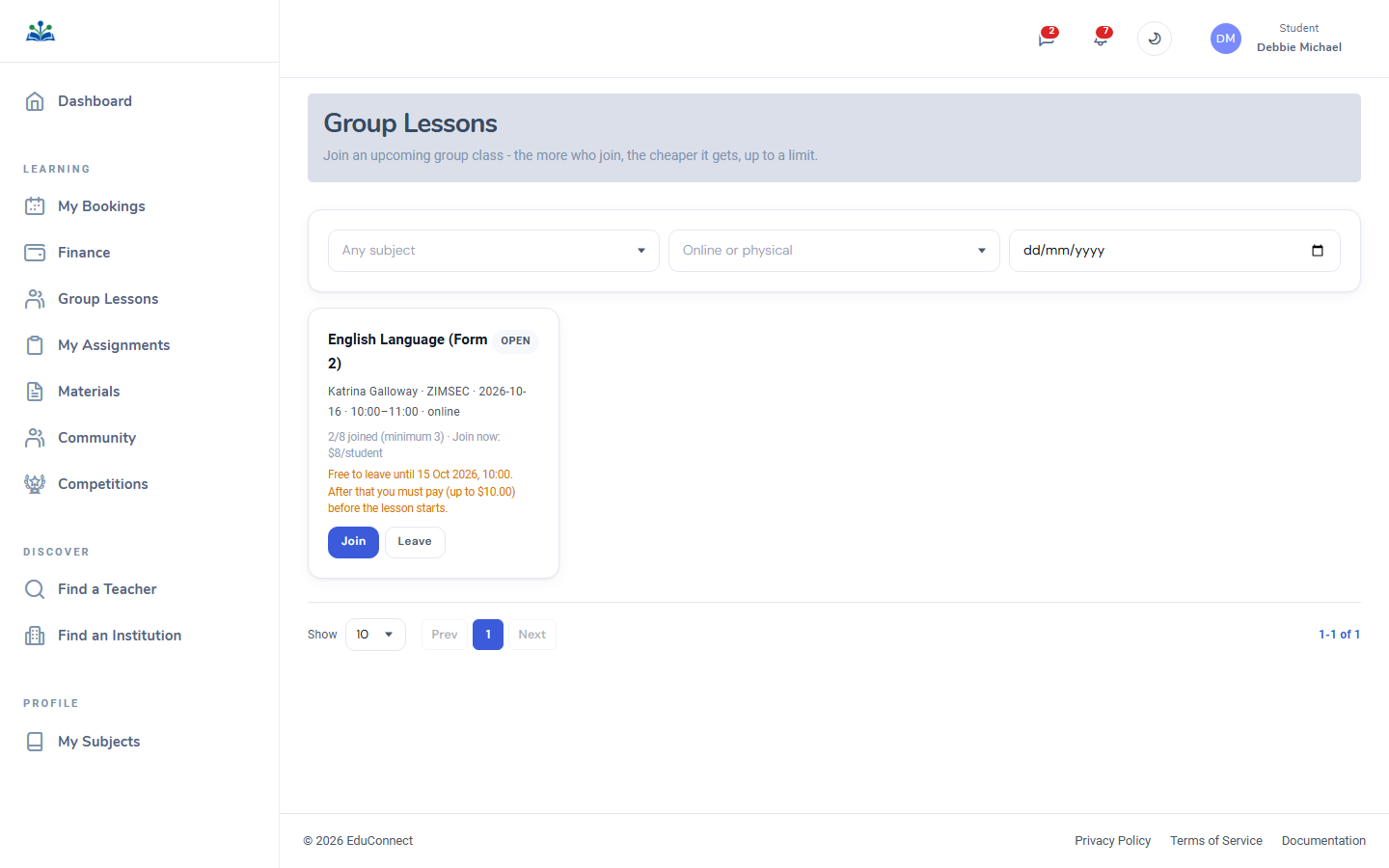
In a group lesson several students share one lesson, so each pays less than a one-to-one lesson. A teacher schedules it, students join, and at a cutoff time the platform decides whether it goes ahead.
Assumptions: lesson Saturday 10:00; cutoff 24 hours (so the decision is on Friday 10:00); minimum 3; maximum 8; the platform runs a lesson with at least 2 students.
Students joined
When decided
Result for you
8
The moment the 8th joins
Confirmed at once.
5
Friday 10:00
Confirmed. Priced for 5 students.
3
Friday 10:00
Confirmed. Minimum reached.
2
Friday 10:00
Confirmed, even though below 3, because 2 is the lowest the platform allows.
1
Friday 10:00
Cancelled. Nobody is charged.
0
Friday 10:00
Cancelled (no students).
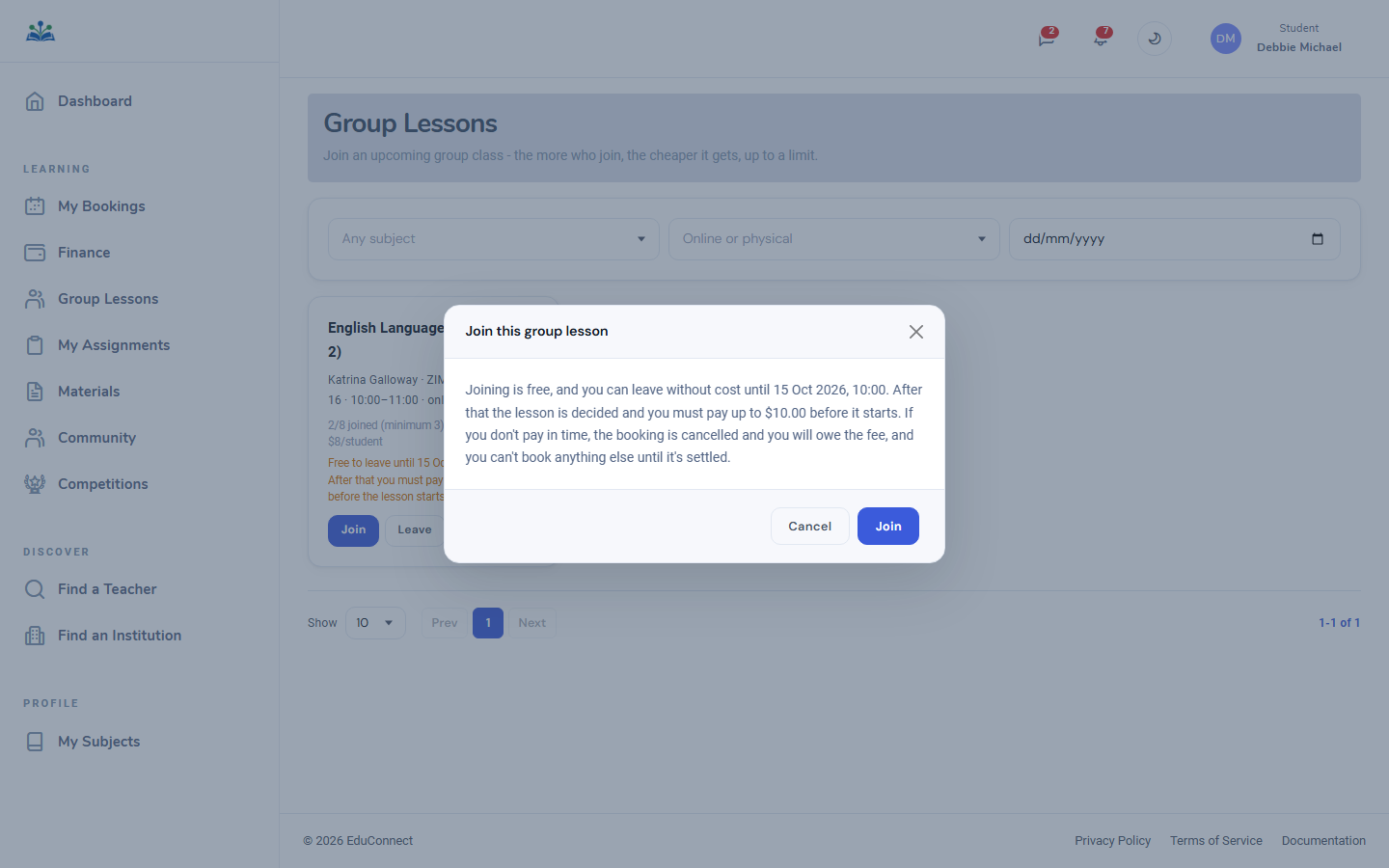
When the lesson is confirmed, you get an ordinary confirmed booking at the final price, and you must pay by the pay-by time like any other lesson: see Paying for a lesson. After that, leaving is a normal cancellation with the normal penalties.
Warning
If you join and do not pay in time, the booking is cancelled, you owe the fee, and you cannot book anything else until it is settled. Join only lessons you will attend. You get a reminder before the cutoff, while leaving is still free.
Assumptions: rate $12.00 per hour, lesson 2 hours, so the one-to-one price is $24.00. Minimum 3, maximum 8, discount rate 0.100 (10% per extra student), price floor 0.500 (never below $12.00). Booking fee $1.00.
Students
Extra beyond 3
Discount
Price per student
You pay (+ $1.00 booking fee)
2
0
0%
$24.00
$25.00
3
0
0%
$24.00
$25.00
4
1
10%
$21.60
$22.60
5
2
20%
$19.20
$20.20
6
3
30%
$16.80
$17.80
7
4
40%
$14.40
$15.40
8
5
50%
$12.00
$13.00
The booking fee is the same for everyone and is not discounted. In this example a full class of 8 pays almost half of what a single student pays.
For a physical group lesson the venue fee is discounted the same way. A physical group lesson is always at a venue: there is no home-visit option for a group.
Assumptions: 2-hour lesson at $12.00 per hour, 5 students, minimum 3, discount 0.100, floor 0.500, venue fee $5.00 per hour (one-to-one venue price $10.00), booking fee $1.00.
In New booking (see Booking a lesson), choose Group - you invite others to join, pick a time and a teacher who is free. You become the leader and the first student; the lesson then appears under Group Lessons for other students at your level and board to join.
Your teacher can set homework linked to one of your lessons.
My Assignments
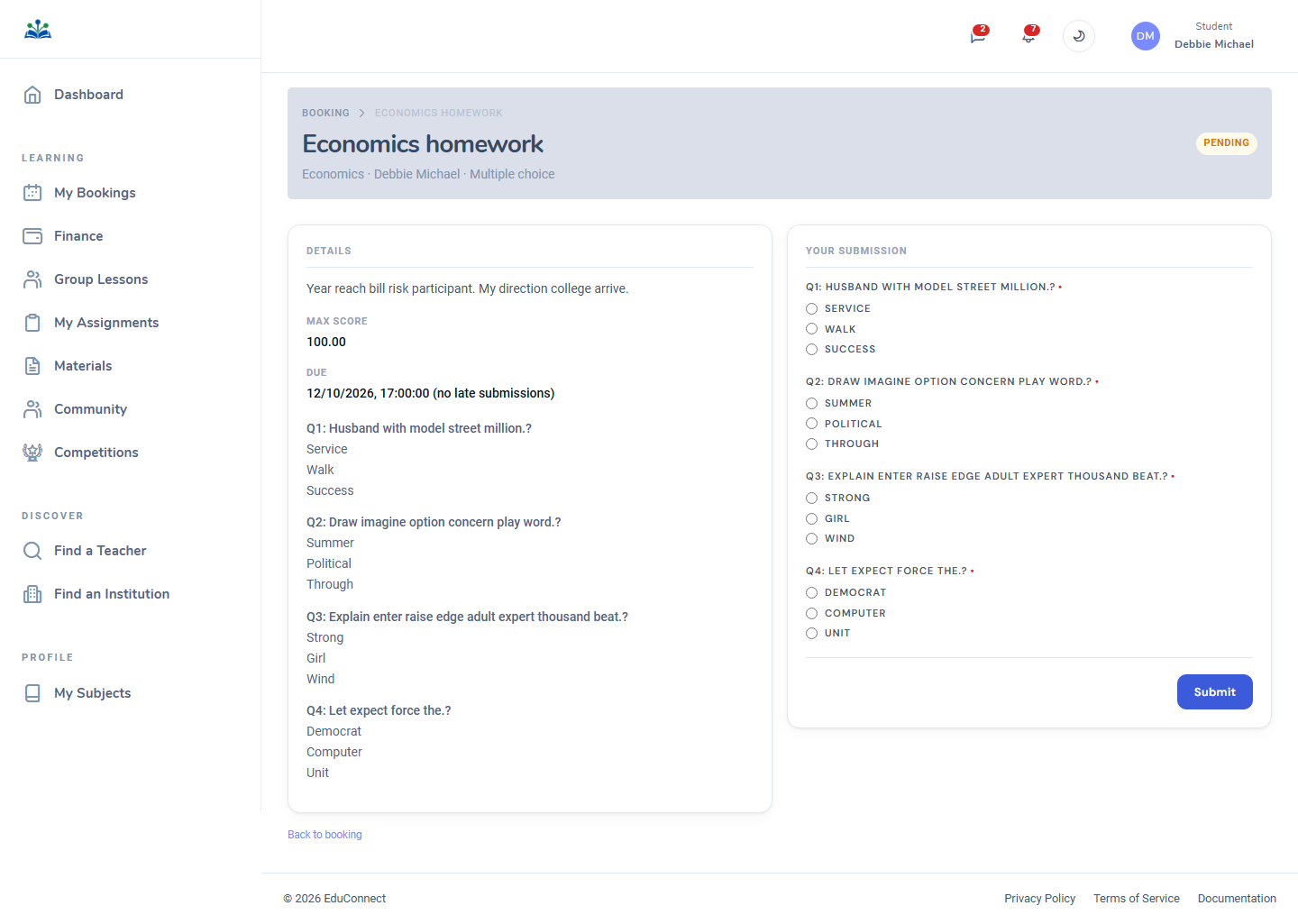
LEARNING → My Assignments lists them. Each row shows the subject, the type (Multiple choice, Essay or File upload), the due date and a status such as PENDING (not handed in yet) or APPROVED. Homework also appears on the booking it belongs to, and under Needs your attention on your dashboard when it is due soon.
Read the instructions, the maximum score and the due date.
Answer under Your submission: choose an option for each question (multiple choice), type your answers (essay), or choose a file to upload (file upload).
Press Submit.
An assignment waiting for your answers
Type
How it is marked
Multiple choice
Automatically: you see your score straight away.
Essay and File upload
By your teacher, who writes feedback with your score.
The page says when it is due, and whether late submissions are accepted.
If the deadline has passed and late work is not accepted, the page says "The submission window for this assignment has closed." You cannot hand it in. Ask your teacher.
If late work is accepted, a hand-in after the deadline shows a Late tag.
Warning
Once you have submitted, check carefully: a submission that has been graded is locked and cannot be changed.
You also get a notification when your teacher posts homework and when it is graded.