EEduConnect Zimbabwe User manual
Log in

The mobile app

Everything in this manual, on your phone: where each screen lives and what is different.

Show as list

Using the app: the basics

The EduConnect app does the same jobs as the website, arranged for a phone. You log in with the same account and see the same bookings, wallet and messages.

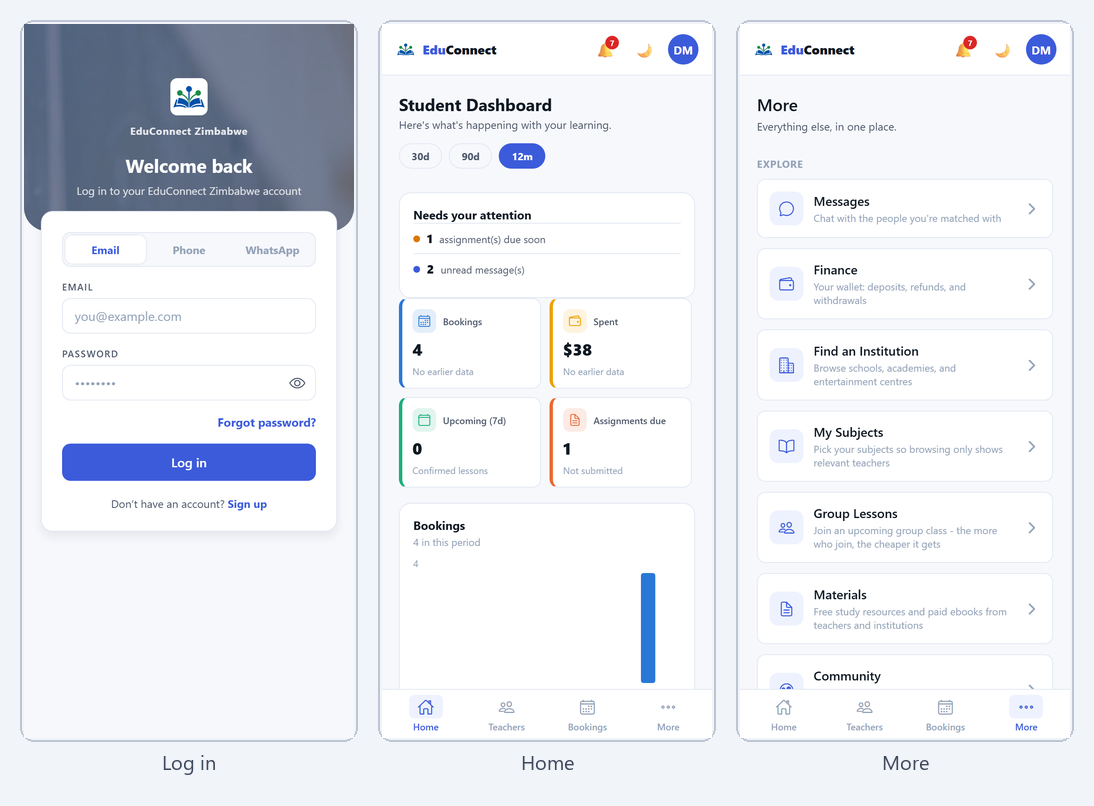
Log in, the Student Dashboard, and the More menu

Log in, the Student Dashboard, and the More menu

The bottom tabs

Tab What it is
Home Your Student Dashboard: Needs your attention, Bookings, Spent, Upcoming (7d), Assignments due and charts. Use 30d, 90d or 12m to change the period.
Teachers Find a teacher, with search, a Only show my subjects switch and filters.
Bookings My Bookings, with the New booking button.
More Everything else.

The top bar shows the bell (with unread notifications), a moon for dark mode, and your initials.

The More menu

In the app On the website Chapter
Messages The speech-bubble icon Messages
Finance LEARNING → Finance Wallet
Find an Institution DISCOVER → Find an Institution Institutions
My Subjects PROFILE → My Subjects My Subjects
Group Lessons LEARNING → Group Lessons Group lessons
Materials LEARNING → Materials Materials
Community, Competitions LEARNING → Community, Competitions Community
My Assignments LEARNING → My Assignments Assignments
Your name (under ACCOUNT) Your profile Your profile

Note

The app keeps the screens you opened in memory. To go back, use the bottom tabs or the back arrow; tap More again to return to the menu.

What is different on a phone

Website App
Video lessons Opens the lesson room in the browser Opens the call on your phone
Notifications In the bell In the bell, and as phone notifications when you allow them
Sign up Yes Yes (Sign up under Log in)

Tip

The mobile screenshots in this manual are shown side by side so you can follow a whole task at a glance. Each phone screen has a caption underneath.

Finding a teacher and booking on your phone

Find and book

Find a teacher, a teacher's page, and the booking form

Find a teacher, a teacher's page, and the booking form
  1. Tap Teachers at the bottom. Search by name or bio, and use the filters (Any Province, Any District, Any Level, Any Subject). The switch Only show my subjects (…) limits the list to your subjects.
  2. Tap a teacher to open their page: about, subjects with prices, availability, qualifications and reviews.
  3. Tap Book this teacher, fill in the form and confirm. Or use Message to ask a question first.

To book by time instead, go to Bookings and tap New booking. It asks for the subject, lesson type, mode, date and time, then lists the teachers who are free. See Booking a lesson.

My bookings, paying and confirming

My bookings, a lesson to pay for, and a lesson to confirm

My bookings, a lesson to pay for, and a lesson to confirm
  1. Tap Bookings. Each card shows the teacher, subject, level, date and time, the fees and a status. It has icon buttons: the wallet (Pay now), the red cross (Cancel), the tick (Confirm complete) and the eye (View details).
  2. On a confirmed lesson that is not paid, the card shows "Pay $10.00 by 20/10/2026, 16:00, or the booking is cancelled and you'll owe it." Tap Pay now.
  3. Open a lesson with View details to see Lesson completion, Assignments, Comments and, for a lesson that has taken place, the No-show box with Report a no-show.

For an online confirmed lesson, the video button on the booking page (Join call) starts the call.
Everything in Paying for a lesson, Confirming your lesson and Cancelling and no-shows works exactly the same way in the app, including the cost shown before you cancel.

Wallet, group lessons, homework and more on your phone

Wallet and group lessons

Finance and Group Lessons

Finance and Group Lessons
  • Finance: your Wallet balance, Deposit money, Withdraw and your history. See Wallet.
  • Group Lessons: filter by subject, online or physical, and date; tap Join or Leave. See Group lessons.

Warning

Check the destination carefully before you tap Request withdrawal, the same as on the website.

Subjects, homework and messages

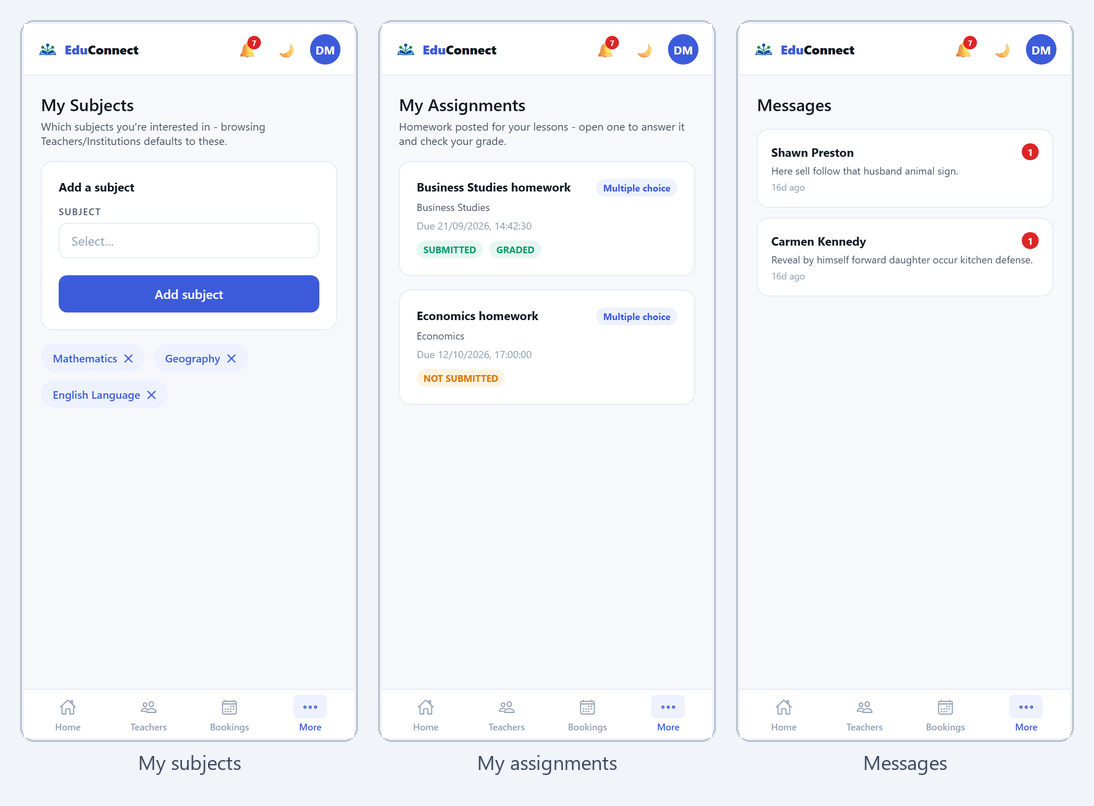
My Subjects, My Assignments and Messages

My Subjects, My Assignments and Messages
  • My Subjects: add or remove subjects. See My Subjects.
  • My Assignments: open homework to answer it and check your grade. See Assignments.
  • Messages: your conversations. See Messages.

Institutions, materials, community and competitions

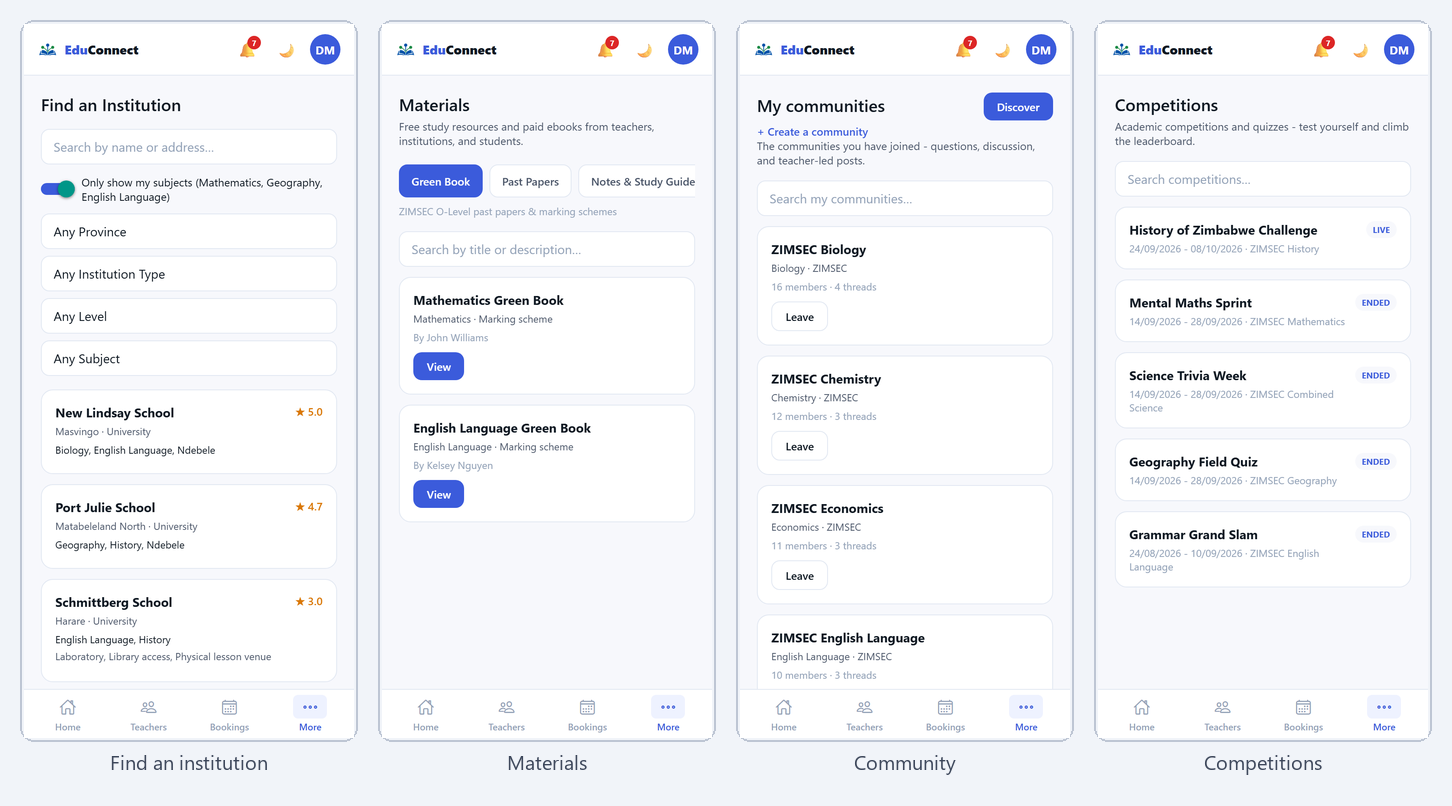
Find an Institution, Materials, Community and Competitions

Find an Institution, Materials, Community and Competitions
  • Find an Institution: search schools and academies. See Institutions.
  • Materials: browse the categories and tap View. See Materials.
  • Community: join and leave communities; Discover shows more; Create a community starts one. See Community.
  • Competitions: tap one to see its quizzes. See Competitions.

Your account

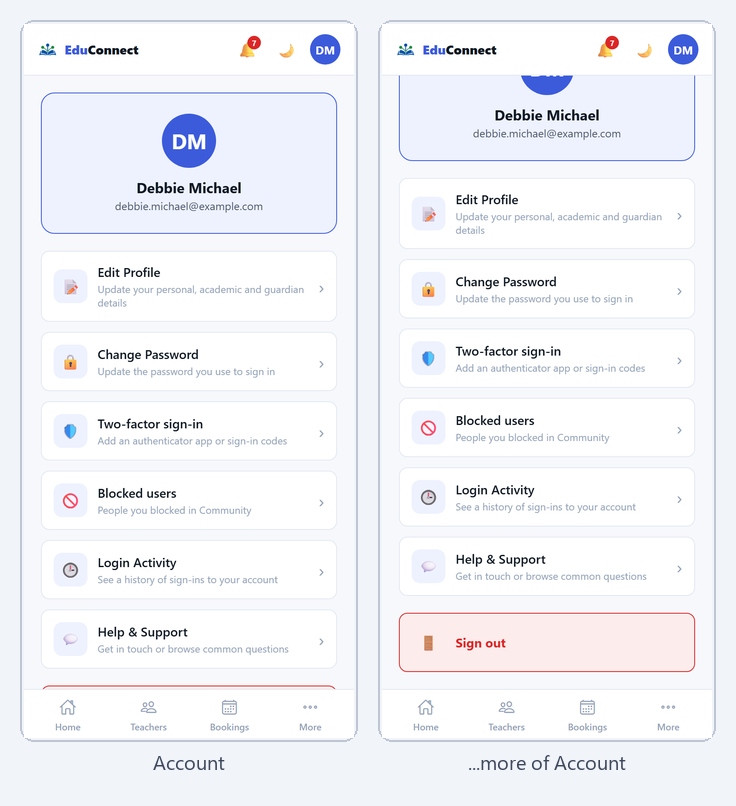
Your account: profile, password, two-step login, blocked users, login activity, help and sign out

Your account: profile, password, two-step login, blocked users, login activity, help and sign out

Under ACCOUNT in More, tap your name. The account screen shows your name, email and these items:

Item What it does
Edit Profile Your personal, academic and guardian details. See Your profile.
Change Password See Password and security.
Two-factor sign-in Add an authenticator app or sign-in codes.
Blocked users People you blocked in Community.
Login Activity A history of sign-ins to your account.
Help & Support Get in touch or browse common questions.
Sign out Log out of this phone.