EEduConnect Zimbabwe User manual
Log in

Money

What a lesson costs, how your wallet works and what to do if you owe money.

Show as list

What a lesson costs

Every price comes from settings that administrators control for the whole platform, so every student pays by the same rules.

The parts of what you pay

Part What it is Who receives it
Lesson fee The hourly rate for your subject, board and level × the hours. The teacher, less the platform's commission (10% by default).
Booking fee A flat fee added to each booking. The platform.
Premium video fee Only for an online lesson where you chose Premium video; the default is free. The platform.
Venue fee Only for a physical lesson at an institution's venue; priced per hour. The institution, less commission.
Facilities Optional extras at a venue, each priced per hour. The institution.

You see the lesson fee and booking fee on the booking, for example Lesson $8.00 + booking $2.00. The price of a lesson is locked in when you book.

Example 1: a simple online lesson

Assumptions: rate $10.00 per hour, 1 hour, booking fee $1.00, commission 10%.

Step What happens Amount
1. You book The lesson fee is fixed at today's rate. Lesson fee $10.00
2. You pay Lesson fee plus booking fee. $11.00
3. The lesson happens Your money is held. The teacher has not been paid yet.
4. Completion is confirmed See Confirming your lesson. The payout is released.
5. Commission is taken 10% of the lesson fee. $1.00
6. The teacher is credited Lesson fee minus commission. $9.00
Where your $11.00 went Amount
Teacher $9.00
Platform: commission $1.00
Platform: booking fee $1.00
Total $11.00

Example 2: a physical lesson at a venue

Assumptions: same as above, plus the institution charges $4.00 per hour for its venue.

Line You pay
Lesson fee $10.00
Venue fee $4.00
Booking fee $1.00
Total $15.00

A home visit has no venue fee.

Example 3: a premium video lesson

Assumptions: a 2-hour online lesson at $10.00 per hour, Premium video, premium fee $1.50 per lesson hour, booking fee $1.00.

Line Calculation You pay
Lesson fee $10.00 × 2 hours $20.00
Premium video fee $1.50 × 2 hours $3.00
Booking fee flat $1.00
Total $24.00

The premium fee is refunded with the rest of your payment if the booking is refunded.

What if the lesson does not go ahead?

Situation Your money
You cancel a pending booking Nothing was charged.
You cancel a confirmed lesson more than 24 hours ahead Everything goes back to your wallet.
You cancel late You forfeit part of the lesson fee: see Cancelling and no-shows.
The teacher cancels or does not come Everything goes back to your wallet, plus a small compensation credit.
A group lesson is cancelled at the cutoff Nobody was charged.

Your wallet: deposit, spend and withdraw

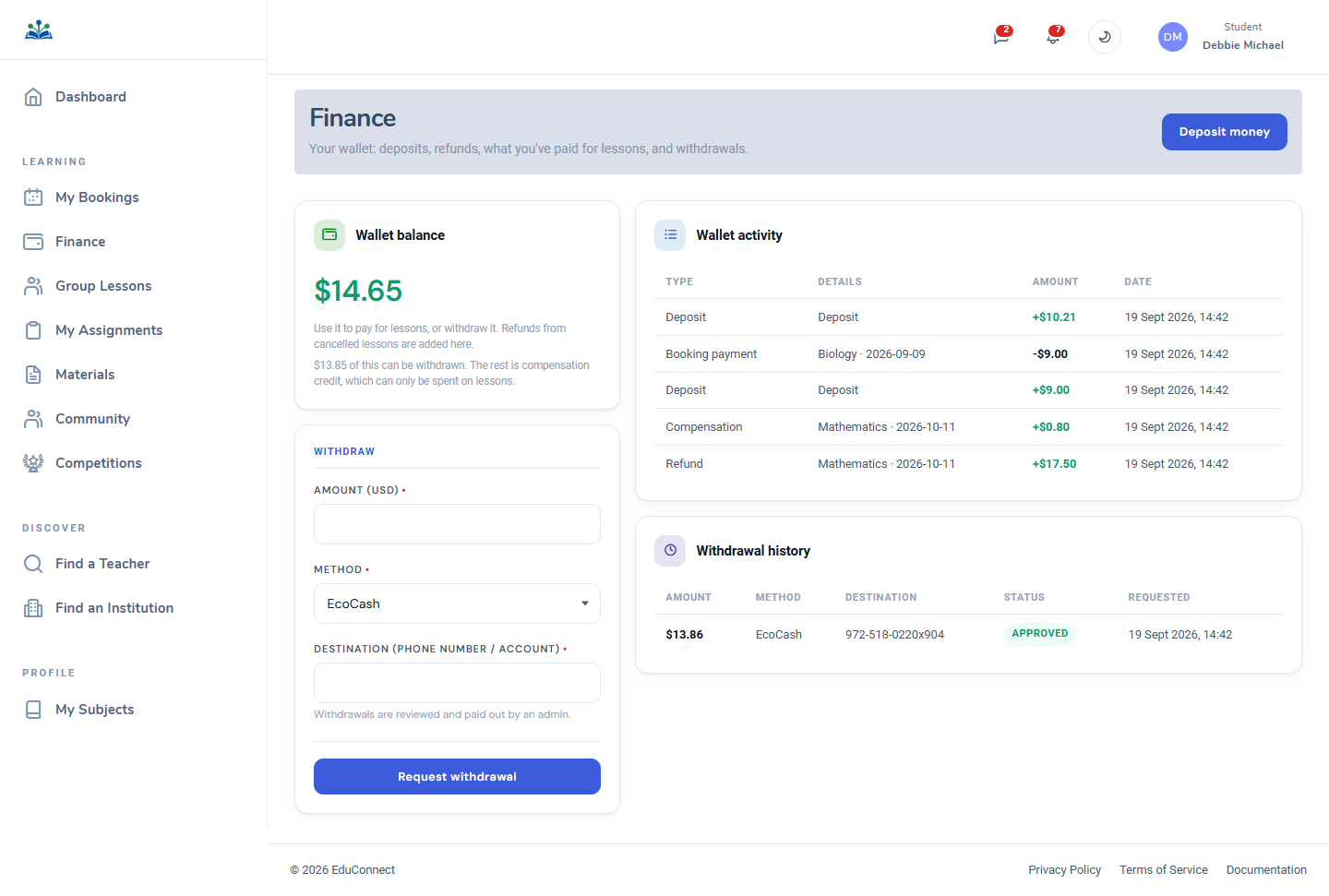
Finance: your wallet, deposits, withdrawals and history

Finance: your wallet, deposits, withdrawals and history

Open LEARNING → Finance (in the app, More → Finance). Your wallet is money you hold on EduConnect. You can spend it on lessons, and refunds and compensation are paid into it.

Your balance

The box at the top shows your Wallet balance, for example $14.65, with a line such as:

$13.85 of this can be withdrawn. The rest is compensation credit, which can only be spent on lessons.

Part of your balance Can you spend it on lessons? Can you withdraw it?
Deposits and refunds Yes Yes
Compensation credit (from a lesson your teacher failed) Yes No

Your balance is worked out like this:

Wallet balance = deposits + refunds + compensation − what you spent on lessons − withdrawals you have requested (not rejected).

Example

Assumptions: you deposited $19.21, a cancelled lesson gave you a $17.50 refund and $0.80 of compensation, and you spent $9.00 on a lesson. You have asked to withdraw $13.86.

Line Amount
Deposits + $19.21
Refund + $17.50
Compensation + $0.80
Lesson payment − $9.00
Withdrawal requested − $13.86
Wallet balance $14.65
Of which compensation credit (not withdrawable) $0.80
Can be withdrawn $13.85

Deposit money

  1. Press Deposit money.
  2. Enter the amount in US dollars.
  3. Choose a payment method: EcoCash, OneMoney, ZIPIT or Visa/Mastercard.
  4. For mobile money, enter your phone number: you will get a prompt to approve the payment.
  5. Press Deposit.

Deposit money

Deposit money

Your wallet updates automatically once the payment is confirmed ("Your wallet updates automatically once the payment is confirmed").

Withdraw

  1. In Withdraw, enter the amount (in US dollars).
  2. Choose the method: EcoCash, OneMoney, ZIPIT or Bank transfer / other.
  3. Enter the destination: the phone number or account the money must go to.
  4. Press Request withdrawal.

Warning

Check the destination carefully. An administrator pays exactly what you typed, and a payment to a wrong number usually cannot be recovered.

You cannot withdraw more than the withdrawable amount. The amount you request is taken off your wallet immediately, so it cannot be requested twice.

Status in your history Meaning
REQUESTED Waiting for an administrator.
APPROVED Accepted, waiting to be paid.
PAID The administrator has sent the money.
REJECTED Not paid. The amount returns to your wallet.

EduConnect does not send the money automatically: an administrator pays you by hand and then marks it paid, so allow time.

Wallet activity

Wallet activity lists everything that moved your wallet: Deposit, Booking payment, Refund and Compensation, with the lesson it was for and the date. Withdrawal history lists your withdrawal requests.

Tip

Keep a little in your wallet: you can pay a lesson in one tap, you avoid the pay-by deadline rush, and refunds come back to a place you can use at once.

If you owe money

If you do not pay for a confirmed lesson before its pay-by time, the booking is cancelled and you owe what a no-show would have cost, unless a free pass covers you. While you owe money you cannot book or join anything new.

Finance showing an amount owed: pay from your wallet or ask for a waiver

Finance showing an amount owed: pay from your wallet or ask for a waiver

What you owe

You owe the lesson fee share set for a no-show (100% by default) plus the booking fee. For example, with a lesson fee of $8.00 and a booking fee of $1.00 you owe $9.00, as in the screenshot.

Settle it

  1. Open Finance. The red box says You owe $9.00, with the lesson, the amount and the status OWED.
  2. Make sure your wallet has enough. If not, the box tells you how much more to deposit: "you have $… available, so deposit at least $… more first". Use Deposit money.
  3. Press Pay $9.00 from wallet.

Once it is paid, you can book again.

Note

Only the money you can withdraw counts. Compensation credit is for lessons only, so it cannot be used to settle a debt.

Ask for a waiver

If something serious stopped you (for example an emergency or a payment that failed through no fault of yours), press Ask for a waiver before the deadline shown beside it ("Ask by 8 Oct 2026, 17:21").

  1. Press Ask for a waiver.
  2. Explain what happened.
  3. Send it.

An administrator decides. The status changes to Waiver requested, and then Waived (you owe nothing) or back to Owed with a note from the administrator. After the deadline passes the button is replaced by "Waiver window closed".

Status Meaning
OWED You still owe it.
WAIVER REQUESTED An administrator is deciding.
PAID You paid it from your wallet.
WAIVED An administrator cancelled the debt.

Tip

You can avoid this completely: pay as soon as the teacher confirms, or set a reminder for the pay-by time. You also get a reminder a few hours before it.